
The Customers Management module in Cash Flow Inventory is a robust tool within the Sales Module, designed to streamline customer management, track financial transactions, and facilitate sales processes.
This documentation provides an in-depth guide to the module’s interface, features, and functionalities, ensuring users can manage customer data efficiently and optimize their business operations.

1. Introduction to the Customers Module
The Customers Module serves as a centralized hub for managing all customer-related activities within Cash Flow Inventory. It empowers businesses to:
- Maintain detailed customer profiles, including contact details and financial information.
- Monitor both payable and receivable balances for accurate financial tracking.
- Automate sales planning based on customer demand and historical data.
- Import and export customer data seamlessly with AI-powered assistance.
- Navigate related records such as orders, invoices, and payments with ease.
Accessible via Dashboard > Sales > Customers, this module integrates with other system components to deliver a holistic sales management experience, enhancing operational efficiency.
2. Accessing the Customers Module
To access the Customers Module:
- Log in to your Cash Flow Inventory account.
- From the Dashboard, locate the Sidebar Navigation on the left side of the screen.
- Click the Sales module, represented by a shopping bag icon.
- Select Customers from the expanded sub-menu, which will be highlighted (e.g., in blue or teal) when active.
Note: The module’s placement under the Sales section reflects an updated navigational structure, aligning it more closely with sales-related workflows for improved usability.
3. Interface Overview
The Customers Module interface is organized into three primary sections for intuitive navigation and functionality:
- Header Bar: Displays branding, user actions, and notifications.
- Sidebar Navigation: Provides access to various modules and sub-modules.
- Main Content Area: Houses customer data, filters, and interactive elements.
3.1 Header Bar
- Branding: Features the “CF” logo and instance name (e.g., “Demo Name”) in white text on a dark blue background.
- Action Button: A “+ New” button (white with blue text) allows users to create new customers or related records.
- User Elements:
- Webinars: A question mark icon links to help resources or training materials.
- Notifications: A bell icon with a badge (e.g., “0” unread notifications) alerts users to important updates.
- User Profile: An icon displaying user initials (e.g., “MA”) provides access to account settings.
3.2 Sidebar Navigation
The sidebar, located on the left, includes:
- Dashboard: Home icon for returning to the main dashboard.
- Inventory: Box icon for inventory management.
- Production: Factory icon for production workflows.
- Transfer: Truck icon for stock transfers.
- Purchase: Cart icon for procurement tasks.
- Sales: Shopping bag icon (highlighted, e.g., in orange, when active), containing sub-modules:
- Customers: Highlighted (e.g., in teal or blue) when active.
- Orders: Manages sales order history.
- Packs: Handles packing lists.
- Ship & Delivery: Tracks shipping and delivery statuses.
- Invoices: Manages customer invoices.
- Pays Received: Tracks payments received from customers.
- Returns: Oversees return transactions.
3.3 Main Content Area
- Title: Displays “CUSTOMERS” in bold, uppercase, dark gray text.
- Filtering Tabs:
- ALL (active by default): Shows all customers.
- PAYABLE: Lists customers to whom the business owes money (e.g., due to overpayments).
- RECEIVABLE: Lists customers who owe the business money.
- DUE INVOICES: Highlights overdue invoices.
- TOP CUSTOMERS: Identifies customers with high sales volume or frequent buyers.
- Action Buttons:
- IMPORT: A gray button for importing customer data.
- EXPORT: A gray button for exporting customer lists.
- Search Bar: A dropdown labeled “Customer ID” with a “TYPE…” placeholder, paired with a “Filter” button for quick searches.
- Add New: A blue button to create a new customer record.

4. Customer Data Table
The customer data table is the core component of the main view, presenting customer information in a sortable, interactive format.
4.1 Table Columns
| Column | Description | Example Data |
|---|---|---|
| Checkbox | Select rows for bulk actions | – |
| CUSTOMER ID | Unique customer identifier (sortable) | ActiveLifestylesCorp |
| BILLING NAME | Customer’s billing name | Active Lifestyles Corp |
| BALANCE_TYPE | Indicates Payable or Receivable | Payable |
| BALANCE | Current balance amount | 7000.00 |
| D_LOCATION | Default location | Primary |
| ENTRY_DATE | Date the customer was added | 2025-07-20 |
| Action | Trash bin icon for deletion | – |
4.2 Features
- Sorting: Click column headers (e.g., CUSTOMER ID) with arrow icons to sort data in ascending or descending order.
- Bulk Actions: Checkboxes enable selection of multiple rows for actions like deletion or export.
- Deletion: A trash bin icon allows deletion of individual customers, disabled if linked to transactions (e.g., orders or invoices).
4.3 Sample Customers
- ThomasKoh (Thomas Koh, Payable, 6100.00, Primary, 2025-07-20)
- ActiveLifestylesCorp (Active Lifestyles Corp, Payable, 7000.00, Primary, 2025-07-20)
- VibrantLifeEnterprises (Vibrant Life Enterprises, Receivable, 7000.00, Primary, 2025-07-20)
- EternalWellnessPteLtd (Eternal Wellness Pte Ltd, Payable, 0.00, Primary, 2025-07-20)
- WilliamTan (William Tan, Receivable, 7000.00, Primary, 2025-07-20)
- ELLAWong (Ella Wong, Payable, 0.00, Primary, 2025-07-20)
- MatthewTeo (Matthew Teo, Receivable, 5300.00, Primary, 2025-07-20)
- SophiaLau (Sophia Lau, Payable, 0.00, Primary, 2025-07-20)
Note: A footnote in the table, “Primarytiva 2025/07/20 shows 8 active windows,” may indicate active customer records or a system status, though its exact meaning requires further clarification.
5. Customer Profile
Clicking a Customer ID (e.g., “ActiveLifestylesCorp”) opens the Customer Profile, providing a detailed view of customer data and related activities.
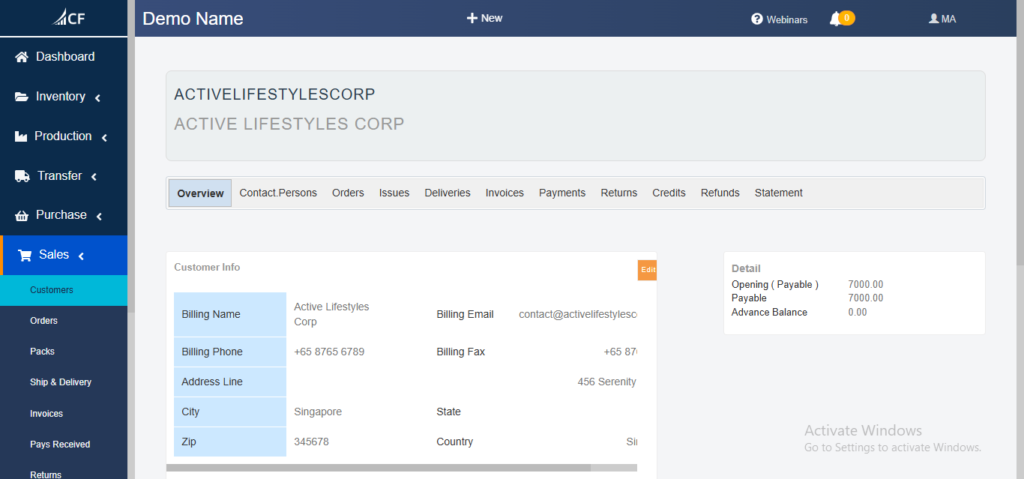
5.1 Profile Header
- Customer Code: Bold, uppercase text (e.g., “ACTIVELIFESTYLESCORP”).
- Billing Name: Secondary text (e.g., “Active Lifestyles Corp”).
- Actions:
- + New: Creates related records, such as sales orders.
- Edit: An orange “Edit” button to modify customer details.
5.2 Navigation Tabs
The profile includes tabs for accessing related data:
- Overview: Default tab displaying general customer info and financials.
- Contact Persons: Lists customer contacts.
- Orders: Tracks sales order history.
- Items: Displays products purchased by the customer (from first description).
- Issues: Records issued stock (potential feature overlap with suppliers).
- Delivery: Monitors delivery records.
- Invoices: Manages customer invoices.
- Payments: Tracks payment history.
- Returns: Handles return transactions.
- Credits: Manages credit memos.
- Refunds: Tracks refund records.
- Statement: Provides a financial statement.
5.3 Overview Tab
- Customer Info Panel:
- Billing Name: Editable field (e.g., “Active Lifestyles Corp”).
- Phone: e.g., “+65 87656789”.
- Email: Clickable link (e.g., “contact@activelifestyles.com”).
- Fax: e.g., “+65 87”.
- Address: e.g., “456 Serenity, Singapore, 345678, Singapore”.
- Financial Summary:
- Detail: An orange clickable link for detailed financial breakdowns.
- Opening Balance: Reflects initial balance (e.g., “Opening (Payable): 7000.00” or “Opening (Receivable): 0.00”).
- Current Balance: Current amount (e.g., “Payable Balance: 7000.00” or “Receivable Balance: 6100.00”).
- Advance Balance: e.g., “0.00” (tracks prepayments or credits).
Note: The Financial Summary adapts to the customer’s balance type:
- Payable: Indicates amounts the business owes the customer (e.g., due to overpayments or refunds).
- Receivable: Indicates amounts the customer owes the business (e.g., outstanding invoices). The clickable email enhances communication efficiency.
6. Managing Customers
6.1 Adding a New Customer
- From the main view, click the “ADD NEW” button.
- Enter required fields:
- Customer ID: e.g., “NewCustomer”.
- Billing Name: e.g., “New Customer Co.”.
- Add optional fields:
- Payment Terms, Opening Balance, Default Location.
- Click “Save” to create the customer record.
6.2 Editing a Customer
- Navigate to Dashboard > Sales > Customers.
- Click a Customer ID (e.g., “ActiveLifestylesCorp”).
- Click the “Edit” button in the profile header.
- Update fields (e.g., phone, email, address) and click “Save”.
6.3 Deleting a Customer
- In the customer data table, click the trash bin icon next to the customer.
- Confirm the deletion.
- Restriction: Customers with linked records (e.g., orders, invoices) cannot be deleted; instead, mark them as inactive.
7. Bulk Operations
7.1 Bulk Actions
- Select multiple customers using the checkboxes in the data table.
- Available options:
- Mark as Active/Inactive: Toggle customer status.
- Delete: Remove selected customers (only if no linked transactions exist).
7.2 Import/Export
- Import:
- Click the “IMPORT” button to launch the import wizard.
- Upload a CSV or Excel file and map fields to customer data.
- Submit to import the data.
- Export:
- Click the “EXPORT” button to download the current table view or selected customers as a file.
8. AI-Powered Import
The AI-powered import feature streamlines data entry:
- Click “IMPORT” in the main view.
- A pop-up appears featuring:
- A robot icon and “AI-Powered Import” title.
- A “Go to Import” button (blue with an arrow).
- Upload a file, and the AI will map and validate the data automatically.
Benefit: This feature minimizes manual effort and reduces errors when importing large customer lists.
9. Payable and Receivable Management
- Filtering Tabs:
- RECEIVABLE: Displays customers with outstanding balances owed to the business.
- PAYABLE: Shows customers the business owes money to (e.g., overpayments or refunds).
- DUE INVOICES: Highlights customers with overdue payments.
- Functionality:
- View and manage outstanding balances.
- Track and prioritize overdue payments or receivables.
- Usage Example: Use the DUE INVOICES tab to identify and follow up on late payments.
10. Automated Sales Planning
The module facilitates demand-based sales automation:
- Navigate to the “TOP CUSTOMERS” tab.
- Review customers ranked by sales volume or frequency.
- Click to generate a sales order, edit details, and confirm.
Underlying Logic:
- Reorder Point: Calculated using historical sales data and lead times to determine when to reorder.
- Safety Stock: Ensures product availability for top customers by maintaining buffer stock.
Note: Unlike the Suppliers Module’s “TO_ORDER” tab, the Customers Module uses “TOP CUSTOMERS” to focus on high-value clients for sales planning.
11. Search and Filtering
- Search Bar: Enter a Customer ID or keywords in the “TYPE…” field.
- Filters: Apply filters using the “Filter” button or predefined tabs (e.g., PAYABLE, RECEIVABLE).
- Real-Time Updates: Search results refresh instantly as you type or filter.
- Example: Type “Active” to locate “Active Lifestyles Corp” quickly.
12. Integration and Additional Features
- ERP Sync: Seamlessly connects with accounting systems for unified data management.
- Notifications: Alerts for overdue invoices or high-priority customers appear via the bell icon in the header.
- Permissions: Role-based access ensures data visibility is restricted to authorized users.
13. Best Practices
- Consistent Naming: Use standardized Customer IDs (e.g., “ACTIVELIFESTYLESCORP”) for easy identification.
- Data Maintenance: Regularly archive inactive customers to keep the database clean.
- Leverage Automation: Utilize the TOP CUSTOMERS tab and notifications to streamline sales and follow-ups.
- System Integration: Sync with external accounting tools to maintain accurate financial records.
14. Potential Improvements
- Enhanced Financial Summary: Include additional metrics in the Overview tab, such as total orders, payments, or average order value.
- AI Import Tutorial: Provide a guided walkthrough for the AI-powered import feature to assist new users.
- Clarify Ambiguities: Address unclear notes (e.g., “Primarytiva 2025/07/20 shows 8 active windows”) with clear explanations or remove them if obsolete.
15. Conclusion
The Customers Module in Cash Flow Inventory is a powerful, user-friendly tool that simplifies customer relationship management, financial tracking, and sales automation. Its intuitive interface, AI-powered import capabilities, and comprehensive data views enable businesses to optimize cash flow, enhance customer interactions, and drive operational efficiency. Whether managing detailed profiles, tracking balances, or automating sales, this module equips users with the tools needed to succeed in a competitive market.
Found this helpful? Share it:
The Customers Management module in Cash Flow Inventory is a robust tool within the Sales Module, designed to streamline customer management, track…
The Customers Management module in Cash Flow Inventory is a robust tool within the Sales Module, designed to streamline customer management, track…
The Customers Management module in Cash Flow Inventory is a robust tool within the Sales Module, designed to streamline customer management, track…