
Cash Flow Inventory’s Products & Items Management module is engineered to provide an industry-leading catalog and stock administration experience. It seamlessly balances enterprise-grade capabilities—such as batch/serial control, multi-unit support, and AI-powered imports—with intuitive workflows.
This module empowers businesses, whether retail, wholesale, manufacturing, e-commerce, or hybrid, to efficiently manage thousands of SKUs.

Key Benefits
- Scalable: Supports up to 500,000 items and 100 locations, accommodating businesses of all sizes.
- Configurable: Feature toggles allow customization to match SKU complexity, ensuring flexibility.
- Integrated: Native connectors link to major sales channels, ERPs, and shipping partners for seamless operations.
- Actionable: Real-time insights through dedicated tabs (To Order, Stockouts, Deadstocks) enable proactive inventory management.
1. Product Page Layout
The Products section, accessible via the main navigation under Inventory, serves as the central hub for product and inventory management. It features eight distinct tabs, each designed for a specific purpose:
| Tab | Purpose |
|---|---|
| Categories | Define and organize hierarchical product categories |
| Items | Manage core product records |
| Variants | Edit and bulk-manage variant SKUs |
| To Order | Actionable reorder list based on safety stock and ROP |
| Stockouts | Identify variants with zero stock across all locations |
| Deadstocks | Monitor aging variants with no sales in a configurable period |
| Import | Bulk upload data via a wizard with AI auto-mapping |
| Export | Extract data with auto-split and archive features |
Common Features Across Tabs
- Search & Filters: Multi-criteria search with saved views for quick data retrieval.
- Action Bar: Includes shortcuts like “Add new,” bulk actions, and export options.
Insights
- Navigation: The left sidebar highlights Inventory > Products, with sub-options like Adjustments, Transactions, and Transfer visible.
- Tabs: All eight tabs are displayed horizontally be
- low the “PRODUCTS” title, with “Items” and “Categories” active in different screenshots .
- Header: Features the “CF” logo, account name (“Demo Name”), and action buttons like “+ New”.
2. Global Settings & Configuration
Accessible via Settings →Business, this section allows users to activate or customize features to tailor the module to their business needs:
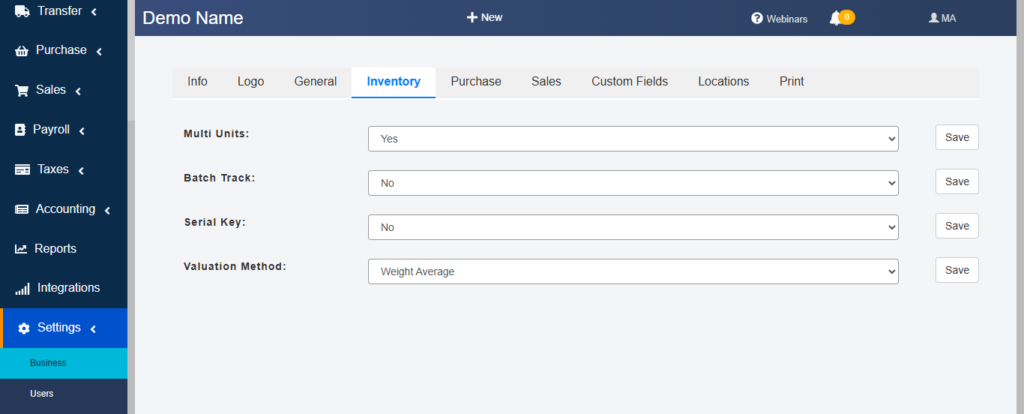
| Setting | Description | Default |
|---|---|---|
| Enable Variants | Activates multi-attribute variant matrix | OFF |
| Enable Multiple Units | Supports secondary units and automatic conversions | OFF |
| Enable Measurements | Adds fields for weight, dimensions (L×W×H), and volume | OFF |
| Enable Batch Tracking | Enables batch/lot selection on stock receipt and opening balance | OFF |
| Enable Serial Tracking | Requires unique serial input for each unit | OFF |
| Enable Stock Intelligence | Displays ROP and Safety Stock per location | OFF |
| Enable Tiered Pricing | Activates Tier 1 & Tier 2 wholesale pricing panels | OFF |
| Enable Tax Classes | Adds purchase and sales tax class dropdowns | ON |
| Business Type | Physical, E-Commerce, or Hybrid (controls media field visibility) | Hybrid |
Insights
- Variants: The “Variants” column in the Items tab and Variants count in Categories indicate this feature is enabled.
- Stock Intelligence: “Reorder Qty” in the Items tab suggests this is active.
- Tiered Pricing: “Wholesale Min Qty” and “Wholesale Price” columns imply this is enabled.
- Multiple Units: Only “Each” is shown in the Units column, suggesting this is disabled.
3. Tab Details & Actions
Each tab provides specialized tools for inventory management, with detailed functionalities as follows:
1. Categories
- Purpose: Manage hierarchical catalog structures.
- Columns: Serial Number (SN), Category, Image, Variants, Stock, Purchase Value, Retail Value, Wholesale Value, Wholesale Value2.
- Actions: Inline edit, delete, activate/inactivate via a dropdown menu (three dots).
- Bulk Actions: Activate, deactivate, or delete selected categories.
- Insights:
- Categories like “Home Decor” (Variants: 4, Stock: 1040) and “Jeans” (Variants: 2, Stock: 420) are listed.
- Filter options include “Category” and “Type” dropdowns, with an “Add new” button.
2. Items
- Purpose: Comprehensive view of all product records.
- Columns: Action, Image, Item Title, SKU, Units, Stock Qty, Reorder Qty, Purchase Price, Stock Value, Sales Price, Wholesale Min Qty, Wholesale Price; or Checkbox, Image, Name, Variants, Stock, Last Updated, Status, Actions.
- Inline Edit: Edit price, tax, discount, or status directly in the table.
- Bulk Actions: Activate, deactivate, delete, or export selected items.
3. Variants
- Purpose: Fine-grained control over product variants.
- Columns: Parent SKU, Attributes, Variant SKU, Location Stocks, Prices, Status.
- Inline Edit: Modify price, discount, or tax class.
- Bulk Actions: Activate, deactivate, delete, or export selected variants.
4. To Order
- Purpose: Proactive reorder list based on safety stock and ROP.
- Filters: Customize by location or supplier lead time.
- Columns: Variant, Location, Current Stock, ROP, Suggested Order Qty.
- Actions: Create purchase orders for single or multiple items.
5. Stockouts
- Purpose: Immediate visibility into out-of-stock products.
- Columns: Variant, Location, Last Restock Date.
- Actions: Quickly create purchase orders to replenish stock.
6. Deadstocks
- Purpose: Manage slow-moving or obsolete inventory.
- Columns: Variant, Location, Last Sale Date, Days Idle.
- Actions: Archive items or apply discount campaigns.
7. Import
- Purpose: Streamline data entry with a five-step wizard enhanced by AI.
- Steps:
- Upload and preview data file.
- AI auto-maps columns.
- Adjust and validate mappings.
- Correct errors inline.
- Execute bulk import.
- Supported Formats: XLSX, CSV, TXT, PDF.
- Insights: An “AI-Powered Import” popup with a “Go to import” button appears across screenshots.
8. Export
- Purpose: Extract product data for analysis or backup.
- Features:
- Export all or filtered datasets.
- Auto-splits datasets exceeding 5,000 rows, packaged in a ZIP file.
4. Add/Edit Item Workflow
Adding or editing items is a two-step process designed for efficiency and detail:
Step 1: Core Details & Media
- Fields:
- Item Name & SKU: Text inputs; SKU can be auto-generated.
- Brand: Dropdown or free-text entry.
- Category: Multi-select tree picker for hierarchical placement.
- Supplier: Autocomplete with supplier ID display.
- Flags: Checkboxes for Raw Material, Backorder, Non-Purchasable.
- Measurements: Numeric inputs with unit dropdowns (weight, L×W×H, volume).
- Descriptions: WYSIWYG editors for short/long descriptions (visibility based on Business Type).
- Tags: Tokenized input with suggestions.
- Media: Drag-and-drop uploads or URL fetch (E-Commerce only).
- Attachments: Multiple file uploads with previews.
- Feature Toggles: Enable Variants, Multiple Units, Batch Tracking, Serial Tracking, Stock Intelligence to expand the form.
Step 2: Pricing, Stock & Variant Details
- Sections:
- Variant Matrix: Manage attributes and generate combinations with a filterable preview.
- Units of Measure: Define secondary units, conversion rates, and price differencing.
- Purchase Pricing: Set cost price, tax class, and tax percentage.
- Sales Pricing: Configure base price, up to two tiers of wholesale pricing, discount, and sales tax classes.
- Per-Variant Overrides: Upload images, set stock per location, assign batch/serial numbers, define ROP and Safety Stock.
- Remarks: Free-text notes with a character counter.
- Actions: Save & Continue, Save & Close, Discard Changes.
Insights
- The “Add new” button in the Items and Categories tabs initiates this workflow.
- The “Image” column aligns with media uploads, though currently empty.
5. In-Context Item Creation
- Access: Available from Purchase Orders, Sales Orders, or Stock Adjustments.
- Modal: Combines Steps 1 and 2 into a streamlined form.
- Lean Mode: Hides non-essential fields for rapid entry.
- Variants: Add variants individually if enabled.
6. Bulk Operations & AI Import
Bulk Import
- Limits: Up to 5,000 rows per file; larger files auto-split.
- AI Mapping: Supports XLSX, CSV, TXT, PDF, JSON; learns from repeated imports for accuracy.
- Error Handling: Inline correction panel and exportable error list.
- Insights: The “AI-Powered Import” popup promotes this feature, linking to the Import tab.
Bulk Export
- Features: Export all or selected data, auto-split for large datasets (>5,000 rows), packaged in ZIP files.
- Automation: Schedule exports via API for regular backups.
7. Conditional Logic & Feature Toggles
The module adapts dynamically based on:
- Global Settings: Toggles show/hide relevant fields (e.g., Batch Tracking OFF hides batch fields).
- Business Type: Physical hides media fields; Hybrid/E-Commerce shows them.
- Item-Level Toggles: Enabling features during creation expands the form (e.g., Variants adds matrix).
Examples
- Measurements OFF: No dimension fields in tables.
- Batch Tracking OFF: No batch fields visible.
- Stock Intelligence ON: Reorder Qty column appears.
8. Best Practices & Performance Tips
- Modular Enablement: Activate only necessary features to maintain performance (e.g., Batch Tracking).
- Template Savings: Save AI import mappings for consistent supplier data (prompted by “AI-Powered Import” popup).
- Scheduled Exports: Use API for automated data backups.
- Variant Strategy: Limit to three attributes for optimal matrix performance.
- Stock Thresholds: Set realistic ROP and Safety Stock to balance inventory.
9. Advanced Scenarios
- Serialized Lot Recall: Trace serial numbers to purchase dates and supplier batches (requires Serial Tracking ON).
- Multi-Warehouse Transfers: Leverage the WMS module for inter-location stock moves.
- E-Commerce Sync Rules: Configure sync frequency and field mappings for online stores (Image column suggests e-commerce readiness).
10. FAQs & Troubleshooting
- Q: What happens if a product is imported twice?
- A: Duplicates are detected by SKU; users can update or skip the record.
- Q: How can I mass deactivate old SKUs?
- A: Select items in the Deadstocks tab and use the Archive bulk action.
- Q: Why aren’t batch fields showing?
- A: Ensure Batch Tracking is enabled in Settings → Products and item toggles.
Conclusion
The Products & Items Management module of Cash Flow Inventory delivers a robust, scalable, and intuitive solution for modern inventory needs. With features like AI-powered imports, detailed stock insights (e.g., Reorder Qty), and a customizable interface (e.g., branded logo), it supports businesses managing up to 500,000 items across 100 locations. This documentation provides a comprehensive guide to its functionalities, workflows, and best practices, ensuring users can optimize their inventory management effectively.
Found this helpful? Share it:
Cash Flow Inventory’s Products & Items Management module is engineered to provide an industry-leading catalog and stock administration experience. It seamlessly balances…
Cash Flow Inventory’s Products & Items Management module is engineered to provide an industry-leading catalog and stock administration experience. It seamlessly balances…
Cash Flow Inventory’s Products & Items Management module is engineered to provide an industry-leading catalog and stock administration experience. It seamlessly balances…