
Cash Flow Inventory is an all-in-one inventory and financial management solution designed to empower small and medium businesses (SMBs). Its Sales Process Module streamlines the entire order-to-cash workflow, offering unparalleled flexibility, real-time cost tracking, advanced payment handling, and extensive customization options.
This documentation serves as a complete guide to understanding, configuring, and maximizing the capabilities of the Sales Process Module.

2. Module Overview
The Sales Process Module is built around five core areas, each designed to address critical aspects of sales management:
- Workflow Flexibility: Supports multiple sales sequences to adapt to diverse business needs.
- Cost & Landed Cost Management: Tracks product and associated costs throughout the sales cycle.
- Advanced Payments & Prepayments: Manages deposits, partial payments, and credit balances.
- Batch/Serial Tracking & Scanning: Ensures traceability with barcode and serial number integration.
- Customization & Permissions Control: Offers granular control over layouts, fields, and user access.
These areas are fully configurable at both the global (admin) and user levels, making the module highly adaptable to varying operational requirements.
3. Workflow Flexibility
Cash Flow Inventory supports a range of interchangeable sales sequences, allowing businesses to tailor workflows to their specific processes.
3.1 Sequence Options
The module supports the following workflows, as evidenced by navigation tabs and settings:
- Order → Invoice → Payment: Create an order, generate an invoice, and record payment.
- Invoice → Payment: Start directly with an invoice, followed by payment collection.
- Order → Invoice → Delivery Order → Payment: Includes delivery as a distinct step before payment.
- Order → Delivery Order → Invoice → Payment: Prioritizes delivery before invoicing.
- One-Page Cash Sales (A4/POS-ready): A streamlined process for quick transactions.
These sequences are visible in the navigation structure (e.g., Orders, Ship & Delivery, Invoices, Payments) and configurable settings.
3.2 Configuring Workflow Steps
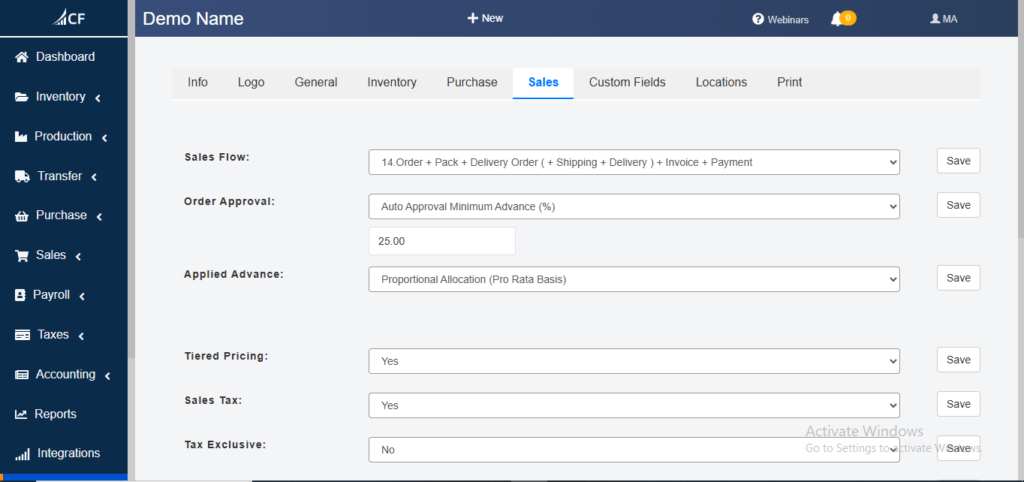
- Global Settings: Administrators configure workflows under Settings → Sales. For example, the “Sales Flow” dropdown offers options like “Order + Pack + Delivery Order (+ Shipping + Delivery) + Invoice + Payment,” allowing businesses to define detailed sequences including packing and shipping steps.
- Per-User Overrides: Role-based permissions allow or restrict users from initiating specific steps (e.g., creating orders or invoices), configurable under user role settings.
3.3 One-Page Cash Sales
- Access: Available via Sales → Orders or directly through the “+ New” button, supporting rapid order creation.
- Print Options: Orders and invoices can be printed in A4 or POS formats, as indicated by the “Print” button in order entry and fulfillment screens.
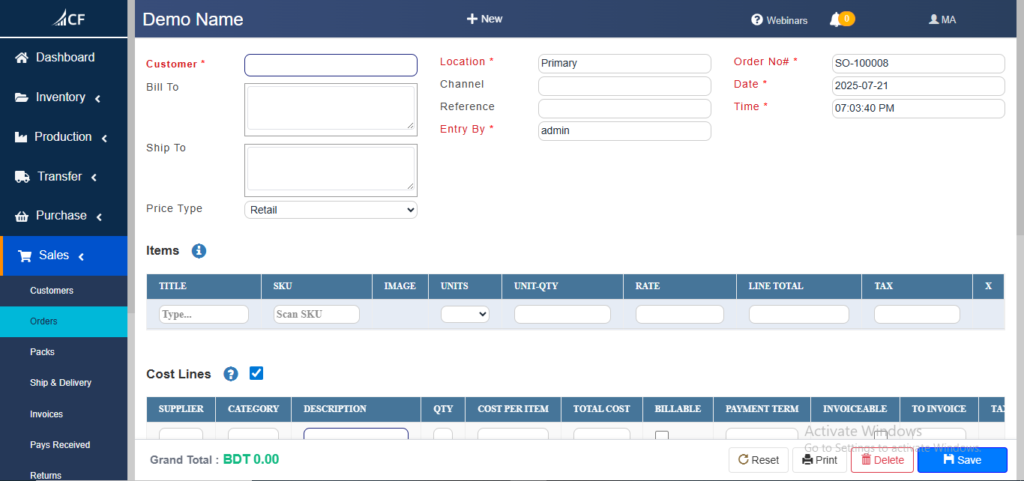
- Product Selection: Supports searching by product name or SKU, with barcode/QR code scanning via the “Scan by SKU” feature.

4. Cost & Landed Cost Management
The module provides robust tools to track and manage costs throughout the sales process, ensuring accurate profitability insights.
4.1 Product vs. Cost Lines
- Product Lines: Include unit price, quantity, taxes (e.g., GST 7%), and inline discounts, as seen in the order details table with items like “Bohemian Bluffs Eco-Candle” (BDT 35.99) and “Mandala Tray” (BDT 44.99).
- Cost Lines: Track additional costs like shipping, labor, or customs, configurable via the “Cost Lines” section in the order entry screen. This section can be enabled/disabled under admin settings, with fields for supplier, category, and total cost.
4.2 Costing Methods
- Options: Weighted Average, FIFO (First-In-First-Out), LIFO (Last-In-First-Out).
- Configuration: Select the method under Settings → Inventory Costing, ensuring cost calculations align with business accounting practices.
4.3 Automatic Bill Creation
- Process:
- Enter cost details (e.g., shipping fees) in the “Cost Lines” section of an order or invoice.
- Click “Create Bill” to generate a supplier bill automatically.
- Review and post the bill directly from the sales screen.
- Evidence: The “Cost Lines” table includes fields like “Billable” and “To Invoice,” indicating integration with billing workflows.
5. Advanced Payments & Prepayments
The module supports flexible payment scenarios, enhancing cash flow management for SMBs.
5.1 Prepayment Handling
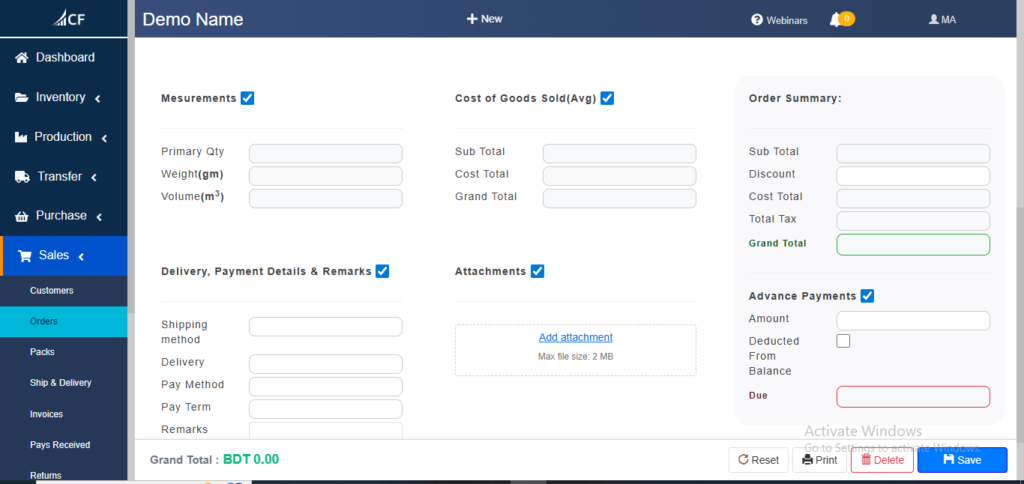
- At Order Entry: Capture deposits during order creation, as shown in the “ADV” (Advance) column in the Sales Orders table , where values are currently 0.00 but indicate prepayment tracking.
- Auto-Balance Invoicing: Upon delivery, generate invoices for the remaining balance, configurable via the “Applied Advance” setting set to “Proportional Allocation (Pro Rata Basis).”
5.2 Payment Application
- New Payments: Record payments directly on invoices via the “MAKE PAYMENT” button or orders via the “Payment Received” tab.
- Credit Balance: Apply existing customer credits to new invoices, tracked in the “Advance Balance” field (Detail section for Active Lifestyles Corp shows 0.00, but structure supports credits).
5.3 Payment Integration
- Default Accounts: Set default Cash or Bank accounts under Settings → Payment Defaults.
- Per-Transaction Overrides: Adjust payment methods during entry, as implied by the flexible payment options in the interface.
6. Batch/Serial Tracking & Scanning
Ensure product traceability with integrated batch/serial tracking and scanning capabilities.
6.1 Enabling Tracking
- Configuration: Toggle “Enable Batches” or “Enable Serials” under Settings → Product Tracking, enabling these fields across sales screens.
6.2 Entry Screens
- Display: Batch/serial fields appear in Order Entry, Invoice, and Delivery screens when enabled.
- On-the-Fly Creation: Create new batch/serial numbers during product entry, enhancing flexibility.
6.3 Barcode & QR Code Scanning
- Scanner Integration: Supports USB or mobile camera scanners, as evidenced by the “Scan by SKU” button.
- Search: Scan codes to auto-populate product details (e.g., SKU “BBI/HOME-8401” for Eco-Candle) and batch/serial fields.
7. Page Layout & Field Visibility
Customize the sales interface to match business needs with flexible layout controls.
7.1 Show/Hide Blocks
- Blocks Available: Measurements (e.g., Units), Shipping & Delivery (“DELIVERY” column), Landed Cost (“Cost Lines”), Attachments, Advanced Payments (“APPLIED ADVANCE”), Order Summary (Grand Total).
- Admin Control: Configure under Settings → Page Layout, using drag-and-drop to enable/disable blocks globally.
- User Overrides: Assign view/edit rights per block within role permissions.
7.2 Custom Fields & Attachments
- Custom Fields: Add fields like text (e.g., “D_Location”), numbers, dates, or dropdowns (e.g., “Price Type”) to any block.
- Attachments: Upload PDFs, images, or documents per transaction, implied by the modular design and “Add New” options.
8. Approval & Permission Management
Maintain oversight with detailed approval workflows and role-based permissions.
8.1 Approval Workflow
- Steps Requiring Approval: Orders (“PENDING” status), Delivery Orders ( “PICKED” status), Invoices.
- Approval Roles: Define approvers per step, with settings like “Order Approval: Auto-Approval Minimum Advance (25%)”.
- Notifications: Email alerts for pending approvals, inferred from the notification bell in the UI.
8.2 Role-Based Permissions
- Granularity: Control View, Create, Edit, Approve, Delete rights for each module/block, as seen with action buttons like “Edit” and “Delete”.
- Default Roles: Admin, Sales Manager, Sales Rep, Accountant, configurable via user settings.
- Custom Roles: Create tailored roles with specific permissions combinations.
9. Reporting & Audit Trail
Gain full visibility into sales activities with robust reporting tools.
9.1 Sales Ledger
- Features: Real-time view of orders, invoices, and payments, with filters by date, customer, and status (e.g., “PENDING” vs. “APPROVED”).
- Example: Invoices with details like “IN-100003” for Emily Tan (Total: 59.12, Due: 59.12).
9.2 Audit Trail
- Logging: Automatically tracks edits, approvals, and actions, “STATUS”, exportable to CSV/PDF via “Export” .
9.3 Prepayment Reports
- Summary: Tracks outstanding deposits and applied credits, visible in “APPLIED ADVANCE” and “Advance Balance” .
Conclusion
The Sales Management module of Cash Flow Inventory offers a powerful, flexible solution for SMBs, integrating workflow customization, cost tracking, payment management, traceability, and detailed reporting.
This documentation, provides a comprehensive guide to configuring and utilizing the module, ensuring businesses can optimize their sales processes effectively. Whether managing customer data, fulfilling orders, or tracking financials, Cash Flow Inventory delivers a user-friendly, production-ready platform tailored to modern business needs.
Found this helpful? Share it:
Cash Flow Inventory is an all-in-one inventory and financial management solution designed to empower small and medium businesses (SMBs). Its Sales Process…
Cash Flow Inventory is an all-in-one inventory and financial management solution designed to empower small and medium businesses (SMBs). Its Sales Process…
Cash Flow Inventory is an all-in-one inventory and financial management solution designed to empower small and medium businesses (SMBs). Its Sales Process…