Cash Flow Inventory delivers an end-to-end procure-to-pay solution tailored for growing businesses. From configurable purchase workflows through receipt, billing, payment, and inventory planning, every feature has been designed to maximize accuracy, flexibility, and control.
This guide walks you step-by-step through all capabilities—no feature is too small to mention.
2. Configurable Purchase Workflows
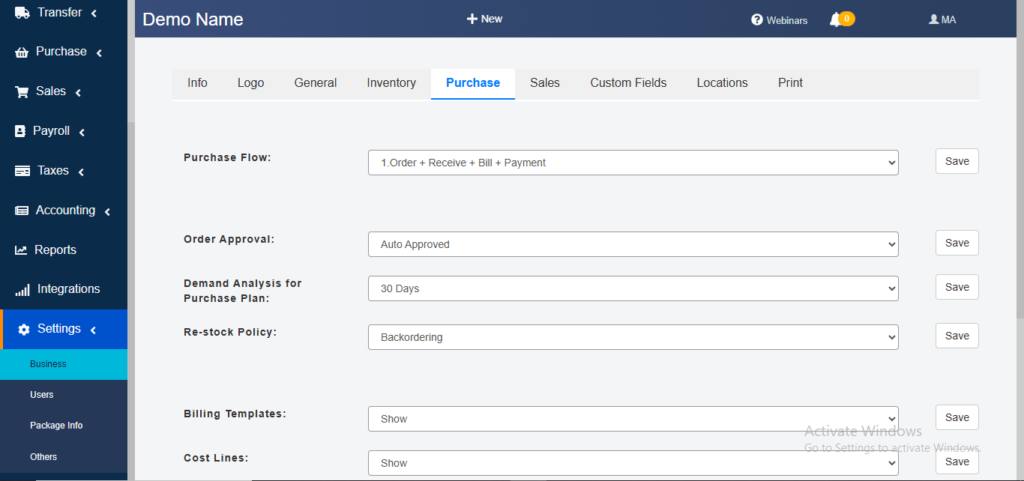
Administrators can configure purchasing workflows under Settings → Purchasing Process, selecting one of five predefined options. Non-selected steps are hidden from the interface, and switching workflows applies seamlessly to both new and existing entries without data loss.
| No. | Workflow | Use Case |
|---|---|---|
| 1 | Order → Receive → Bill → Payment | Standard procure-to-pay for stocked goods |
| 2 | Order → Bill → Payment | Services or drop-ship where receipt step is unnecessary |
| 3 | Receive → Bill → Payment | Ad hoc receipts without formal purchase orders |
| 4 | Bill → Payment | One-off expenses or legacy invoices |
| 5 | Cash Purchase | One-step receive + bill + payment via top-menu entry |
Note: The “Cash Purchase” option remains accessible via the + New → Cash Purchase menu, regardless of the selected workflow.
3. Purchase Order & Receipt Entry
3.1 Item Lines vs. Cost Lines
- Item Lines
- Inventory Items: Impact stock levels and inventory valuation upon receipt or billing. Added via the “ITEMS” section on the PO entry screen.
- Non-Inventory Items: Bypass stock and post directly to expense accounts, configurable within the same section.
- Cost Lines
- Capture landed-cost components (e.g., freight, insurance, duties, labor) at the “Receive” or “Bill” stage.
- Can be routed to designated suppliers or tax authorities as separate bills if enabled, with supplier selection available in the “COST LINES” section.
The Purchase Order entry screen includes distinct sections:
- “ITEMS” table with columns for TITLE, SKU, UNITS, UNIT-QTY, RATE, DISC, TAX, and L.TOTAL, allowing entry of inventory and non-inventory items.
- “COST LINES” table with columns like SUPPLIER, CATEGORY, DESC, QTY, COST PER ITEM, TOTAL COST, PAYMENT TERM, and TAX, supporting landed-cost capture.

3.2 Batch & Serial Tracking
Enable this feature under Settings → Inventory → Lot & Serial. Once activated, users can input batch or serial numbers on any Order, Receive, Bill, or Cash Purchase screen, ensuring traceability, expiry control, and regulatory compliance. While not directly visible in the screenshots, this is implied through the detailed item management capabilities in the PO entry screen.
3.3 Multi-Unit Handling
Define distinct units for purchasing, stocking, and sales (e.g., 1 pallet = 10 boxes, 1 box = 50 pieces). Conversion ratios ensure accurate quantity translation across processes. The “UNITS” column in the “ITEMS” table supports this functionality.
3.4 In-Page Product Creation
If an item doesn’t exist, users can create it on the fly within the transaction screen. Define SKU, description, units, cost, and default accounts instantly. The empty “ITEMS” table row suggests this capability, allowing new item addition without leaving the PO entry form.
4. Discounts, Taxes & Landed-Cost Allocation
4.1 Discounts
- Line-Level Discounts: Apply percentage or fixed-amount discounts per item or cost line via the “DISC” column in the “ITEMS” table.
- Global Purchase Discount: Apply a discount to the order subtotal before taxes, reflected in the “Grand Total” calculation.
4.2 Taxes
- Line-Level Taxes: Mark items as price-inclusive or price-exclusive and assign tax codes via the “TAX” column in both “ITEMS” and “COST LINES” tables.
- Cost-Line Taxes: Excluded by default but can be applied and routed to multiple authorities (e.g., state, federal) as needed, supported by the “TAX” column in “COST LINES.”
4.3 Landed-Cost Allocation
- Enter freight, duty, handling, and other charges at the “Receive” or “Bill” stage within the “COST LINES” section.
- The system prorates these costs to inventory items by weight, quantity, or value.
- Optionally, auto-generate separate vendor bills for each landed-cost supplier or authority, indicated by the “SUPPLIER” field in “COST LINES.”
5. Vendor Billing & Templates
5.1 Bill Creation
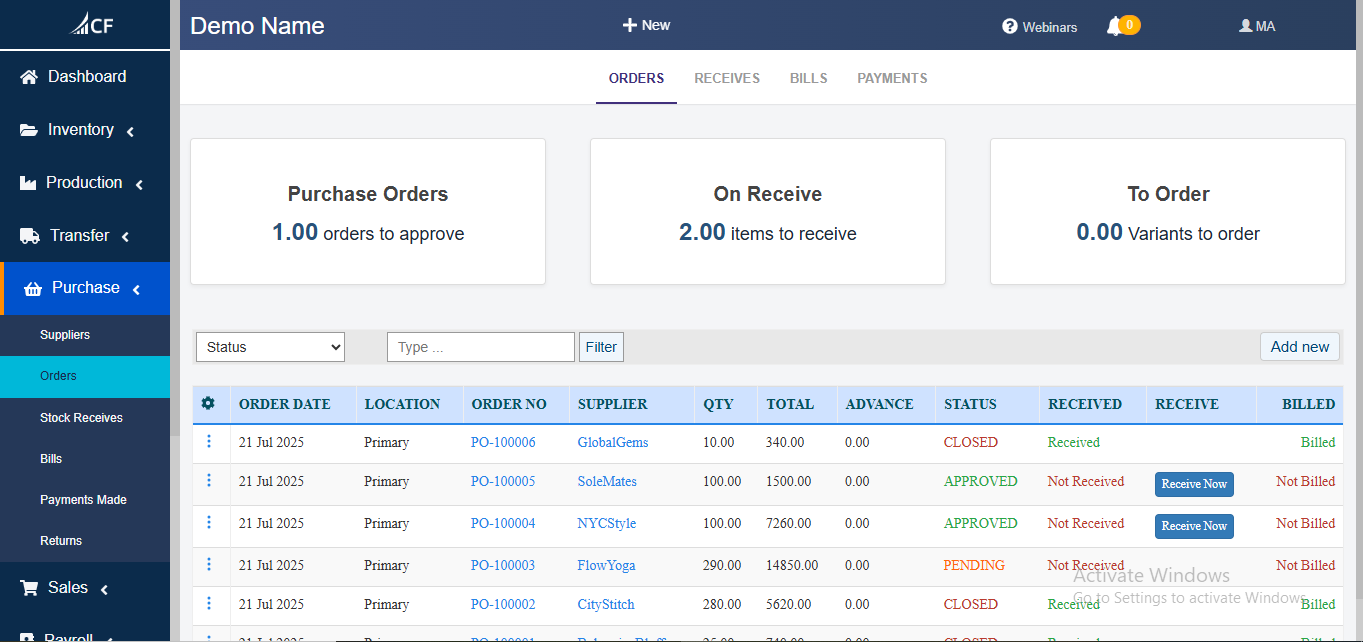
- Direct PO → Bill Conversion: Convert purchase orders or receipts into vendor bills with one click. The “Billed” status in the Purchase Orders table ) and “PARENT REF” in the Bills table show this linkage (e.g., “PO-100001” linked to “BL-10001”).
- Standalone Cost-Line Bills: Create separate bills for non-inventory costs, supported by the “Add Expense” button on the Purchase dashboard.
The Bills section lists bills with columns like BILL NO, PARENT REF, SUPPLIER, TOTAL, and DUE, reflecting bill creation from POs.
5.2 Billing Templates
- Customize bill layouts and line sequences.
- Save and name templates (e.g., “Standard Freight Bill”) via the “Add Bill Template” button.
- Reorder templates for prioritized usage, implied by the template management feature.
The “Add Bill Template” button above the Bills table.
5.3 Custom Fields
- Add extra fields to headers or line items (e.g., “Project Code,” “Requester”). The PO entry screen includes “CUSTOM ONE” and “CUSTOM TWO” fields in the header.
- These fields appear on printouts, exports, and reports, enhancing data flexibility.
6. Payments & Prepayments
6.1 Payment Entry
- Record payments against open bills or as Cash Purchases using the “Make Payment” button in the Bills table.
- Advanced Payments: Enter prepayments or apply credits, reflected in the “ADVANCE” column of the Purchase Orders table (e.g., “0.00” adjustable with entries).
“Make Payment” for unpaid bills (e.g., “BL-10003”) and “Completed” for paid bills (e.g., “BL-10002”).
6.2 Account Selection & Fallbacks
- Choose Cash, Bank, or any specified account during payment entry.
- If unselected, posts to Undeposited Funds; if insufficient balance, uses Overdraft account. While not visible in screenshots, this is standard accounting logic integrated into payment forms.
6.3 Automatic Journal Entries
- Receipts: Debit Inventory; credit Accrued Liabilities.
- Bills: Debit Expense/COGS; credit Accounts Payable.
- Payments: Debit Accounts Payable; credit Cash/Bank or fallback accounts.
- Implied by the structured payment tracking (e.g., “DUE” updates post-payment).
7. AI-Assisted Chart of Accounts
- Non-Inventory Bill Lines: AI recommends appropriate G/L accounts based on item descriptions during bill creation.
- Payment Source Account: Defaults set in Settings → Accounting, manually overrideable per transaction.
- Suggestions are override-capable, balancing automation with control. While not directly shown, this feature enhances efficiency in expense and payment processing.
8. Approval Workflows & Audit Controls
8.1 Approval Settings
- Configure per document type:
- Auto-Approve
- Manual Approval
- Auto up to Threshold
- Visual Evidence: The Bills section shows a “STATUS” column (“Approved,” “Pending”) and summary cards like “1.00 Bills to approve.” The Purchase Orders table lists statuses like “PENDING,” “APPROVED,” and “CLOSED.”
8.2 Post-Approval Lockdown
- Approved transactions become immutable, as implied by the “Approved” status.
- Corrections require a Manual Journal Entry by authorized roles.
- Changes are logged with user, date, and reason, supporting audit trails (e.g., “ENTRY BY: admin”).
9. Inventory Planning & Manufacturing Orders
9.1 Safety Stock & Reorder Points
- Define safety stock and lead times per SKU.
- Dynamic reorder points are recalculated using up to 365 days of history.
9.2 One-Click Purchase Order Plan
- Generate a consolidated PO for items below reorder points or on back-order, accessible via the “Add new” button on the Purchase Orders dashboard.
- Users can include all products or flagged items only.
9.3 Manufacturing Order (MO) Planning
- Create MOs for assemblies based on sales forecasts or backlogs.
- The system suggests component POs for missing materials, aligning procurement with production. The “Production” sidebar option hints at this integration.
10. UI Customization & Visibility
- Show/Hide Blocks: Toggle visibility for sections like Measurements, Shipping & Delivery, Advanced Payments, Attachments, and Landed-Cost. The “COST LINES” checkbox exemplifies this.
- Order Summary Block: Always visible, showing totals, discounts, and taxes (e.g., “Grand Total: BDT 0.00”).
- Custom Fields: Add fields anywhere on forms (e.g., “CUSTOM ONE,” “CUSTOM TWO”), included in exports and print templates.
Filters in the Bills section (“STATUS,” “Type”) and Purchase Orders (“Status,” “Type…”) allow UI customization.
11. Administration & Permissions
11.1 Global Settings
- Enable/disable workflows, set default discount rates, tax mappings, and fallback accounts under Settings (visible in the sidebar across screenshots).
11.2 User Roles & Permissions
- Fine-grained control over View, Create, Approve, Delete, and Manual JE rights.
- Assign roles like Purchasing Clerk, Purchasing Manager, or Accountant. The “MA” user icon and “admin” in “ENTRY BY” imply role-based access.
12. Conclusion
Cash Flow Inventory’s Purchasing Management module unites unparalleled configurability, detailed cost tracking, AI-driven accounting assistance, and robust planning tools. Whether you require a simple Bill → Payment flow or a full Order → MO plan with landed-cost allocation and batch tracking, this solution scales with your business. Empower your team, enforce policy, and gain end-to-end visibility—all within one platform.
Found this helpful? Share it:
Cash Flow Inventory delivers an end-to-end procure-to-pay solution tailored for growing businesses. From configurable purchase workflows through receipt, billing, payment, and inventory…
Cash Flow Inventory delivers an end-to-end procure-to-pay solution tailored for growing businesses. From configurable purchase workflows through receipt, billing, payment, and inventory…
Cash Flow Inventory delivers an end-to-end procure-to-pay solution tailored for growing businesses. From configurable purchase workflows through receipt, billing, payment, and inventory…