WooCommerce Stock Sync: How to Stop Overselling Across Channels
Overselling usually starts when the store keeps showing stock that has already gone. This guide covers where stock should live, how fast each change reaches WooCommerce, how to spot a stuck sync, and a ten-minute daily health check.
On this page
- Key takeaways
- Where your stock should live: one source of truth
- What syncs when: WooCommerce stock sync timing
- Worked example: how a stuck sync turns into overselling
- How to spot a stuck WooCommerce stock sync
- The daily stock sync health check
- Copy-ready daily checklist
- Common mistakes that cause overselling
- Editing stock in WordPress
- Two tools pushing stock to the same store
- Showing on-hand instead of available
- Missing or duplicate SKUs
- Ignoring findings on busy days
- Edge cases generic answers skip
- Pending checkouts
- Cash on delivery
- The last unit sold on two channels at once
- Holds bigger than stock
- Pre-orders
- Several stores, one stock
- Fractional quantities
- How to do this in Cash Flow Inventory
- Connect the store
- Run the daily check
- Frequently asked questions
- Why does my WooCommerce stock not update after an in-store sale?
- How often does WooCommerce stock sync?
- Can I edit stock directly in WooCommerce if I use a sync?
- Does a pending payment order hold stock?
- How do I stop overselling the last unit on two channels?
- Can I connect more than one WooCommerce store to the same stock?
WooCommerce stock sync stops overselling when one system holds the real stock count and pushes an available quantity to the store within seconds of every change. Anything that gets in the way of that push lets the store show stock you no longer have, and customers buy it. Typical blockers are a stock edit made in WordPress, a blocked API, an expired key or a product that lost its link.
This page shows you where stock should live, how fast each kind of change travels, and how to tell a healthy sync from a stuck one. It includes a worked example where a stuck sync turns 2 real units into 22 on the website. You also get a copy-ready daily health check and the edge cases that cause most overselling. The last section shows how to set this up in Cash Flow Inventory.
Key takeaways
- Keep stock in one place, your back office. Treat WooCommerce as a shop window that displays a number it is sent.
- The store should show available stock, not on-hand stock: on hand minus what open orders already hold, never below zero.
- A healthy sync moves a stock change to the store within seconds and catches stragglers within about 5 minutes. Anything slower is a warning sign.
- Most stuck syncs come from the store side: a security plugin blocking the API, maintenance mode, a revoked key, or a plugin adding text to API answers.
- A ten-minute daily check covers four things: the health status, the findings, three spot-checked SKUs and yesterday’s order count. It catches problems before they become refunds.
Where your stock should live: one source of truth
Overselling across channels almost always comes from two places each believing they own the stock count. Your WooCommerce store and your back office both count the same units. Your shop counter or market stall also takes stock off the same shelf. When they disagree, the system that is wrong keeps selling.
The fix is a rule, not a tool. Your back-office inventory is the only place where stock is received, adjusted, counted and moved. WooCommerce receives a number and displays it. It never sends stock levels back. If you sell in person, the till must draw from the same back-office stock, not from a separate count. If you are still setting up the basics, our guide to managing inventory in WooCommerce covers product-level stock settings.
The number the store displays should be available stock, not what is physically on the shelf. Units already sold to a paid order that you have not yet picked are on the shelf, but they are not for sale.
Available to sell online = on hand − units held by open orders (never below 0, whole units only)
The parts:
- On hand is what is physically in stock according to your back office, after receipts, sales, adjustments and counts.
- Units held by open orders are units promised to orders that are not yet delivered. This includes store orders that already took stock on WooCommerce.
- Never below 0: if holds exceed on hand, the store shows zero rather than a negative number. The shortfall is a problem to fix in the back office, not something to display.
A second useful number is phantom stock. It tells you how exposed you are when a sync stalls.
Phantom stock = quantity the store shows − true available quantity
On a healthy sync, phantom stock is zero most of the time and briefly positive for a few seconds after a sale. Any SKU with phantom stock that lasts longer than a few minutes is where your next oversell will come from.
What syncs when: WooCommerce stock sync timing
Generic answers say “stock syncs in real time.” In practice, different events travel in different directions at different speeds. The table below uses the timings documented for the Cash Flow Inventory WooCommerce connection. The questions in the left column are the ones to ask of any sync tool you use.
| Event | Direction | When it arrives |
|---|---|---|
| Stock change on a screen that moves stock (sale, receipt, adjustment, count) | Back office → store | Sent at once, typically within seconds |
| Any other stock movement the instant push missed | Back office → store | Caught by a check every 5 minutes; at most about 5 minutes |
| Price, name, description, category, photo, “shown online” | Back office → store | Follows the change |
| New order placed on the store | Store → back office | Within seconds by webhook; also checked every few minutes while the app is open |
| Stock quantity edited directly in WordPress | Not copied in | Overwritten by the next push from the back office |
| Health of the store connection | Checked by the back office | Every hour, for every connected store |
| A product send that failed | Back office → store | Retried after 15 minutes, 1 hour, 4 hours, 12 hours, 24 hours and 48 hours |
Two things follow from this. First, “about 5 minutes” is your worst case on a healthy sync. If a sale made at the counter an hour ago is still not reflected online, something is broken. Second, orders travel in the opposite direction from stock. That means one direction can fail while the other keeps working, which is exactly how the worst oversells happen.
Worked example: how a stuck sync turns into overselling
Example: a shop selling hand-poured soy candles (hypothetical). It sells on its WooCommerce site and at a Saturday market stall, both from the same stockroom. Its best seller is the 200 g cedar candle, SKU CND-CEDAR-200.
At 09:00 on Saturday the back office shows 40 on hand. Twelve units are held by paid web orders from Friday night that have not been picked yet. Available, and therefore the number on the website, is 40 − 12 = 28.
At 10:00 the shop’s website host turns on a new security rule. It blocks incoming calls to /wp-json, the WooCommerce API address. The store can still send webhooks out, so new web orders keep arriving in the back office. Stock pushes into the store now fail.
| Time | Event | On hand | Held by open web orders | True available | Store shows (sync healthy) | Store shows (sync stuck from 10:00) |
|---|---|---|---|---|---|---|
| 09:00 | Opening position | 40 | 12 | 28 | 28 | 28 |
| 10:15 | Market stall sells 9 | 31 | 12 | 19 | 19 | 28 |
| 11:40 | Web order for 4 | 31 | 16 | 15 | 15 | 24 |
| 13:05 | Market stall sells 11 | 20 | 16 | 4 | 4 | 24 |
| 14:30 | Web order for 2 | 20 | 18 | 2 | 2 | 22 |
In the stuck column, the store only lowers its count when it takes its own orders: 28 − 4 = 24, then 24 − 2 = 22. It never hears about the 20 candles sold at the stall. By 14:30, phantom stock is 22 − 2 = 20 units.
At 16:00 a customer tries to order 5 candles online.
- Sync healthy: the store shows 2, so the customer cannot order 5. They buy 2 or choose another scent. Nothing is oversold.
- Sync stuck: the store shows 22 and accepts the order. Holds rise to 18 + 5 = 23 against 20 on hand, so the shop is 3 units short. The store still shows 22 − 5 = 17, so more orders can follow.
The hourly health check would have raised a finding about the security block by about 11:00. The cost here comes from nobody reading it, not from the tool missing it. A daily health check, plus a glance at findings on busy selling days, closes that gap.
How to spot a stuck WooCommerce stock sync
A stuck sync rarely announces itself on the storefront. Look for these signs instead:
- A product you sold out in person is still for sale online more than 5 minutes later.
- Stock on a WooCommerce product page only ever goes down, never back up after a delivery is received.
- Price or photo changes made in the back office have not appeared on the site.
- Products show Failed, Waiting for the store or Stopped trying instead of Up to date.
- Yesterday’s WooCommerce order count does not match the number of store sales orders in the back office.
The cause usually sits on the WordPress side. These are the findings the Cash Flow Inventory health check reports, and what each one asks of you:
| Finding | What it means | What to do |
|---|---|---|
| Your shop is adding something in front of its API answers | A plugin or theme prints extra text | Products still sync, but other apps can break. Remove the plugin or snippet. |
| Maintenance mode, a sign-in page, or a security check blocking the connection | The API cannot be reached as an app | Nothing syncs until it is lifted. Let the shop’s API addresses through; for WooCommerce, /wp-json. |
| Your shop refused the connection’s key | The REST API key was deleted, revoked or its user lost rights | Connect the store again. |
| Rate limiting, server errors, can’t be reached | Temporary trouble on the host | Nothing to do. Updates are retried and arrive later. |
If you want to understand what is happening underneath, the WooCommerce sync runs over the WooCommerce REST API. Orders flow back through WooCommerce webhooks. Anything that blocks the WordPress REST API blocks stock updates, even when the storefront looks fine to visitors.
The daily stock sync health check
This takes about ten minutes each morning, before the first rush of the day. Do it at the same time every day and log the result. That way you can tell whether a problem started today or has been quietly building.
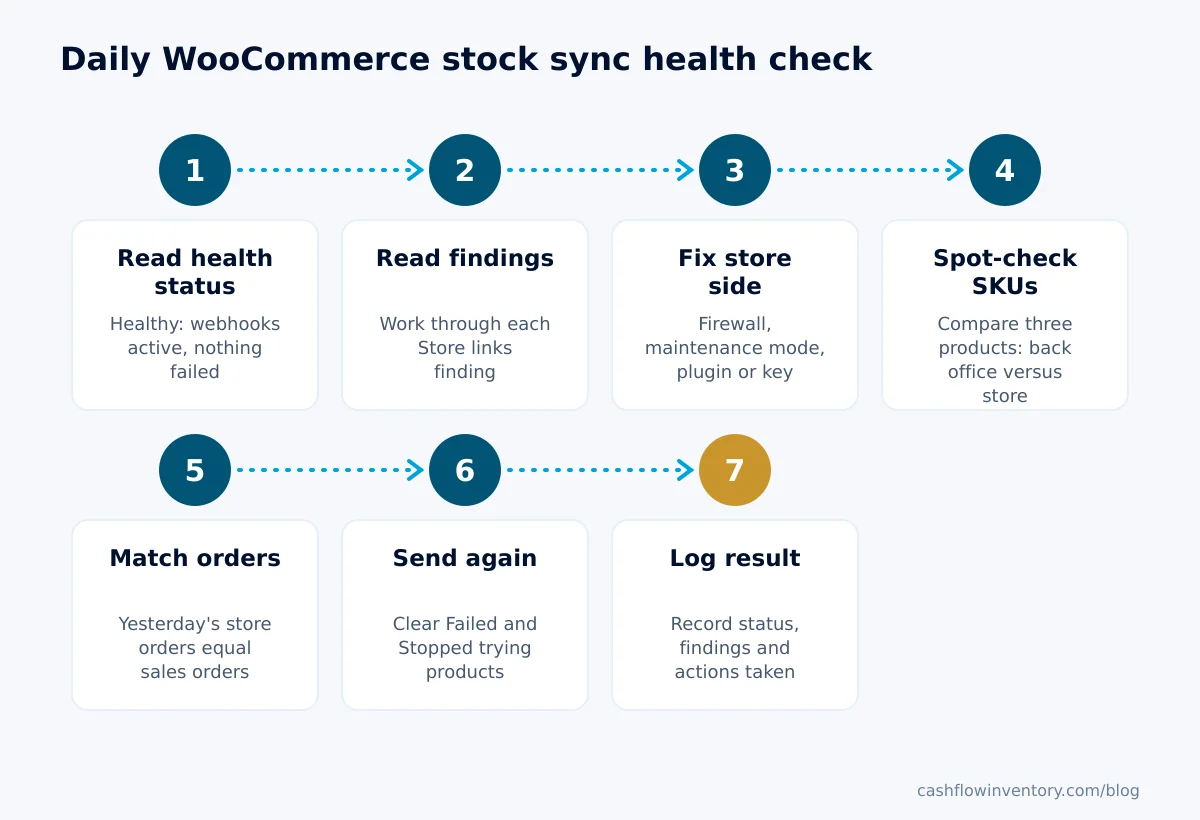
- Read the overall status. Open the store connection’s health view. You want it to say Healthy: webhooks active, items linked, nothing waiting or failed.
- Read every finding. Open the Store links card and work through each finding. Each one names what is wrong and what to do.
- Fix the store-side cause. Lift maintenance mode, allow
/wp-jsonthrough the firewall or security plugin, remove a plugin printing extra text, or reconnect if the key was refused. Retry-type findings (rate limits, server errors) need no action. - Spot-check three SKUs. Compare the back-office available quantity with the stock on the live WooCommerce product. Pick a fast seller, one that sold in person yesterday, and one at zero. Allow 5 minutes after any recent movement before judging.
- Match yesterday’s orders. Count yesterday’s orders in WooCommerce and the store sales orders in the back office. A gap means webhooks are not arriving.
- Clear failures. For products showing Failed or Stopped trying, fix the reason, then send them again. If the spot-checks disagree, push all stock now.
- Log it. Record the date, the status, any findings and what you did.
Copy-ready daily checklist
- Date: ____ Checked by: ____
- Health status says Healthy (webhooks active, items linked, nothing waiting or failed): yes / no
- Findings on Store links card: none / list: ____
- Store-side fix done (plugin, maintenance mode, firewall, reconnect): ____
- Spot-check SKU 1 (fast seller): back office ____ store ____ match: yes / no
- Spot-check SKU 2 (sold in person yesterday): back office ____ store ____ match: yes / no
- Spot-check SKU 3 (at zero): back office ____ store ____ match: yes / no
- Yesterday’s orders: WooCommerce ____ back office ____ match: yes / no
- Products in Failed or Stopped trying: ____ fixed and sent again: yes / no
- Full stock push needed: yes / no
If a spot-check fails on stock you suspect is physically wrong as well, count the shelf before trusting either number. Our guide to inventory and stock reconciliation explains how to settle the difference properly.
Common mistakes that cause overselling
Editing stock in WordPress
Staff often fix a count directly on the WooCommerce product because it is quick. With a one-way sync, that edit is not copied into the back office. The next push overwrites it, so the “fix” disappears and the real problem remains. Make every stock correction a back-office adjustment, with a reason.
Two tools pushing stock to the same store
An old inventory plugin, a marketplace connector or a spreadsheet import may still be writing stock to WooCommerce. Two writers means the store shows whichever wrote last. Switch off every other stock writer when you connect a back office.
Showing on-hand instead of available
If the store shows what is on the shelf, units promised to unpicked orders get sold twice. In the example above, that would have put 40 on the website at 09:00 instead of 28.
Missing or duplicate SKUs
Sync tools match products by id and, when repairing, often by SKU. Two products sharing a SKU, or variants with no SKU, are where links break and duplicates appear. Our guide on how to create a SKU gives a scheme that works across channels.
Ignoring findings on busy days
Sale days are when security rules trip, hosts throttle and maintenance windows get scheduled. They are also when phantom stock grows fastest. Check findings at midday as well as in the morning on promotion days.
Edge cases generic answers skip
Pending checkouts
A checkout that is pending or failed holds nothing in the back office until the store moves it to processing, on hold or completed. If WooCommerce’s own stock hold for unpaid orders is set, the two systems briefly count differently. That is normal, and it settles once the payment resolves.
Cash on delivery
Cash on delivery orders arrive as waiting, with no money recorded until it is collected. If the store took stock for the order, the units are still held. Do not resell them because the order looks unpaid.
The last unit sold on two channels at once
Even a perfect sync has a window of a few seconds. For one-off or very low stock items, consider switching off “shown online” for the last unit and selling it in person only. Alternatively, keep a small held-back quantity, as described in our guide on avoiding stockouts and their causes.
Holds bigger than stock
If the store shows 0 but orders are still waiting, check whether holds exceed on hand. The store never shows a negative number, so an existing oversell can hide behind a zero. Deal with those customers first.
Pre-orders
Allowing pre-orders on a product makes the store show “On backorder” rather than out of stock. That is intended, but make sure customers can see the expected dispatch date.
Several stores, one stock
Each connected store receives the same available quantity. Two shops selling the same SKU therefore race for the same last units. Watch fast sellers closely.
Fractional quantities
The store shows whole units. If you hold stock by weight or length, the website will not display a fraction, so set up sellable units with that in mind.
How to do this in Cash Flow Inventory
Cash Flow Inventory runs your WooCommerce store from the back office. Store orders arrive as sales orders, and every stock change is sent to the store as the available quantity. Before you start, you need three things:
- A WordPress user with shop-manager or administrator rights.
- Where you sell set to Online or In person and online in Settings › General.
- The integrations right in Cash Flow Inventory.
Connect the store
- In WordPress, open WooCommerce › Settings › Advanced › REST API › Add key. Choose Read/Write and copy the consumer key and secret. The secret is shown only once.
- In Cash Flow Inventory, open Integrations › WooCommerce › Connect. Enter the store address (https://…) and the two keys. They are checked with the store before saving and never shown again.
- On the WooCommerce page, open Webhooks and press Register all. This covers 12 topics: orders, products, customers and coupons, each created, updated and deleted.
- Bring the catalogue in once through Integrations › Sync › Background imports & exports › Import, in this order: categories, then products, customers and orders. Alternatively, link an existing catalogue with the products remapper.
- Check that the WooCommerce page’s health view says Healthy: webhooks active, items linked, nothing waiting or failed.
Run the daily check
- Open Integrations, choose the store and open Data & sync. Read the Store links card, which also appears on the WooCommerce Health tab.
- Fix what each finding names on the store side.
- Open any product that is out of step. Its page says Up to date on the stores or Not up to date on a store. Press Send again, or Send all again for the whole catalogue. Both need the integrations edit right.
- If spot-checks disagree, use Integrations › Sync › Sync now › Sync stock to send every stock figure now.
Products that failed or lost their link are repaired automatically. Before creating anything, the repair looks the product up on the store by SKU and links to it if it already exists, so you do not get a second copy. After 6 tries a product shows Stopped trying with the reason. Fix it, then press Send again and the count starts over.
Full details are in the WooCommerce connection guide and the store sync health guide. When a spot-check shows the shelf itself is wrong, run a count with the stock counts and reconciliation guide. The approved difference then flows to the store on the next push.
Frequently asked questions
Why does my WooCommerce stock not update after an in-store sale?
Either the till is not drawing from the same stock as the sync, or the push to the store is being blocked. Check that in-person sales come out of your back-office stock. Then look at the sync findings for a firewall, security plugin or maintenance mode blocking /wp-json. A healthy sync should show the change online within about 5 minutes at most.
How often does WooCommerce stock sync?
It depends on the tool. In Cash Flow Inventory, screens that move stock send the change at once, and a check every 5 minutes sends anything else that moved. A typical change reaches the store within seconds. New store orders come back by webhook within seconds.
Can I edit stock directly in WooCommerce if I use a sync?
You can type a number in, but with a one-way sync it will not be copied into the back office, and the next push will overwrite it. Make every correction as a stock adjustment in the back office so it has a reason and reaches every channel.
Does a pending payment order hold stock?
In Cash Flow Inventory, a pending or failed checkout holds nothing. Orders that took stock on the store (processing, on hold or completed) hold those units in the back office too, even while they wait for approval.
How do I stop overselling the last unit on two channels?
A sync shrinks the window to seconds but cannot close it completely. For one-off or very scarce items, sell them through one channel only, for example by switching off “shown online” for the last unit. Alternatively, hold back a small quantity on fast sellers during sale days.
Can I connect more than one WooCommerce store to the same stock?
Yes. Several WooCommerce stores can be connected to one business in Cash Flow Inventory, and each receives the same available quantity. Check each store’s findings separately, because one can be blocked while the others are fine.
Overselling is rarely a mystery once stock lives in one place and someone reads the sync health every morning. If you want orders, stock and every WooCommerce store kept in step from one back office, see how the ecommerce integrations work, or start a free trial and run your first daily check this week.