How to Print Barcode Labels for Products: Sizes, Formats and Printers
Choose the right barcode format, size the label so the code actually fits, pick a printer, and test-scan before you print the full run. Includes a worked example, a width formula and a copy-ready checklist.
On this page
- Key takeaways
- Which barcode format to use: Code 128, EAN-13, UPC-A or QR
- Barcode label sizes: how much width a code really needs
- The Code 128 width formula
- EAN-13 and UPC-A sizes
- Thermal label printers vs sheet labels
- Worked example: label plan for a small packing shop
- How to print barcode labels step by step
- Test-scan checklist (copy and use)
- Common barcode label mistakes
- Edge cases generic guides skip
- Scanner types the wrong characters
- Small round jars and bottles
- Leading zeros vanish
- Lots, expiry and serial numbers
- Cold, wet and outdoor storage
- How to do this in Cash Flow Inventory
- Frequently asked questions
- Can I print barcode labels on a normal printer?
- Do I need to buy barcodes from GS1?
- What size barcode label should I use for retail products?
- Why won’t my barcode labels scan?
- Can a normal barcode scanner read QR codes?
- Should I use direct thermal or thermal transfer labels?
To print barcode labels, give each product a code, then choose the right format. Use EAN-13 or UPC-A if the product already has a retail number, Code 128 for your own SKUs, and QR for shelves and phones. Next, pick a label size wide enough for that code, print from a sheet or thermal roll printer, and test-scan a few labels before you print the full run. Most labels that fail do so because the code is too small for the label, the printer resolution is too low, or nobody scanned a test print.
This page goes further than a quick answer. You get a decision table for Code 128, EAN-13, UPC-A and QR, and a formula to check whether a code fits your label. There is a worked example with real label counts, a step-by-step procedure and a test-scan checklist you can copy. It closes with the edge cases that catch out shops and warehouses, and the exact steps in Cash Flow Inventory.
Key takeaways
- Use Code 128 for your own SKUs and bins. Use EAN-13 or UPC-A only when the number comes from GS1 or your supplier. Use QR for shelf labels that will be scanned with phones.
- Check the width before you buy labels: Code 128 needs roughly (11 × characters + 55) bars-widths, so an 11-character SKU at 0.25 mm per bar needs 44 mm.
- Thermal roll printers suit daily labelling. Choose direct thermal for short-life labels and thermal transfer with a ribbon for labels that must last.
- Always print three test labels and scan them with every scanner you actually use, including through packaging, before printing hundreds.
- If a product already carries a manufacturer barcode, do not relabel it. Record that number on the product so the scanner finds it.
Which barcode format to use: Code 128, EAN-13, UPC-A or QR
The format decides who can read the label and what characters it can hold. Pick it before you pick label sizes, because some formats need far more width than others.
| Format | What it holds | Best for | Watch out for |
|---|---|---|---|
| Code 128 | Letters, digits and symbols, any length | Your own SKUs, internal product labels, lots, cartons | Long codes get wide quickly; not accepted as a retail product number by other retailers |
| EAN-13 | Exactly 13 digits, last digit is a check digit | Products sold through other retailers or marketplaces worldwide | The number must be licensed from GS1 or come from the manufacturer |
| UPC-A | Exactly 12 digits | Products sold into US and Canadian retail | Same licensing rule; get numbers from GS1 US |
| QR code | Text, numbers or a web link, read by phone cameras | Shelf and bin labels, counting with a phone, links to product information | Many basic laser scanners cannot read it; you need a 2D imager or a phone |
| Code 39 / Interleaved 2 of 5 | Code 39: uppercase and digits; ITF: an even number of digits | Older systems and outer cartons that already use them | Code 39 is wide and has no lowercase; use only if a partner requires it |
Use these decision rules:
- Will someone else’s till scan it? If yes, you need a GS1-issued EAN-13 or UPC-A. If the product only sells in your own shops, Code 128 with your SKU is enough.
- Does it already have a barcode? Use the existing number. Relabelling a branded product hides a code that already works.
- Is it a location, not a product? Use QR or Code 128 for bins and shelves, depending on whether staff scan with phones or handheld scanners.
- Is the label tiny? Keep the code short, or move to QR, which packs more data into a small square.
For a deeper look at the trade-offs, see QR codes vs barcodes for inventory.
Barcode label sizes: how much width a code really needs
Common roll sizes are 50 × 25 mm, 38 × 25 mm, 58 × 40 mm and 2 × 1 in. Common sheets are A4 with 21, 24, 40 or 14 labels, and US Letter with 30 labels. The question is not which size looks right. It is whether your code, with its quiet zones, physically fits.
The Code 128 width formula
Each Code 128 character is 11 bar-widths (modules) wide. On top of that, the start character takes 11, the check character 11 and the stop pattern 13. You also need a blank quiet zone of at least 10 modules on each side.
Code 128 width = (11 × number of characters + 55) × bar width
The 55 is 11 (start) + 11 (check) + 13 (stop) + 20 (two quiet zones). Bar width is the narrowest bar, often called the X-dimension. As a practical rule, keep it at about 0.25 mm. On a 203 dpi printer, one dot is about 0.125 mm, so 0.25 mm is 2 dots. On a 300 dpi printer, 3 dots give about the same.
So an 11-character SKU such as TEA-ASM-250 needs (11 × 11 + 55) × 0.25 = 176 × 0.25 = 44 mm. That fits a 50 mm label but not a 38 mm one. Codes made only of digits are packed two digits per character, which roughly halves the width. This is one reason a short numeric code fits small labels better than a long one with letters and dashes.
EAN-13 and UPC-A sizes
GS1 sets a nominal EAN-13 size of about 37.29 mm wide, including quiet zones, and allows it to shrink to 80 percent for general retail. At 80 percent it is about 29.83 mm wide, which sits comfortably on a 38 × 25 mm label. Do not cut the bars shorter to save height. Shortened bars are a common reason retail scanners reject a label.
Thermal label printers vs sheet labels
Sheet labels on an office laser printer are fine for occasional runs and for businesses printing a few hundred labels a month. Once you label every delivery, a roll printer pays for itself in time. It prints one label at a time, so there is no half-used sheet and no misalignment.
- Direct thermal: no ribbon, and the label paper darkens with heat. It is cheap and simple, but it fades with sunlight, heat and time. It suits shipping labels and goods that sell within months.
- Thermal transfer: a ribbon melts ink onto the label. It lasts for years and survives freezers, warehouses and handling. Choose it for stock that sits on shelves, outdoor items and asset tags.
- 203 dpi vs 300 dpi: 203 dpi handles normal product labels. Choose 300 dpi if you print small text, long Code 128 codes on narrow labels, or dense QR codes.
- Driver vs ZPL: printing through a normal driver sends a picture of the barcode, which the printer may soften. Sending ZPL to a Zebra printer lets the printer draw the bars itself, which gives crisper edges.
A receipt printer at the till is not a label printer. It prints on continuous paper with no die-cut gaps, so it cannot line up stick-on labels.
Worked example: label plan for a small packing shop
Example: a shop selling loose tea and spices (hypothetical). The shop packs its own pouches, sells branded gift tins from a supplier, and has 24 shelf bins in the back room. It uses a 203 dpi thermal printer, so a 0.25 mm bar width means 2 printer dots.
| Item | Code on label | Format | Label stock | On hand | Labels to print |
|---|---|---|---|---|---|
| Assam 250 g pouch | TEA-ASM-250 | Code 128 | 50 × 25 mm roll | 120 | 120 |
| Masala chai 100 g pouch | TEA-CHI-100 | Code 128 | 50 × 25 mm roll | 85 | 85 |
| Saffron 1 g jar | SPC-SAF-001 | Code 128 | 50 × 25 mm roll | 50 | 50 |
| Branded gift tin | Supplier’s EAN-13 (already printed) | None needed | None | 40 | 0 |
| Shelf bins A-01 to C-08 | Bin code | QR | 58 × 40 mm roll | 24 bins | 24 |
| Test labels | 3 per label size | As above | Both rolls | – | 6 |
| Total | 285 |
Why 50 × 25 mm and not 38 × 25 mm: each SKU has 11 characters, so the width is (11 × 11 + 55) × 0.25 = 44 mm. That leaves 3 mm spare on each side of a 50 mm label but would overflow a 38 mm label.
Roll usage: the 50 × 25 mm roll uses 120 + 85 + 50 + 3 = 258 labels. The 58 × 40 mm roll uses 24 + 3 = 27. Together that is 285.
If the shop used A4 sheets instead: the 255 product labels (120 + 85 + 50) on 21-label sheets need 12 full sheets (252 labels) plus 3 labels on a 13th sheet. That leaves 18 unused labels, positions 4 to 21. On the next run, the shop starts printing at label 4 so that sheet is not wasted.
The gift tins get no label. The shop types the supplier’s EAN-13 into each tin’s product record, and the till scanner finds them straight away.
How to print barcode labels step by step
This is the procedure to follow every time, whether you print ten labels or a thousand. It fits into a wider barcode inventory system.
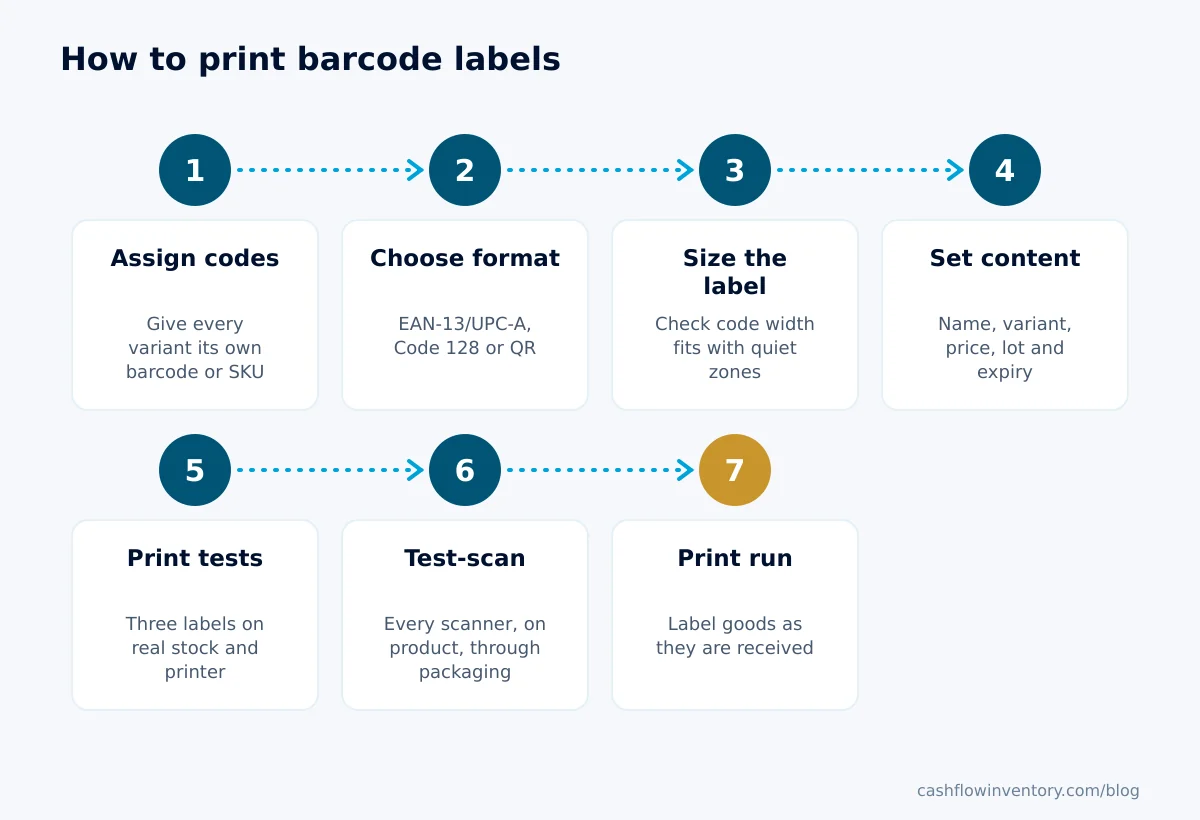
- Assign a code to every variant. Each size and colour needs its own code, or the till cannot tell a small shirt from a large one. If you manage variants, set them up first; item groups explains how.
- Choose the format. Use the decision rules above: GS1 number to EAN-13 or UPC-A, your own SKU to Code 128, locations to QR or Code 128.
- Choose the label size. Work out the width with the formula, then add a few millimetres on each side for printer drift.
- Decide what goes on the label. Keep it to the item name, variant, price and the code. Add lot and expiry for dated goods. Every extra line shrinks the barcode’s height.
- Print three test labels. Use the real label stock and the real printer, not plain paper.
- Test-scan them. Use the checklist below with every scanner you actually use.
- Print the run, and label at the point of receipt. Labelling as goods arrive, as part of your goods receiving SOP, stops unlabelled stock from reaching the shelf.
Test-scan checklist (copy and use)
- The scanned text matches the code in your system exactly, including dashes, leading zeros and capital letters.
- It scans first time on the till scanner, the warehouse scanner and a phone camera, if each is used.
- It scans from a normal handheld distance and at a slight angle.
- It still scans after the label is stuck on the product, including on curved jars and bottles.
- It scans through any shrink wrap, bag or display sleeve.
- Quiet zones are clear: no text, border or label edge touches the bars.
- Bars are sharp, with no white streaks; streaks running the length of the label mean a worn or dirty print head.
- Price and text are readable, and the price matches the system.
- A label left in the actual storage conditions (sunny window, chiller) for a day still scans.
Expert tip: keep one passed test label taped inside the printer cover with the date and the settings used. When a new roll or a new staff member produces bad labels, you have a reference to compare against in seconds.
Common barcode label mistakes
- Making up EAN-13 numbers. A homemade 13-digit number can clash with a real product somewhere else. For in-store-only use, GS1 reserves numbers starting 20 to 29. Otherwise, use Code 128.
- Cramming a long SKU onto a small label. The software shrinks the bars until no scanner can read them. Shorten the SKU or use a wider label.
- Printing at 203 dpi with odd bar widths. A bar width that does not land on whole dots, such as 1.5 dots, prints uneven bars. Stick to whole-dot widths.
- Same code on two variants. The till picks one, and stock drifts on both. You find it at the next count; a regular cycle count schedule catches it early.
- Direct thermal labels on slow-moving stock. They fade on the shelf, and the product becomes unscannable months later.
- Labelling over the manufacturer’s barcode with a different code. If both are visible, staff scan the wrong one.
- Skipping the test scan. One bad setting multiplied by 500 labels costs an afternoon of relabelling.
Edge cases generic guides skip
Scanner types the wrong characters
USB and Bluetooth scanners act like keyboards. If the computer’s active keyboard layout is Arabic, French or another non-US layout, a scanned code can come out as different letters or symbols. Switch the computer to the layout the scanner is set for, or reconfigure the scanner. This is common on shared tills in the Gulf and South Asia, where two keyboard layouts are installed.
Small round jars and bottles
On a tight curve, bars at the edges bend away from the scanner. Rotate the code so the bars run horizontally, with the length of the code running up the jar, or move the label to a flat lid.
Leading zeros vanish
If you prepare codes in a spreadsheet, it strips leading zeros from numbers. A code of 0012345 becomes 12345, and the label no longer matches the scan. Format the column as text before typing or importing.
Lots, expiry and serial numbers
For dated goods, print the lot and expiry on the label at receipt, so pickers can rotate stock without opening paperwork. See inventory management for perishable goods for the rotation rules.
Cold, wet and outdoor storage
Paper labels peel in chillers and smudge when wet. Use synthetic label stock with a thermal transfer ribbon matched to it, and test a label in the real conditions before labelling the whole room.
How to do this in Cash Flow Inventory
In Cash Flow Inventory, labels are printed from Inventory › Labels. Anyone who can see products can print labels; there is no separate labels right. Before you start, give each variant a Barcode on the product, or let the label use the SKU. Setting up products is covered in the products and inventory guide.
- Open Inventory › Labels, or choose Print labels from a product’s row menu.
- Under Add an item, type a product name or code. Each match becomes a line.
- Set the quantity for each line, or use Quantities: One each or On hand. In the example above, On hand gives 120, 85 and 50 in one go.
- Choose the Label stock. The sheet options are A4 with 21, 24, 40 or 14 labels, including Avery L7160 and L7163 sizes, and US Letter with 30 labels (Avery 5160). The roll options are 50 × 25 mm, 38 × 25 mm, 58 × 40 mm and 2 × 1 in (Dymo / Zebra).
- Under On the label, tick what to print and choose the code type. You can include the business name, item name, variant, SKU, barcode number, price, cost code (cipher), lot and expiry, serial number and rack / bin. Price shows as lets you print the price or the MRP.
- If you print on a part-used sheet, set Start at label. In the example, that is label 4.
- Check the Preview, which is true to size, then choose Print, PDF or ZPL.
The Auto code type prints EAN-13 or UPC-A when the code is one, and Code 128 otherwise. You can also pick Code 128, Code 39, Interleaved 2 of 5, EAN-13, UPC-A, QR code, or no code (text only). If a code is not valid for the type you chose, it is printed in a type that fits, with a warning. Treat that warning as a sign to check the product’s barcode.
ZPL produces Zebra Programming Language for roll labels at 203 or 300 dpi, so the printer draws the barcodes itself. When you print from a goods receipt, received quantities fill in what arrived, and lot, expiry and serial labels come from the receipt’s lines.
After printing, any USB or Bluetooth scanner that types like a keyboard works in the item boxes of the till, sales orders, pick sheets and documents. These boxes search by barcode and SKU. A merged product’s old barcode still finds the product you kept.
For shelf labels and phone scanning, switch on Bins & scanning in Settings › Business setup. Inventory › Bins holds your shelves and slots with their barcodes and labels. Inventory › Scan turns a phone into a warehouse scanner for putting away, finding and counting stock. The full reference is in the labels, barcodes and scanning guide. For scanning habits at the till and in the stockroom, read barcode scanning for stock control.
Frequently asked questions
Can I print barcode labels on a normal printer?
Yes. A laser printer with A4 or US Letter label sheets works well for small and occasional runs. Make sure the page prints at actual size, not “fit to page”, or the labels will drift off the die-cut edges. Inkjet prints can bleed on glossy labels, so test-scan before a large run.
Do I need to buy barcodes from GS1?
Only if your products will be sold by other retailers or marketplaces that require a GTIN. For products sold only in your own shops, your SKU printed as Code 128 works perfectly. Do not invent EAN-13 numbers, because they can clash with real products.
What size barcode label should I use for retail products?
For short codes and EAN-13 at reduced size, 38 × 25 mm usually works. For Code 128 SKUs of around 10 to 12 characters, 50 × 25 mm is safer. Use the width formula above with your longest SKU to confirm.
Why won’t my barcode labels scan?
The usual causes are bars printed too narrow, missing quiet zones, a worn print head leaving white streaks, or a keyboard layout mismatch on the computer. Faded direct thermal labels and labels wrapped around tight curves also fail. Work through the test-scan checklist above to find which one it is.
Can a normal barcode scanner read QR codes?
Not always. Laser and linear scanners read only 1D barcodes such as Code 128 and EAN-13. To read QR codes, you need a 2D imager scanner or a phone camera.
Should I use direct thermal or thermal transfer labels?
Use direct thermal for shipping labels and fast-selling goods, because it needs no ribbon. Use thermal transfer for anything that stays on the shelf for months, sits in cold or damp storage, or is handled a lot. Thermal transfer labels last far longer.
Good labels come from a few decisions made once: the right format, a label wide enough for the code, and a test scan before every new run. If you want labels, scanning and stock in one place, you can start a free trial of Cash Flow Inventory and print your first sheet from Inventory › Labels today.