
Products and inventory
Add products with variants, units, prices and opening stock, then follow every item's stock, value and history per location in one list.
What it is
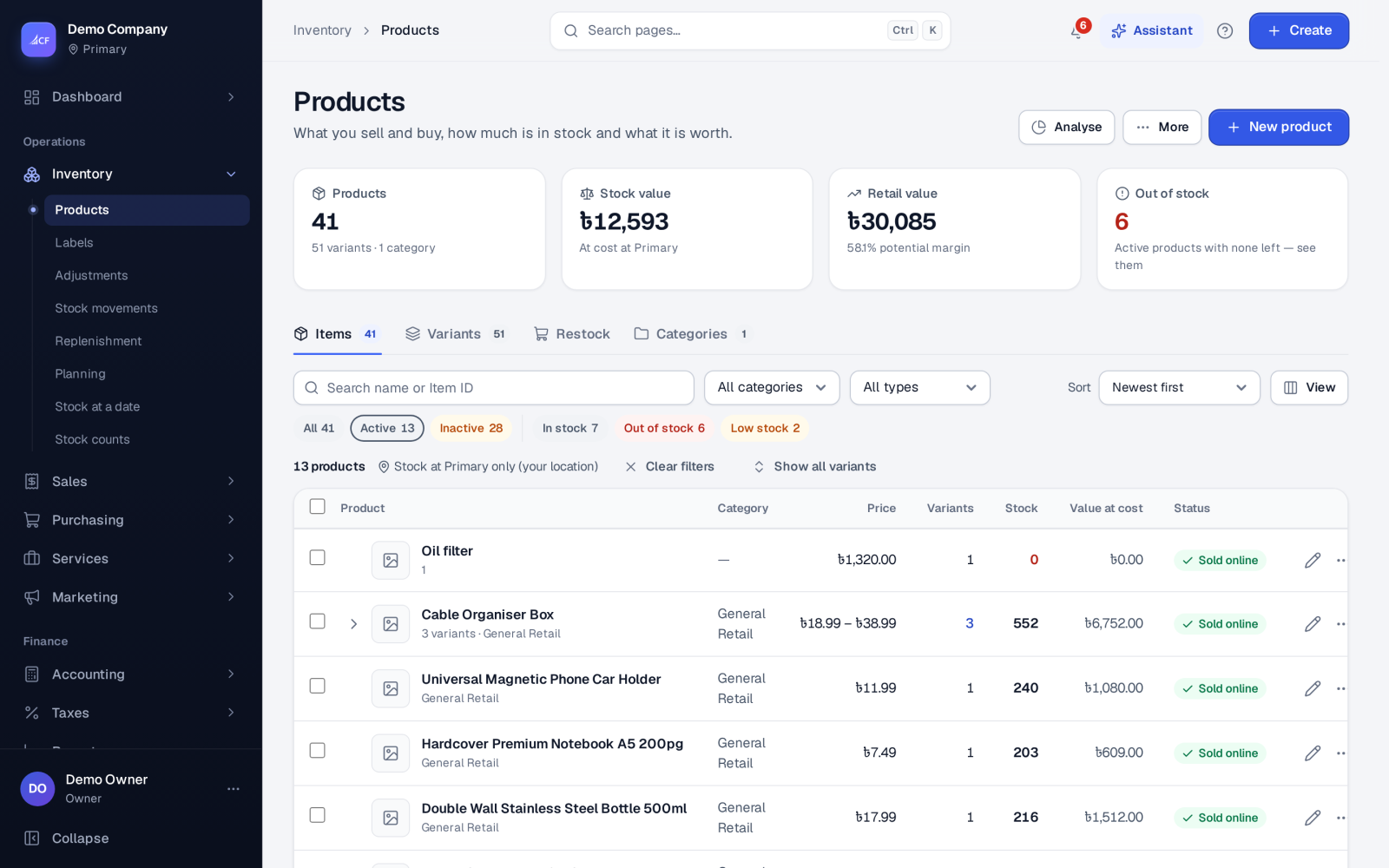
Inventory › Products is the catalogue of everything you buy, make, sell or stock. Each product has one or more variants (size, colour, material …), and each variant carries its own price, cost, barcode and stock at every location.
Stock is never typed into the product afterwards. Every change — a receipt, a sale, a transfer, production, an adjustment or a count — is a movement in one log, so the figure on the product is always the sum of what really happened.
Who it is for
- Owners setting up the catalogue for the first time
- Buyers who look after suppliers, costs and reorder levels
- Shop and warehouse staff who check what is on hand
- Online sellers whose products also go to a web store
Before you start#
- Switch on what you need in Settings › Inventory: Several units per product, Batch tracking, Serial numbers and the Valuation method (weighted average or FIFO).
- Wholesale prices, units, lots and serials can also be switched on in Settings › Business setup.
- Locations come from Settings › Locations; a product is stocked at the locations you choose.
- People need the Products rights (view, add, edit, delete). Cost, margin and supplier prices can be hidden from a person with field rights.
Step by step#
- Open Inventory › Products and choose New product.
- Enter the Product name and choose or add a Category — these two are all it needs.
- Choose the Type: Stocked, Not stocked or Service (see Item types).
- Add the Unit, Brand and Supplier, or switch on Made in-house (no supplier) for what you produce.
- Fill in Cost, Price and, if you use them, Discount and Wholesale price.
- If it comes in options, switch on Comes in options (colour, size, material …) and edit each variant in the grid.
- Under Stocked at, choose the locations and enter any opening stock.
- Choose Save product.
The products list#
The list has four tabs:
- Items — one row per product, with type, category, brand, price, number of variants, stock, value at cost and status.
- Variants — one row per variant, for checking or counting individual sizes and colours.
- Restock — what is low or out, with what to reorder.
- Categories — add, nest, reorder and merge categories.
Filter by category or type (Bought in, Made in-house, Raw material, Service) and sort by stock, stock value or price. Each row's menu offers Duplicate…, Print labels, Adjust stock, New purchase order, History and Delete….
The product page#
Opening a product shows tabs for Overview, Variants, Stock (per location), Activity, Performance, Details, Kit and Suppliers. The page points out missing details such as brand or weight, and See what to reorder opens the restock view for it.
Units, tracking and options
- Add a unit lets you buy and sell in boxes, packs or cases as well as single units, with the conversion to the base unit.
- Track batches & expiry and Track serial numbers make every receipt and sale record its lots or serials.
- Quality check before sale holds the product for inspection when quality control is on.
- Allow pre-orders lets orders be taken without stock — the goods still cannot go out until they arrive (see Stock never below zero).
- Sell online publishes it to your connected stores; when off, it stays active for production, purchasing and stock.
- Reorder settings hold the reorder level, safety stock and lead days that replenishment uses.
Kits
On the Kit tab you list the components one unit is made of. The kit then sells as one line, while picks, reservations and returns move its components. A kit cannot contain another kit or batch- or serial-tracked components.
Importing and bulk changes#
Under More on the products list:
- Import products… reads a CSV file, lets you match columns, reviews every row before anything is written, then imports; rows it refuses are skipped and the rest still land.
- Import opening stock… brings in starting quantities.
- Export… downloads all variants, or only the ones the Variants tab shows.
- Correct costs from a sheet… fixes wrong costs from a CSV, with a preview first.
- Change every out-of-stock product… acts on all stock-outs at once.
Duplicate products can be merged with Merge into…: stock moves to the product you keep through the stock log, its old SKU and barcode keep finding it, and the duplicate is archived rather than deleted.
How it posts to the books#
Opening stock entered on a product or imported posts quantity × cost: Inventory is debited and Owner's equity credited (the reverse for a decrease). After that, stock value changes only through documents — receipts, sales, adjustments, transfers, production and counts.
Limits and what is not there yet#
- A kit is one level only; tracked items cannot be kit components.
- Merging works for simple products (one variant each) and is refused while a duplicate is reserved, below zero, being counted or on an online store.
- LIFO can be chosen, but stock is then valued as weighted average (LIFO is not allowed under IFRS).
Questions#
Why can't I type a new stock figure on the product?
Stock only changes through documents, so the history always explains the figure. Use a stock adjustment or a stock count to correct it.
Can I hide cost prices from some staff?
Yes. Field rights in the person's permissions can hide cost, margin and supplier prices while they still work with the product.
How do I bring in my existing catalogue?
Use More › Import products… with a CSV file, then Import opening stock… for the starting quantities. The review step shows every row before anything is saved.
What happens to a product I delete?
Deleting is refused once any variant has been used on a document, order or production order — switch off Active instead. A product without history can be deleted; it goes to the recycle bin and can be restored from there.