POS System With Inventory Management: 12 Things to Check Before You Buy
A demo shows a POS at its best. This 12-point trial checklist, with a worked example, tests what goes wrong on a real shop day: the internet drops, a web order lands mid-sale, a customer returns goods and the cash drawer comes up short.
On this page
- Key takeaways
- How to judge a POS system with inventory management in a trial
- The 12 things to check before you buy a POS
- POS trial checklist (pass or fail)
- Why each group matters
- Worked example: a two-hour POS trial with real numbers
- Test A: stock shared between till and online store
- Test B: cashing up one shift
- Step-by-step: run your POS trial in one afternoon
- Common mistakes when choosing a POS with inventory
- Edge cases a quick answer will not mention
- Card payments when the internet is down
- Returns of items bought online
- Exchanges with a price difference
- Manufacturer barcodes vs your own
- Credit customers at the counter
- Record keeping
- Decision rules: when to walk away from a POS
- How to do this in Cash Flow Inventory
- Before the trial
- Labels and scanning
- Selling, returns and cash-up
- Frequently asked questions
- What is the difference between a POS and a POS system with inventory management?
- Can a POS keep working without internet?
- How do I stop overselling between my shop and my online store?
- What barcode type should I use for shop labels?
- How do I calculate expected cash at the end of a shift?
- How long should a POS trial take?
A POS system with inventory management is a till that changes your stock, your invoices and your cash accounts the moment a sale is made, so the shelf, the online store and the books all show the same numbers. Before you buy one, run 12 practical tests in a free trial: sell offline, sell the same item online and in the shop, cash up a shift, process returns, and print and scan barcode labels.
Feature lists and demos will not show you how a till behaves when the internet drops, a web order lands mid-sale, or the drawer comes up 50 short at closing time. A two-hour trial with your own products will.
This page gives you a copy-ready 12-point checklist and a worked example with numbers you can reproduce. It also covers the trial steps in order, the mistakes buyers make, and the edge cases that generic reviews skip. At the end you will see how to run the same tests in Cash Flow Inventory.
Key takeaways
- Judge a POS by what happens when things go wrong: offline sales, returns, cash shortages and stock shared with your online store.
- Run a scripted trial with real products and known starting quantities. Then check that stock and cash end exactly where your arithmetic says they should.
- Expected cash = opening float + cash taken − cash refunds − paid outs − drops. If the till cannot show this per shift, cash-up will become a spreadsheet.
- Print labels on your actual label stock and scan them at the till. Misaligned sheets and unreadable codes are the most common day-one failure.
- A sale should post the order, stock movement, invoice and payment in one step. If any of these needs a manual export, you are buying two systems.
How to judge a POS system with inventory management in a trial
Most POS software handles a normal sale well. The differences show up at the edges: the third return of the day, the cashier who changes shift mid-sale, the web order that takes the last unit while a customer is holding it at the counter.
Test for three outcomes, not features:
- Stock stays true across channels. One unit sold anywhere means one unit fewer everywhere, including on your online store.
- Cash reconciles per shift. You can see what should be in the drawer, what was counted, and the difference, by cashier and by shift.
- The books update without re-entry. Every sale, refund and paid-out lands in the accounts on its own. If you are still weighing separate tools against one system, read one ledger vs two apps for inventory and accounting.
The 12 things to check before you buy a POS
Print this list and take it into your trial. Each item is a test you can pass or fail in a few minutes, not a question for the salesperson.
POS trial checklist (pass or fail)
- Offline selling. Disconnect the internet, make two sales, reconnect. Each sale should be recorded exactly once, with stock reduced once.
- Shared stock with your online store. Sell an item at the till and confirm the online store’s quantity drops. Place a web order and confirm the till sees fewer available units.
- Web orders hold stock while unpaid. A cash-on-delivery or unpaid web order should hold its units, so the shop cannot sell them twice.
- Shift cash-up. Open a shift with a float, take cash, pay something out, close the shift and count. The system should show expected, counted and short or over.
- Returns against the original receipt. Find a past sale by scanning the receipt barcode. The system should show what is left to return and block returning more than was sold.
- Refund choices. Test a refund in cash, as store credit for a named customer, and as credit used towards a new sale in the same checkout.
- Split payments. Pay one sale with cash, card and a gift card. Check that each method lands in its own account.
- Barcode labels on your real label stock. Print on the sheet or roll you already own, including a part-used sheet, and check alignment.
- Scanner everywhere. Scan at the till, in a sales order and on a purchase receipt. A keyboard-style USB or Bluetooth scanner should work in all three.
- Discount control. Give a discount above your limit and confirm it needs a manager’s approval that a cashier cannot bypass.
- Cashier switching and attribution. Two cashiers share one till. Each sale should be attributed to the person who made it, and wrong PINs should lock out.
- Customer accounts at the till. For a named customer, take a part payment on account within their credit limit, then settle an old invoice in the same payment.
Why each group matters
Items 1 to 3 protect stock accuracy. An offline sale that syncs twice, or a web order that does not hold its units, creates phantom stock. You then oversell online and cancel orders. Holding units for open orders is a form of reserve stock for order fulfilment, and your till must respect it.
Items 4 to 7 protect cash. Shortages are rarely theft. They are usually an unrecorded paid-out, a refund given in cash when it should have been credit, or a card payment keyed as cash.
Items 8 and 9 protect speed at the counter. If labels do not scan, cashiers type product names, and typing is where wrong-variant sales come from. Our guide on how to implement a barcode inventory system covers numbering and labelling in more depth.
Items 10 to 12 protect margins and receivables. They control who can give discounts, who made each sale, and who still owes you money.
Worked example: a two-hour POS trial with real numbers
Example: a shop selling phone accessories, with one counter and a WooCommerce store. This business is hypothetical. All amounts are in local currency units. The owner tests one SKU, a 1 m USB-C cable, and one shift of cash.
Test A: stock shared between till and online store
Starting position: 40 cables on hand, none held for orders.
| Step | Event | Change | On hand | Held for web orders | Available (on hand − held) |
|---|---|---|---|---|---|
| 0 | Starting stock | — | 40 | 0 | 40 |
| 1 | Cash-on-delivery web order arrives, unpaid | Hold 3 | 40 | 3 | 37 |
| 2 | Till sale | −5 | 35 | 3 | 32 |
| 3 | Two till sales made offline, then synced | −2 | 33 | 3 | 30 |
| 4 | Return of 1 cable from an earlier receipt | +1 | 34 | 3 | 31 |
| 5 | Web order delivered | −3, release hold | 31 | 0 | 31 |
Check: 40 − 5 − 2 + 1 − 3 = 31. After step 5, the online store should show 31 and the till should show 31 available. If either shows 29 (offline sales counted twice) or 34 (web order never deducted), the test fails.
Test B: cashing up one shift
Expected cash = opening float + cash sales + cash part of split payments + cash added − cash refunds − paid outs − cash drops
Short or over = counted cash − expected cash
| Line | Amount | Effect on drawer |
|---|---|---|
| Opening float | 5,000 | +5,000 |
| Cash sales (full cash) | 18,450 | +18,450 |
| Cash part of split payments | 2,000 | +2,000 |
| Card part of split payments and card sales | 9,300 | None (goes to the card account) |
| Cash refund on a return | 1,200 | −1,200 |
| Paid out to courier | 500 | −500 |
| Cash dropped to safe mid-shift | 10,000 | −10,000 |
| Expected cash in drawer | 5,000 + 18,450 + 2,000 − 1,200 − 500 − 10,000 = 13,750 | |
| Counted cash | 13,700 | |
| Short | 13,700 − 13,750 = −50 | |
A good POS produces the expected figure for you and records the 50 short against that shift and cashier. If you had to build this table in a spreadsheet during the trial, that tells you how cash-up will feel every night.
Step-by-step: run your POS trial in one afternoon
Do the trial on a quiet afternoon with one other person playing the customer. Use five to ten real products, including one with variants (size or colour) and one you also sell online.
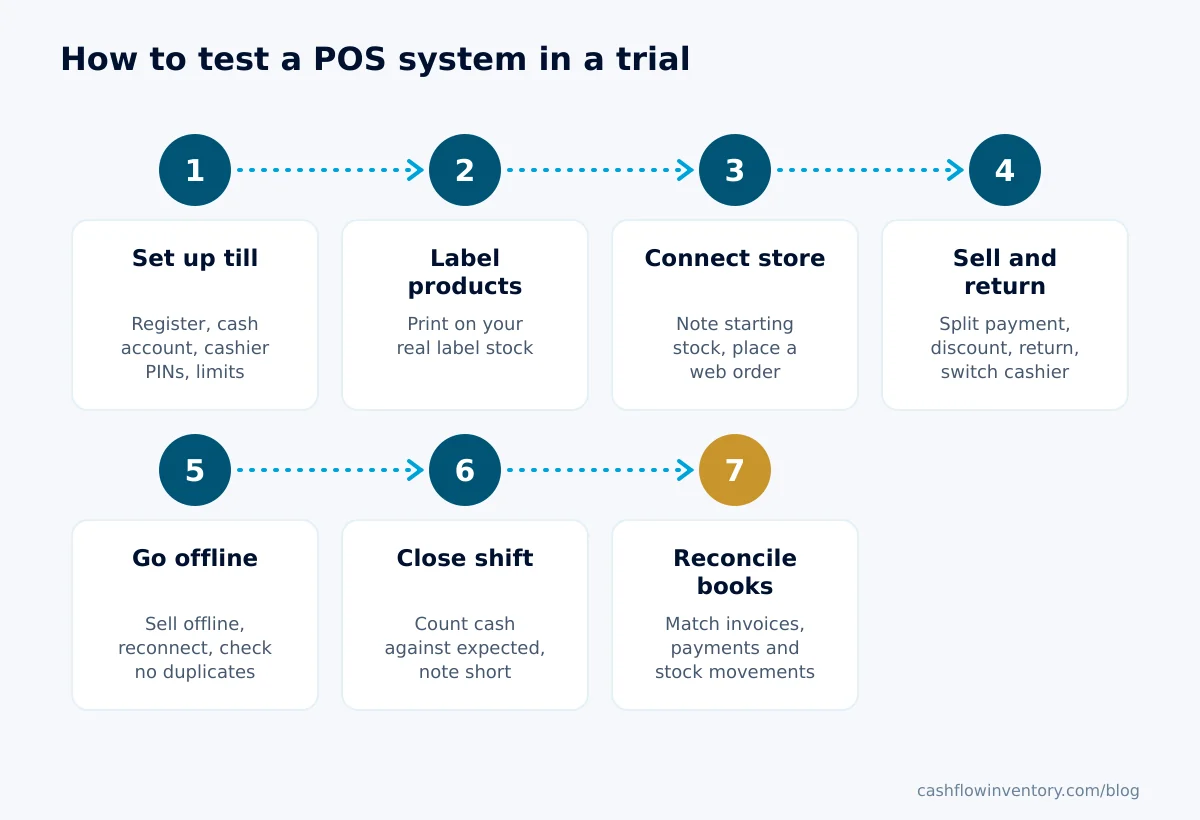
- Set up the till. Create a register with its cash account, add two cashiers with their own PINs, and set a discount limit and a return window.
- Load and label products. Enter barcodes for each variant. Print labels on the sheet or roll you already use, including one part-used sheet.
- Connect the online store. Link a test or live store, note the starting quantity of your shared SKU, and place one unpaid web order.
- Sell, discount and return. Make normal sales, one split payment, one over-limit discount and one return from an earlier receipt. Switch cashier halfway.
- Go offline and reconnect. Unplug the router or switch off Wi-Fi, make two sales, then reconnect. Count how many times each sale appears.
- Close and count the shift. Record one paid out and one cash drop, close the shift, count the drawer and compare with the expected figure.
- Reconcile the books. Open the sales invoices, payments by account and stock movements. Check them against your own tally, line by line.
Expert tip: Write your expected results on paper before you start, as in the tables above. If you work them out afterwards from the screen, you will unconsciously accept whatever the software shows.
Common mistakes when choosing a POS with inventory
- Testing only the happy path. Every POS sells a single item for cash. Spend most of your trial on returns, offline sales and cash-up.
- Using demo products. Sample data hides problems with your own barcodes, variants and tax rates. Import a slice of your real catalogue.
- Ignoring label stock. Buying a POS and then finding it does not support your 38 × 25 mm rolls or your 24-label A4 sheets means new consumables or a new printer.
- Trusting “syncs with your store” without checking the direction. Some setups push stock to the store but do not pull web orders back fast enough. Test both ways, with a web order placed while a till sale is in progress.
- Letting refunds always go out as cash. If the system cannot give store credit or apply credit to a new sale, cash leaves the drawer on every exchange. The accounting effect of returns is explained in sales returns and credit notes: entries and the stock effect.
- Skipping the books check. A till that sells well but leaves you exporting CSVs to your accountant every week costs you hours you will not see on the price list.
Edge cases a quick answer will not mention
Card payments when the internet is down
An offline till can keep recording sales, but your card terminal has its own connection and rules. Decide in advance whether you accept cards offline. If your terminal works on its own SIM, record those sales as card so the card account still matches the bank settlement. Card data security is governed by the PCI Security Standards Council. Ask your payment provider which standard applies to your setup.
Returns of items bought online
Customers bring web orders back to the shop. Check whether the till can find an online invoice for that customer, or only receipts printed at the counter. If it cannot, staff will process a “return” with no original sale, and your stock and revenue will drift.
Exchanges with a price difference
A customer returns a 1,500 item and takes a 2,000 one. The clean result is one checkout where the 1,500 credit pays part of the new sale and the customer pays 500. Two separate transactions with cash going out and back in makes cash-up harder and hides the exchange.
Manufacturer barcodes vs your own
Goods that arrive with EAN-13 or UPC-A codes should scan as they are. For your own products or variants without codes, you need internal codes such as Code 128. Do not invent numbers that look like retail GTINs. These are allocated through GS1 barcode standards.
Credit customers at the counter
Trade buyers and regulars who pay monthly need their balance and limit visible at the till. A walk-in customer should never leave with a part-paid sale.
Record keeping
Tax authorities expect you to keep records of sales and cash. For example, UK guidance on company and accounting records lists what you must keep. Confirm that shift reports, refunds and paid-outs are stored in the system, not just printed on paper.
Decision rules: when to walk away from a POS
- Walk away if an offline sale is recorded twice, or lost, after reconnecting. This cannot be fixed with training.
- Walk away if a web order does not reduce the stock the till can sell before the order is paid. You will oversell.
- Walk away if expected cash per shift is not shown, or cashiers can change it.
- Negotiate or work around if labels need a different stock size. That is a one-off cost.
- Accept small interface gaps, such as column order or button placement, if all 12 tests pass.
How to do this in Cash Flow Inventory
Cash Flow Inventory’s point of sale lives under Sales › Point of sale. Each sale records the order, the goods out, an approved invoice and one payment per method in one step. Prices, taxes and discounts are worked out by the server with the same rules as a sales order. Here is how to run the trial above.
Before the trial
- Set up registers and their cash accounts in Accounting › Cash manager. Our guide to cash and bank management explains how accounts and reconciliation work.
- Choose Till options. Pick the simple view (scan, cart, pay) or a custom view, then set the columns, returns (window in days, reasons, a manager PIN above an amount) and the customer’s account at the till.
- Give each cashier a till PIN of 4 to 6 digits.
- Switch on Offline till in Settings › Business setup.
- Give each variant a Barcode on the product, or let labels use the SKU.
- Connect your store under Integrations; see the WooCommerce connection guide. WooCommerce is proven live. Shopify, BigCommerce and other platforms are tested against each provider’s sandbox.
Labels and scanning
Open Inventory › Labels and add items under Add an item. Set quantities, or use One each or On hand. Choose the Label stock (A4 sheets with 21, 24, 40 or 14 labels, US Letter with 30, or rolls such as 50 × 25 mm and 38 × 25 mm). Tick what goes on the label under On the label, and set Start at label for a part-used sheet. Check the true-to-size Preview, then choose Print, PDF or ZPL for a Zebra printer. Any USB or Bluetooth scanner that types like a keyboard works at the till, in sales orders, pick sheets and document item boxes.
Selling, returns and cash-up
- Open Sales › Point of sale, choose Open shift and enter the opening float.
- Pick the customer or leave the walk-in customer. Scan, search or tap products.
- Add discounts or a Promotion code. A discount above your limit needs a manager’s PIN, and the server checks it.
- Choose Take payment and enter each method: cash, card, gift card or mobile wallet. Give change from cash and print the receipt (58 or 80 mm), or a gift receipt with no prices.
- For a return, use Return goods from an earlier receipt (F8). Find the receipt by barcode or among the customer’s recent invoices. Apply the credit to the new sale, refund it, or keep it for a named customer.
- Use Switch cashier mid-shift. Five wrong PINs lock that person’s PIN for five minutes.
- Close the shift and count the cash against what was expected. Accounting › Cash manager keeps every shift, the short or over, and each cash added, dropped or paid out.
Web orders arrive as sales orders. An order that took stock on the store holds those units in Cash Flow Inventory too, even while it waits for payment, so nothing is sold twice. Unpaid and cash-on-delivery orders sit under Sales › Orders › Unpaid web orders. The full procedure is in the point of sale and cash register guide.
Frequently asked questions
What is the difference between a POS and a POS system with inventory management?
A basic POS records sales and payments. A POS with inventory management also reduces stock for every item sold, adds it back for returns, and shares those quantities with other channels and the books. Without it, you reconcile stock and sales by hand.
Can a POS keep working without internet?
Some can, if they support an offline mode. The till keeps a copy of each sale and records it when the connection returns. Test it in a trial: each offline sale should appear exactly once after reconnecting, with stock reduced once.
How do I stop overselling between my shop and my online store?
Use one stock record for both channels, and make sure web orders hold their units as soon as they arrive, even before payment. Then the till only sells what is truly available. Test it by placing a web order and checking the till’s available quantity straight away.
What barcode type should I use for shop labels?
Keep manufacturer EAN-13 or UPC-A codes as they are. For your own items, Code 128 is compact and reads reliably on small labels. Use QR codes when you need to store more text, such as a link, rather than a short product code.
How do I calculate expected cash at the end of a shift?
Start with the opening float, add all cash taken and any cash added, then subtract cash refunds, paid outs and cash drops. The difference between that figure and your counted cash is the short or over. A good POS calculates it for you, by shift and by cashier.
How long should a POS trial take?
The core tests take about two hours with real products and a second person acting as the customer. Leave a further day of normal trading if you can. Quiet-afternoon testing rarely reveals the problems that a busy Saturday will.
The fastest way to know whether a till fits your shop is to run the 12 checks on your own products. Start a free trial, set up one register and your label stock, and work through the example above. Your stock and cash should land on 31 cables and 13,750 in the drawer.