
AI assistant
Ask questions about your business, get answers with record links, cards and charts, attach files, and approve every change the assistant proposes.
What it is
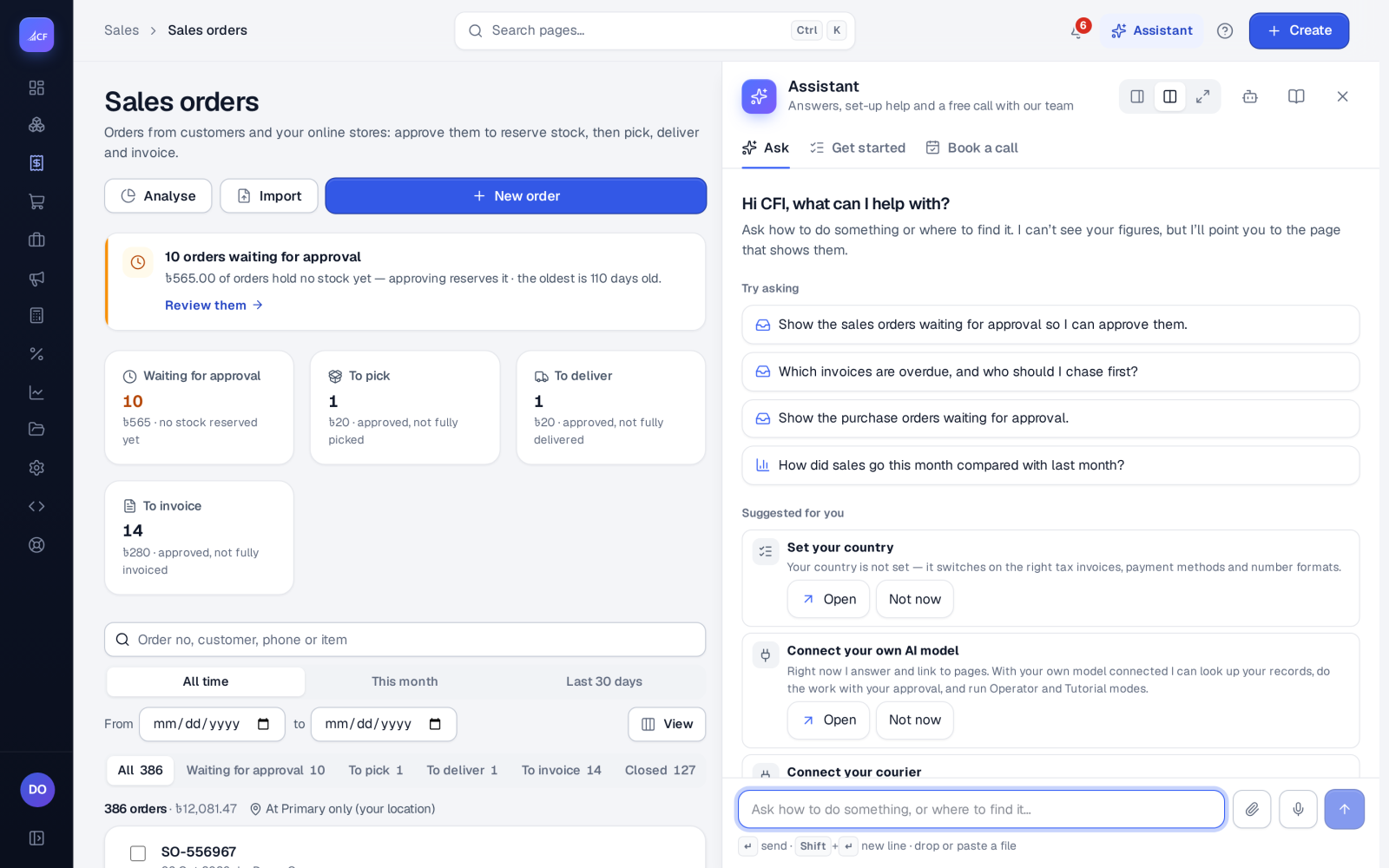
The assistant works inside Cash Flow Inventory, next to the page you are on. You ask in plain words — "which customers owe the most?", "why did margin drop this month?", "make a PDF of my latest sales order" — and it answers from your own records, with your own rights. It can explain a report, audit an area of the business, look for risks, make files, and prepare changes for you to approve.
It knows who is asking and where the business stands (counts only: people, locations, products, recent documents, what is waiting, what is set up and connected). From that it suggests what would help next, such as work waiting for you or a set-up step still open.
Who it is for
- Owners who want a quick answer without building a report.
- Clerks and managers who want to know how to do something in the app.
- Accountants checking figures, late payers and stock risks.
- New users learning the app step by step.
Before you start#
- The assistant needs an AI model. A business that has not connected its own uses the included model, with a monthly allowance per business; Settings › AI & agents › Model & assistant shows this month's use. To use your own, choose Connect a model there (Anthropic Claude, OpenAI, Google Gemini or any OpenAI-compatible service).
- On the same page the owner chooses what the assistant may do with changes: Ask before every change (recommended), Run the actions I list without asking, or Read only — never change anything, and which areas it may work in.
- The assistant never sees more than the person asking: page rights, hidden cost, margin and supplier prices, approval limits and locations all apply.
Step by step#
- Open the assistant from the header on any page.
- Type a question, or press one of the starters under Suggested for you.
- Read the answer: names and numbers link to the record or list they came from.
- If the answer proposes a change, check it and press Approve or Decline.
- Choose Half screen or Full screen to keep the page beside the chat.
What it can do#
Ask, explain and audit
- Answer questions about any list or report you may open, with comparisons to an earlier period.
- Explain a report's figures and what moved them.
- Run an audit of an area and list what looks wrong, with the records behind each finding.
- Show a risk watch: customers likely to pay late and products at risk of running out.
- Tell you how to do something, from the app's own help, and take you to the right page.
Answers you can act on
Answers carry links to records and lists, cards for a document or a contact, charts and tables, and "next step" buttons (for example, approve the order you just made or take the payment that is still owed). Ask for a one-page briefing and it builds a page with key figures, charts and tables you can sort, print or download as PDF.
Files in and out
- Attach a spreadsheet (xlsx, csv), a PDF or an image (jpg, png). A spreadsheet is read in your browser so the assistant can answer from it, chart it or import its rows — a dry run first, then the import after you agree.
- A photo of a bill or receipt is read (text recognition in the browser), the assistant proposes the document, and the original image can be attached to it. It says what it could not read instead of guessing.
- Ask for a document as PDF, a report as Excel or PDF, or an export of any list. Voice input works in browsers that support it.
Memory and suggestions
- Say "remember that …" and it keeps the note for your future chats. What I remember lists your notes; each can be forgotten, or use Forget all. Nobody else sees them.
- Your chats are kept 90 days so it can follow up on them.
- Not now hides a suggestion for 30 days; Turn off personal suggestions stops them (work waiting on you still shows). Plan notes go only to the owner.
- A brand-new account sees the assistant open by itself in half screen with first steps; Don't open automatically switches that off.
Every change is yours to approve#
Reading runs at once. A change — a new order, an approval, a cancel — is shown as a proposal with Approve and Decline (or Approve all / Decline all for several). It runs only after you approve, through the same rules as the screens: numbering, stock, posting, approvals and history. Cancels, voids and deletes always ask first. Each run is recorded in the AI activity on Settings › AI & agents › Activity & privacy.
Reporting a problem#
Say that something is not working, in any language the app speaks. The assistant saves a report for the developers with a reference (ISS-…), the page and what failed; e-mail addresses, phone and card numbers, keys and passwords are removed first. You can also send it to support as a ticket. Reports are kept 180 days.
Limits and what is not there yet#
- Answers are only as complete as your rights: hidden figures stay hidden from the assistant too.
- The included model has a monthly allowance; when it is used up, connect your own model to go on.
- Figures about the value of the app for your business are estimates from your own last 90 days, with every assumption stated — never a promise.
Questions#
Can the assistant change something without me?
Only if the owner chose Run the actions I list without asking for the actions listed there. The recommended setting asks before every change, and cancels, voids and deletes always ask.
Does it see cost prices I am not allowed to see?
No. Field rights, page rights, approval limits and locations apply to the assistant exactly as to you.
Which files can I attach?
Spreadsheets (xlsx, csv), PDFs and images (jpg, png). Spreadsheet rows can be imported after a dry run you check.
How long are my chats kept?
90 days. Notes you asked it to remember stay until you forget them.