
Payroll
Keep employees, pay setups, attendance and pay runs in one place, and post every salary payment, held pay and deduction straight to the books.
What it is
Payroll keeps your employees, what each one is paid, the days they worked and the pay runs that pay them. Each employee has a pay setup with a base pay, a pay period and lines such as allowances, bonuses, deductions and taxes. When a pay date comes, a pay run is made from that setup. Paying the run posts the journal for you.
Attendance feeds the pay runs: overtime hours recorded on the sheet are paid at the setup's overtime rate. The overview, summary and register show what payroll costs and who was paid what.
Who it is for
- Owners who pay a small team every week or month and want salaries in the books without a separate tool
- Office managers who record attendance and overtime
- Accountants who need a payroll register and a clean wages journal
- Businesses with several locations that pay staff from different cash or bank accounts
Before you start#
- Switch payroll on in Settings › General (Payroll = Yes). The Payroll menu then appears.
- Set up the payroll tax types you need first (see payroll taxes), so pay setups can pick them.
- Each screen has its own rights (view, add, edit, delete). A person who can only view the employee list does not see a social security number in full; only people who can edit employees do.
Step by step#
- Open Payroll › Employees and choose New. Fill the name, an employee ID, the work e-mail and phone, the department, the designation, the hire date and the manager, then save.
- Open Payroll › Pay setups and start a setup for the employee. Enter the base pay, the pay period (daily to yearly), the next pay date, the working days and hours and the overtime rate.
- Add the lines: commissions, allowances and bonuses are added to pay; funds, deductions, insurance, retirement and taxes withheld are taken off; employer taxes are the business's cost on top. Each line is an amount or a percentage such as
10%. - During the period, open Payroll › Attendance and record each day: present, absent, holiday or half-day, a leave type, and regular and overtime hours.
- When the pay date comes, open Payroll › Pay runs and generate the runs. One run is made per employee per period that is due.
- Open a run, check the figures (overtime hours, totals, any extra deduction with its reason) and pay it from a cash or bank account, or mark the pay as held.
- Review the results in Payroll › Summary and Payroll › Payroll register.
Pay setups and lines#
A pay setup says what an employee is paid each period. Percentages are worked out by the server, not the browser: most lines are a percentage of the base pay, and taxes are a percentage of the gross pay. Gross pay is the base pay plus commissions, allowances, bonuses and the travel or daily allowance (plus overtime on a pay run).
A tax line can use the amount auto. The tax type's thresholds, ceiling and bands then work it out, as described in payroll taxes.
Pay runs#
- Generate makes a run for every active setup whose next pay date has come. It catches up period by period up to today, and moves the next pay date on. A period that already has a run is skipped.
- Pay lets you adjust the run before paying. An extra deduction needs a reason, and pay can never go negative.
- Held pay is accrued but not paid yet. Release pays it later.
- Undo turns a paid run back to unpaid and reverses its payment. A paid run has to be undone before it can be deleted, so its history is never lost in one step.
- Payments are dated by the business's own date, not the server's clock.
Attendance#
The attendance sheet shows every active employee for one date, so a whole day can be recorded at once and corrected later. The timesheet view shows one employee over a period: days present, absent and on leave, plus regular and overtime hours. A day inside a pay run that has already been generated is locked, so the sheet and the run always agree.
How it posts to the books#
When a run is paid:
- Dr Wages Expense for the gross pay
- Cr Employee Tax Payable for tax withheld, and Cr the superannuation or other deductions payable accounts for the rest of the deductions
- Cr the cash or bank account it was paid from (else Undeposited Funds) for the net pay
- Employer taxes: Dr the employer payroll tax expense, Cr Employee Tax Payable
Held pay goes to Wages Payable instead of cash. Releasing it posts Dr Wages Payable, Cr the account it is paid from. Undoing a run reverses these entries.
Reports#
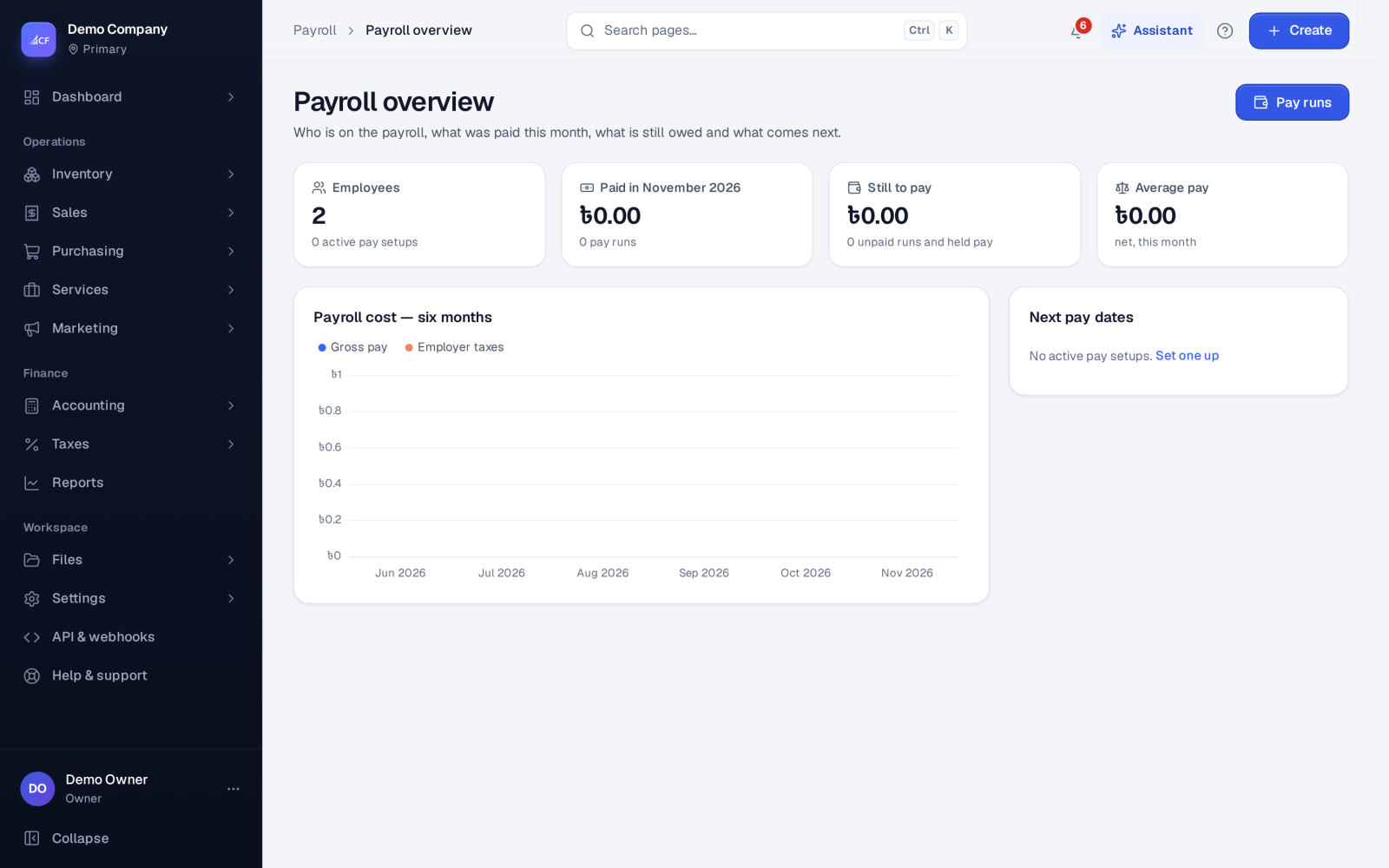
- Overview: headcount, paid this month, still to pay (unpaid and held), the next pay dates and six months of payroll cost.
- Summary: per employee over a period of paid runs.
- Payroll register: every paid run of a period, line by line, with a CSV export.
- Tax management: per active setup the gross, withheld, employer, insurance, retirement and net figures.
Reports count runs by the date they were paid, and only paid runs.
Limits and what is not there yet#
- Payroll works out each line from the setup's amounts, percentages and tax rules. It does not keep employee tax codes, filing status or per-employee reliefs.
- Payslips are not sent to government portals. Payroll tax amounts are recorded and paid through payroll tax filings.
- An employee who is used by pay setups, pay runs or attendance cannot be deleted; switch them off instead.
Questions#
Can I pay overtime?
Yes. Record overtime hours on the attendance sheet and set an overtime rate on the pay setup. The pay run multiplies the period's overtime hours by that rate.
What if I paid a run by mistake?
Open the run and choose Undo. The payment, and any release of held pay, is reversed, and the run goes back to unpaid so you can correct and pay it again.
Can I pay later than the run date?
Yes. Mark the pay as held. The net goes to Wages Payable, and you release it from the run when the money actually goes out.