
Approvals centre
One queue for every approval: review each request with its lines and warnings, approve, reject or send back, in bulk, and delegate while you are away.
What it is
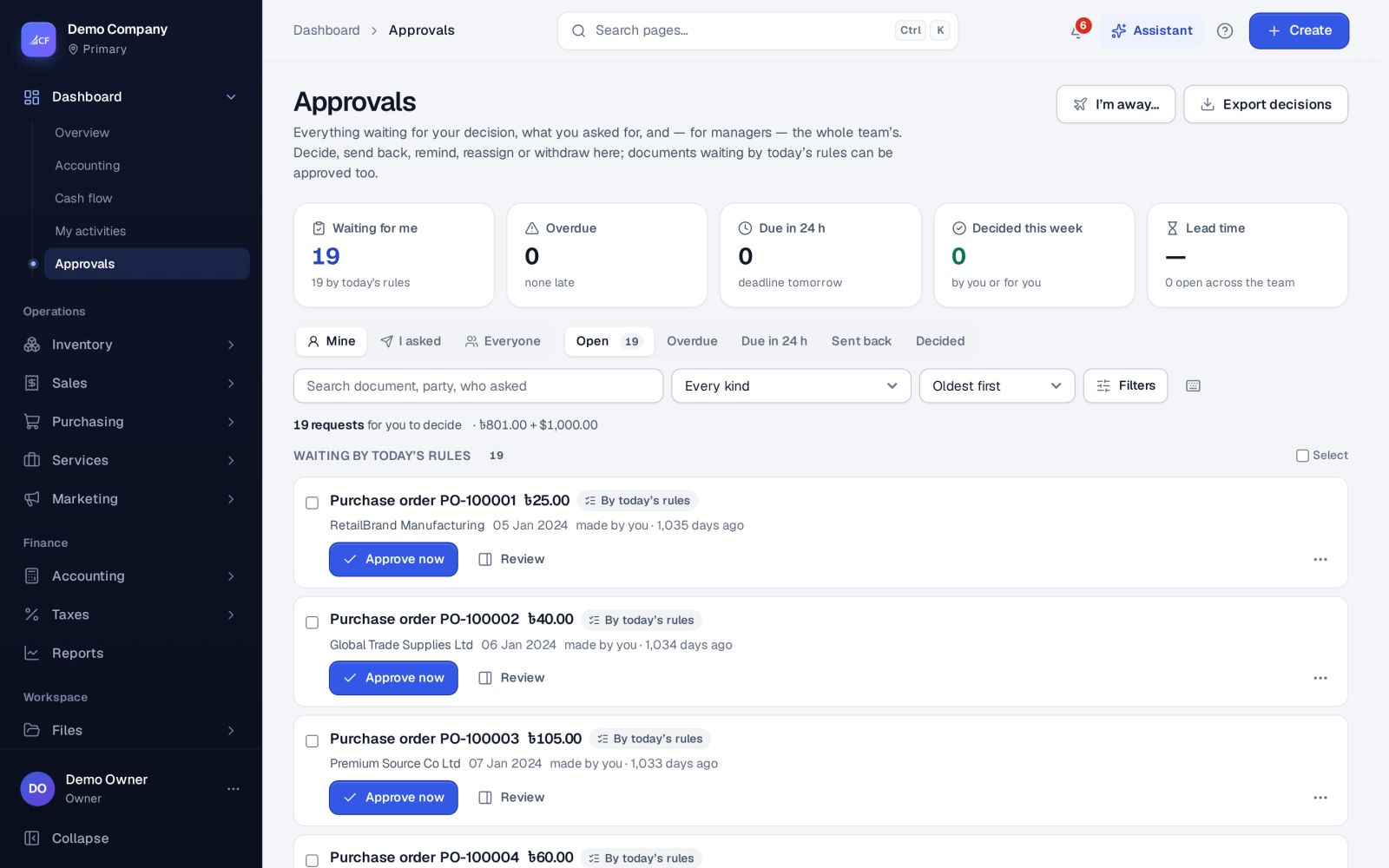
The approvals centre is the one place where requests wait for a decision. You can publish approval workflows for 10 document types: Sales order, Purchase order, Transfer order, Stock adjustment, Work order, Job, Quotation, Budget, Depreciation period and Till discount. Each workflow sets who approves at which level, with amount limits.
Until you publish a workflow for a type, today's settings decide. For example, the sales and purchase order auto-approve rules decide which orders wait. Documents waiting by those rules appear in the same queue, under Waiting by today's rules.
Who it is for
- Owners and managers who sign off orders, bills and stock changes
- Approvers who want one list instead of hunting through each page
- Finance teams that need decision deadlines, reminders and an export of decisions
- People who go on holiday and need someone else to decide for them
Before you start#
- Design workflows in Settings › Workflows. Pick the document type, add levels and rules (for example "No approval needed up to this total", or "Someone must agree first"), use Try it to test, then Publish. You can go back to an earlier version at any time.
- An approver's own approval limit applies to every approval. Above it, the request goes on to someone who may decide.
- Approval settings for orders are in Settings › Sales and Settings › Purchase. Once a workflow is published for that type, its steps decide and the setting becomes read-only.
Step by step#
- Open Dashboard › Approvals. Waiting for me shows what you can decide now.
- Narrow the list with Every kind, Asked by anyone, the amount range, the dates or Search approvals, and choose a Sort such as Oldest first or Deadline soonest.
- Choose Review on a request to see its lines, totals, history and What to look at.
- Decide: Approve, Reject… (a reason is required), or Request information… to send it back to the person who asked.
- Use Next / previous request in the review panel to work through the queue.
- To decide many at once, select the requests and choose Approve {n} or Reject. The confirmation shows the total value per currency.
- Choose Export decisions for a file of who decided what and when.
The review panel#
The review explains signals before you click, and never shows cost or margin. Signals include: over your limit, how long it has waited, prices against the catalogue, stock, possible duplicates, a first-time customer or supplier, and an unusually large amount. Level {a} of {b} shows where the request is in the workflow. Approving the last level approves the document.
Other actions#
- Remind nudges the approvers.
- Reassign… hands a request to someone else (for managers). Use it when no approver can decide.
- Withdraw… is for the person who asked. The request is cancelled, the document stays waiting, and it is asked again the next time it is approved.
- Approve now decides a document waiting by today's rules. It goes through that document's own rules: your right and limit are checked again there.
- I'm away… sets who decides for you, optionally until a date. They are told at once, and the original approvers keep their say too.
- Keyboard shortcuts let you work through the queue from the keyboard. You can switch them off.
Who is told#
When a request is made, its approvers get a team message. When it is decided or sent back, the person who asked is told. A request past its decision time is marked Overdue, and an escalation e-mail goes out once.
Limits and what is not there yet#
- A bulk action takes up to 50 requests at a time. Any that are refused are listed with the reason, and the rest still go through.
- Cash-on-delivery parcels that come back different from the invoice also come here for review, under their own kind.
Questions#
Why is something waiting with no workflow published?
Your settings still make it wait. For example, purchase orders may need approval above an amount. Those appear under Waiting by today's rules, and Approve now decides them.
Can I approve from the assistant?
Yes. Ask the assistant for the waiting orders. It shows a work queue to tick and approve, and each record still goes through its own rules and your limit.
Does rejecting delete the document?
No. The request is rejected with your reason, which the person who asked can see. The document stays, so it can be changed and sent again.
Who can see the team's requests?
Mine shows your own. Managers can look at the team's requests too, and see which are overdue.