
Sales orders
Take customer orders, approve them by hand, automatically or by advance paid, take deposits, and follow each order through pick, delivery and invoice.
What it is
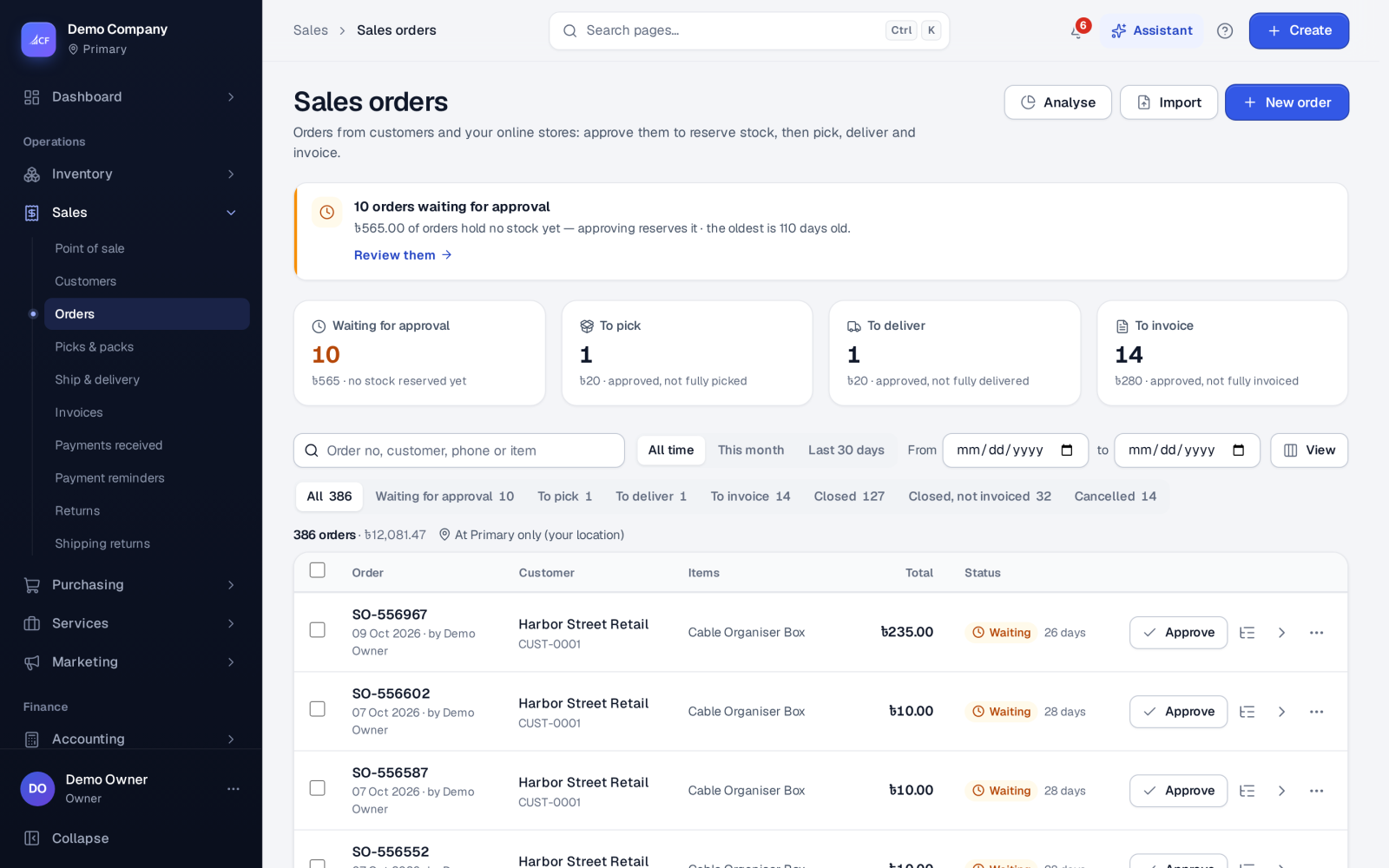
A sales order is the customer's agreement: who buys, what, at which price and tax, and where it goes. Once approved it reserves the stock, and every later document — pick, delivery, invoice — is made from it, following your sales process. An order can be fulfilled in parts, with several picks and invoices.
Who it is for
- Sales staff who take orders by phone, e-mail or in person.
- Managers who approve orders within their limit.
- Warehouse teams who need to know what to pick next.
- Businesses that take a deposit before goods leave.
Before you start#
In Settings › Sales › Approvals, choose Sales order approval: Approve each order by hand, Approve automatically, or Approve automatically when enough is paid in advance (with the share, from 0 to 100). Once a sales order workflow is published in Settings › Workflows, its steps decide instead. Show Advance payments if you take deposits, and set Credit limit under Credit control.
Step by step#
- Open Sales › Orders and choose New order.
- Pick the Customer (or New to add one), and check Bill to and Ship to.
- Set the Order date, Deliver by, Payment term, Shipping method and Sales channel.
- Add the items; prices come from the customer's price list or the catalogue, and units, discounts and taxes can be set per line.
- Add any order discount, coupon code, cost line or Advance paid, and attach files if needed.
- Save. The order shows in Waiting for approval, unless your rule approves it.
- Choose Approve (or Record payment & approve when the customer has paid).
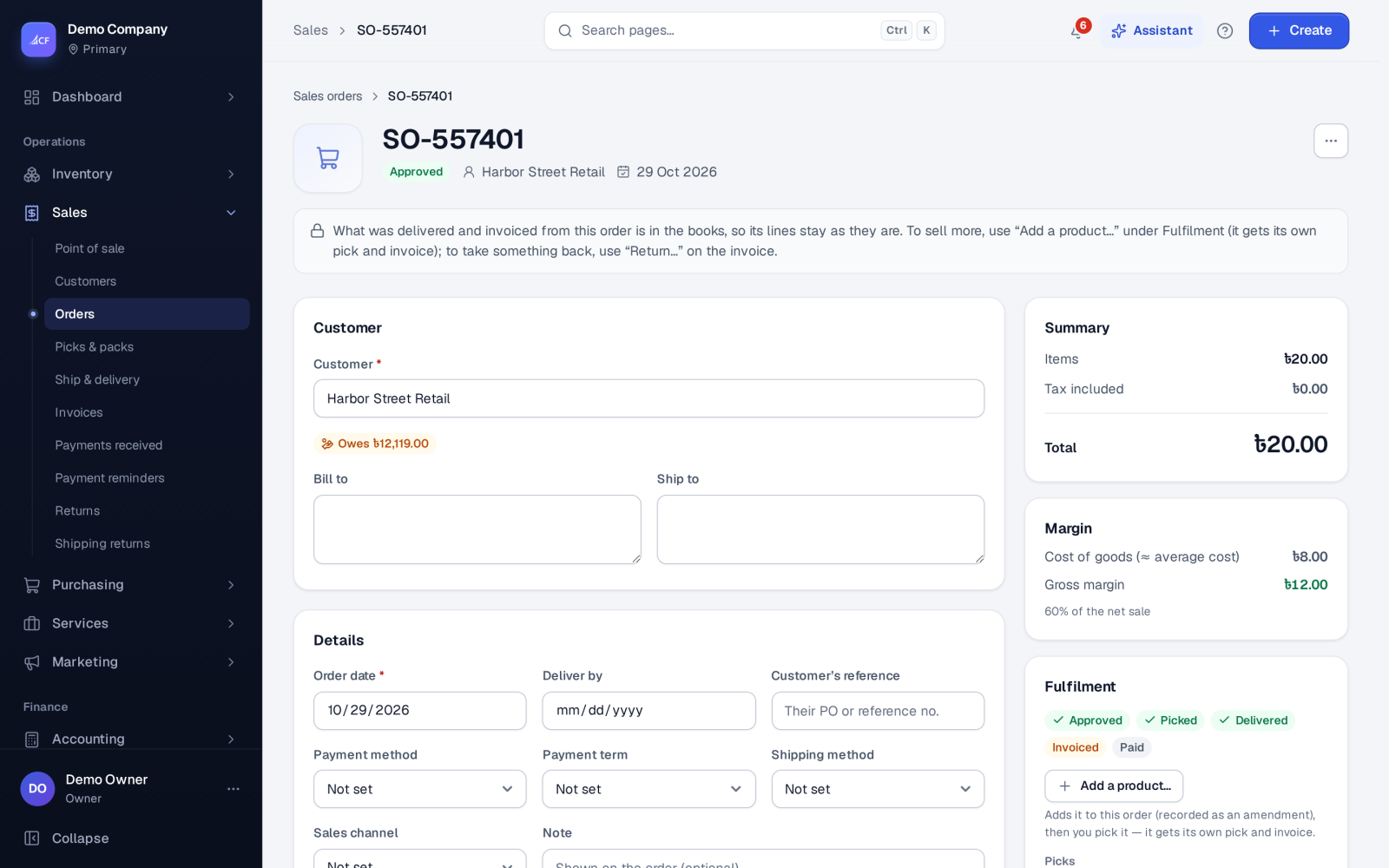
- Continue from the order's Fulfilment panel: pick, deliver and invoice — or Deliver & invoice in one step when nothing is picked yet.
List views#
| View | Meaning |
|---|---|
| Waiting for approval | Saved, not yet approved |
| Unpaid web orders | Online-store orders waiting for their money |
| To pick / To deliver / To invoice | Approved, with that step still to do |
| Closed | Finished |
| Closed, not invoiced | Closed with nothing invoiced; the reason is kept |
| Cancelled | Not going ahead |
Approving#
At approval the approver's limit and credit control are checked; a customer whose credit status is not in good standing is refused. Approve without payment (with a reason) is for the owner and for roles given Sales orders approved without payment, up to the role's limit — above it the order goes to the approvals centre.
Deposits#
Record payment on the order's Payment & follow-up panel takes money by hand before the invoice: amount (up to what is left to pay), date, method, a reference (never a card number), bank or wallet charges and a proof file. Each deposit is a numbered receipt and a customer advance, not revenue; the invoice uses it later. Settings › Sales › Applying advances to invoices decides how it is spread over the order's invoices: in proportion, oldest receipt first, or to the last invoice.
Changing an order#
- Not yet picked: edit it normally.
- Picked, with invoices still drafts: change quantities and prices, add or remove lines, and save; its picks are reversed and entered again under their own numbers.
- Already invoiced: Add a product… on the Fulfilment panel adds new lines as an amendment, picked and invoiced separately. The earlier invoice does not change.
See corrections and amendments for the full rules.
Cancel, close and reopen#
The order offers exactly one of Cancel order or Close order:
- Cancel while nothing was made from it. It asks why, releases the reserved stock, reverses any advance onto the customer's credit and withdraws the approval request.
- Close once something was picked, delivered or invoiced. It asks why when the order was not invoiced in full, and is refused while a delivery is not yet invoiced.
- Reopen… asks why, for example Closed by mistake or Customer paid late.
Business policies in Settings › Business policies can cancel orders still waiting for approval, close untouched approved orders and close fully invoiced orders after a time. A kept order is never cancelled by them.
Questions#
Can one order have several invoices?
Yes. Each pick can make its own delivery and invoice, so a part shipment is invoiced on its own.
What happens to a deposit if the order is cancelled?
It becomes the customer's credit, shown on their card. Refund it from the customer's page or let it pay a later invoice.
Can I approve many orders together?
Yes. Tick them in Waiting for approval, or use the assistant's sales-orders work queue: approve, then pick, then deliver and invoice.
Why can't I close an order?
A delivery made from it is not invoiced yet. Invoice it, or undo the delivery, and close again.