
Messaging hub
Send e-mail, SMS and WhatsApp from one place with one log, automatic messages, templates in 22 languages, consent with proof, an inbox and cost reports.
What it is
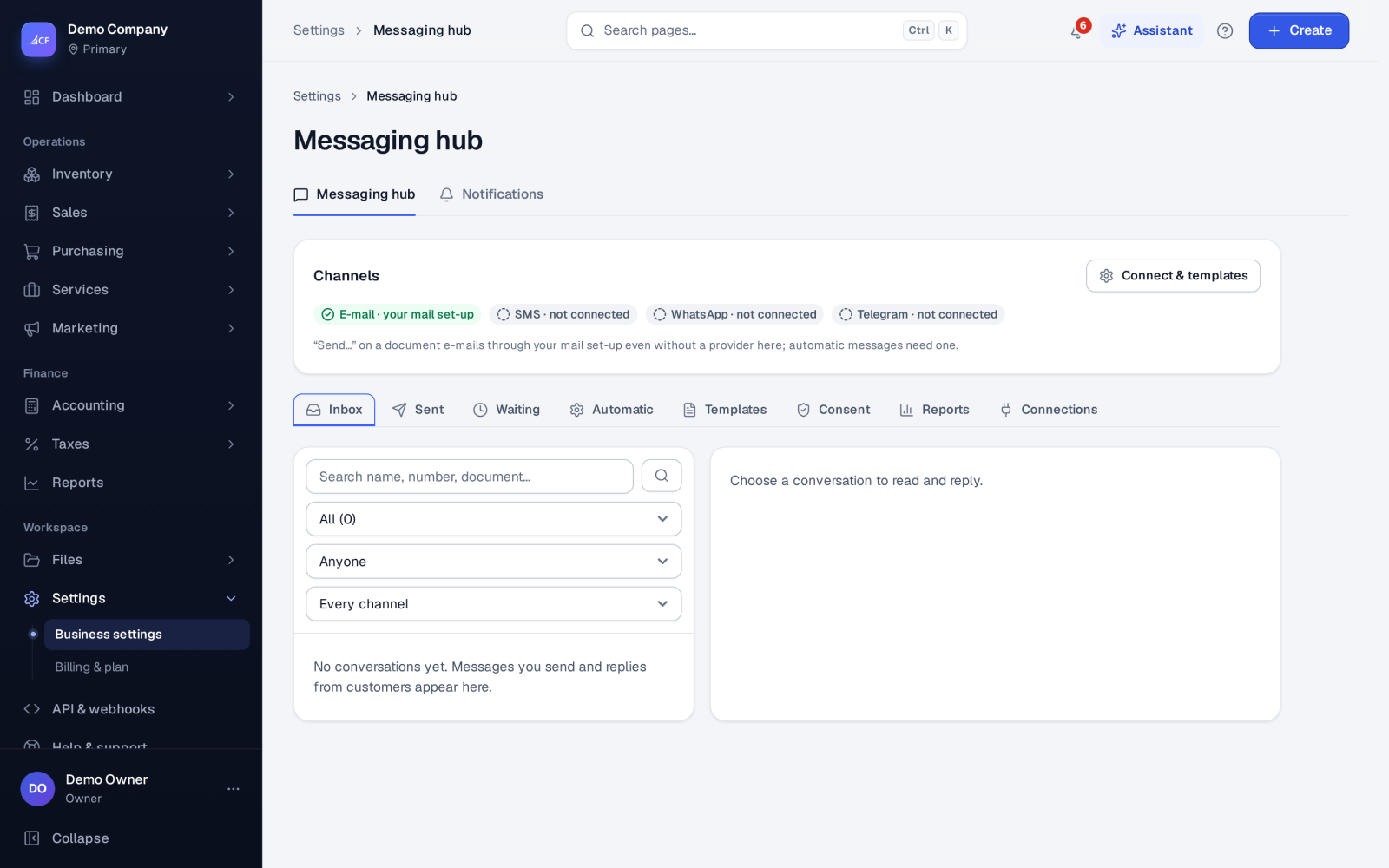
The messaging hub is the one path every message takes, and the one log that keeps them. That covers Send… on an invoice, order, quotation, delivery note or receipt, automatic notices, replies from the inbox, team messages and the assistant's own messages. Each one is checked against the customer's consent, written from your template or the built-in wording, and then sent by e-mail, SMS, WhatsApp or Telegram. Each one is logged with who or what sent it: a person, the assistant, an AI app, the API or a scheduled job.
The hub has the channel connections and these tabs: Inbox, Sent, Waiting (for your approval), Automatic, Templates, Consent and Reports.
Who it is for
- Businesses that send invoices, order confirmations and delivery updates to customers
- Shops that answer customers on WhatsApp, Messenger, Instagram or e-mail
- Owners who need proof of consent before sending offers
- Teams that want to see delivery rates, response times and what messages cost
Before you start#
- E-mail always works through your mail set-up. SMS and WhatsApp need a provider.
- Connect providers in Settings › Messages › Connections. Each business has one WhatsApp and one SMS connection, used by everything that sends.
- Secrets such as tokens and passwords are sealed on the server and never shown again. Only the owner changes a connection.
Step by step#
- Open Settings › Messages and choose Connect & templates to connect your e-mail, SMS and WhatsApp providers.
- Open Automatic and set each message (order saved, delivery shipped, invoice made, payment received and so on) to Off, Suggest or Automatic.
- Open Templates and write your own wording per message, channel and language. Use Insert a placeholder… to add fields such as
{{customer_name}}or{{doc_no}}. - For WhatsApp, open the WhatsApp templates for documents and choose Submit for approval. Then use Check Meta's verdict.
- Send a document with Send… on it, or let the automatic messages go.
- Check the Sent tab: every message with its status, and the reason when one was skipped.
Automatic messages#
- Off: nothing is sent.
- Suggest: the message waits in Waiting until someone approves it.
- Automatic: it goes at once.
The Automatic tab shows when each message goes and whether it uses your template or the built-in wording. For SMS it also shows how many parts the latest real document would take. A message a person sent by hand is not repeated by the matching automatic one.
Consent and the preference centre#
Every message has a purpose:
- Transactional: about the person's own orders and invoices. No opt-in is needed; a full opt-out stops it.
- Service: replies to what they asked. Same rule as transactional.
- Marketing: offers. Needs a proven opt-in, such as a checkout box, a confirmed e-mail link, a WhatsApp keyword, or a staff entry with a note.
- Assistant: the assistant writing to them, allowed until they ask for a person.
STOP on WhatsApp or Telegram stops everything on that channel. The unsubscribe link stops marketing only. Offers wait out quiet hours in your time zone, and at most one offer per person a day goes by default. Every person has a preference page, with no login, where they choose which messages they get and in which language. The Consent tab shows each purpose per channel, with the proof, and exports one person's consent record as CSV.
Country rules (for example DLT registration in India, 10DLC in the United States, masked sender IDs in Bangladesh) are applied as commonly understood. They are not legal advice.
Inbox#
There is one conversation per customer or supplier, and one per document when a message was about a document. Messages from connected WhatsApp, Telegram, Messenger, Instagram and e-mail accounts join the customer's conversation. Reply from the conversation; WhatsApp, Messenger and Instagram allow free text only within 24 hours of the customer's last message. Conversations can be open, waiting or closed, assigned to a colleague, tagged and given internal notes that are never sent.
Languages#
A message goes out in the contact's document language, else the business's, else English. The built-in wording exists in 22 languages, right to left for Arabic and Urdu.
Reports and costs#
Reports shows, for a period, sent, delivered, failed, skipped and waiting per channel; who sent them; response times against your reply target (60 minutes by default); reputation (bounce, complaint and opt-out rates); and the queue's health. Costs show the last 6 months per channel: an indicative estimate before sending and the cost the provider reported. You can set a monthly cap per channel; at the cap marketing stops, while order and invoice messages still go.
Send to many#
Invoices and sales orders can be sent to many at once, up to 30. Each gets its own message and link. Those without an address, or that were opted out, are listed by number.
Limits and what is not there yet#
- Couriers that are only polled do not trigger a "delivered" message yet. Couriers with webhooks, such as Steadfast and Pathao, do.
- There is no one-time-code SMS.
- Providers without delivery receipts show only "accepted", not "delivered".
- The assistant and AI apps can only propose a bulk send, an inbox reply or an opt-in; a person approves it.
Questions#
Why was my SMS not sent?
Open it in Sent. The reason is in plain words, for example no mobile number, no provider connected, opted out, or held for quiet hours.
Can I send offers to all my customers?
Only to those with a proven marketing opt-in on that channel. Others still get messages about their own orders and invoices.
Can customers reply?
Yes. Replies on connected channels, and e-mail replies when an inbound address is set, come back into the conversation in the Inbox.
Does the assistant answer customers?
It can, on connected channels. Its first answer says it is the business's automated assistant and that the customer can ask for a person at any time.