
Budgeting and forecasting
Budget each account month by month, keep budget, reforecast, best and worst cases side by side, compare with live actuals and approve the plan.
What it is
A budget is an amount for each revenue and expense account, for each month of a fiscal year. There is one plan for each location, year and scenario. Actuals are never typed in. They are read live from the books, so budget against actual is always up to date.
Two screens work on the same plan:
- Budget by account is the grid of accounts by month, with Budget, Actual and Variance views.
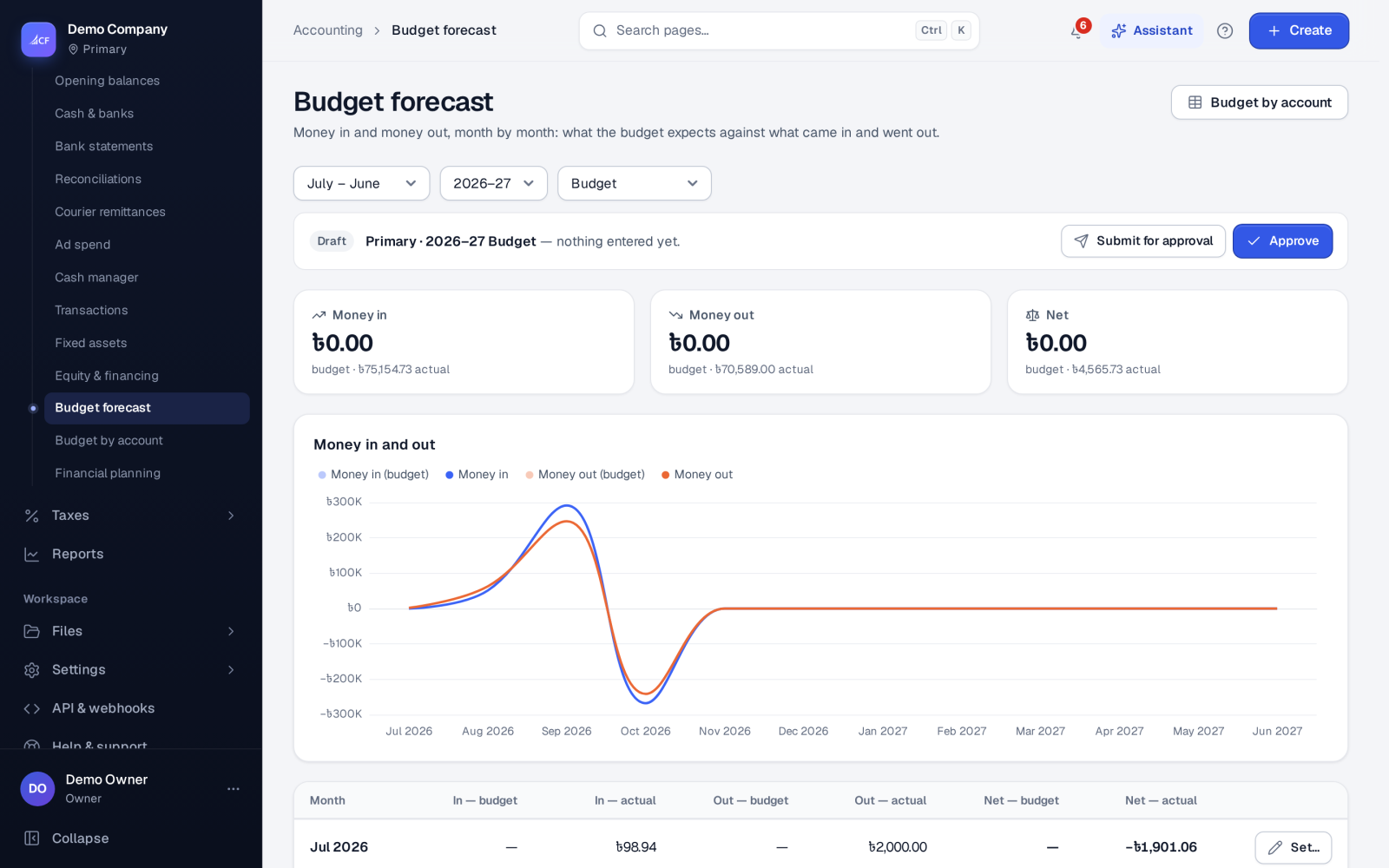
- Budget forecast is the cash budget month by month: money in and out, budget against actual, and the net.
Who it is for
- Owners setting next year's targets
- Accountants preparing a budget for approval
- Managers checking spending against plan each month
- Businesses that want a reforecast and best / worst cases next to the original budget
Before you start#
- Your chart of accounts should have the revenue and expense accounts you want to plan.
- Each budget screen has its own rights. Submitting needs the add right; approving needs the edit right.
- If you publish a Budget workflow in Settings › Workflows, its approvers decide.
Step by step#
- Open Accounting › Budget by account.
- Choose the Fiscal year (Calendar year or July – June), the Year and the Scenario: Budget, Reforecast, Best case or Worst case.
- Choose Fill from last year… to start from last year's actuals, or type amounts into the month cells.
- Save your changes. Only the chart's revenue and expense accounts and the plan's months can be filled.
- Switch to Actual or Variance to see how the year is going.
- Choose Submit for approval when the plan is ready. The approver opens the same plan and chooses Approve.
- Use CSV to export the grid, or open Budget forecast to see the plan as cash in and out by month.
Scenarios and approval#
- Four scenarios sit side by side for the same year: Budget, Reforecast, Best case and Worst case. You can copy another scenario's amounts into a draft, for example to start a reforecast from the budget.
- A plan moves draft → submitted → approved. An approver can also approve straight from draft. A submitted plan can be recalled, and an approved one unapproved, by people with the right.
- An approved plan isn't changed by accident: unapprove it before editing.
- Negative budget amounts are refused.
Reading budget against actual#
- Revenue actual is credits less debits. Expense actual is debits less credits.
- The Budget vs actual report shows each income and expense account against its budget, with the variance, so what is off plan stands out.
- Write the budget in the planning suite's scenarios can write a what-if scenario straight into one of these budget scenarios.
Limits and what is not there yet#
- Budgets are kept for revenue and expense accounts. Balance-sheet accounts aren't budgeted here; the 13-week cash forecast covers cash.
- The budget screens offer a calendar year or July – June.
Questions#
Can each location have its own budget?
Yes. There is one plan per location, fiscal year and scenario.
Does the actual column need updating?
No. Actuals are read from the books each time you open the plan.
How do I build a reforecast mid-year?
Choose the Reforecast scenario, copy the Budget into it, and change the months still to come. Or run a scenario in Accounting › Financial planning and write it into the Reforecast.
Who can approve a budget?
People with the edit right on the budget screen, or the approvers of your published Budget workflow.