
Print studio
Design how each document prints: paper, layout, logo, columns in your order, pictures, totals, stamps and signatures, saved as named layouts.
What it is
The print studio sets how your documents look on paper and as PDF. Settings are kept per document type. Each type can have its own layout, paper, columns and fields: sales order, pick list, delivery order, sales invoice, payment receipt, sales return, credit note, customer refund, quotation, job sheet, purchase order, goods received note, purchase bill, payment voucher, requisition, request for quotation, stock transfer, stock adjustment and production documents.
A live Preview shows your latest document of that type as you change things. Sample PDF (saved settings) shows the result as a file.
Who it is for
- Owners who want branded invoices and quotations
- Shops printing receipts on a thermal till printer
- Warehouses that need pick lists and delivery notes with the right columns
- Businesses with statutory print rules: copies, stamps, signatures and tax IDs
Before you start#
- Add your logo and business details in the business settings, so they print in the header.
- To use a stamp or seal, upload it under Stamp / seal first, then turn it on for each document type.
- Changing print settings needs access to the settings pages.
Step by step#
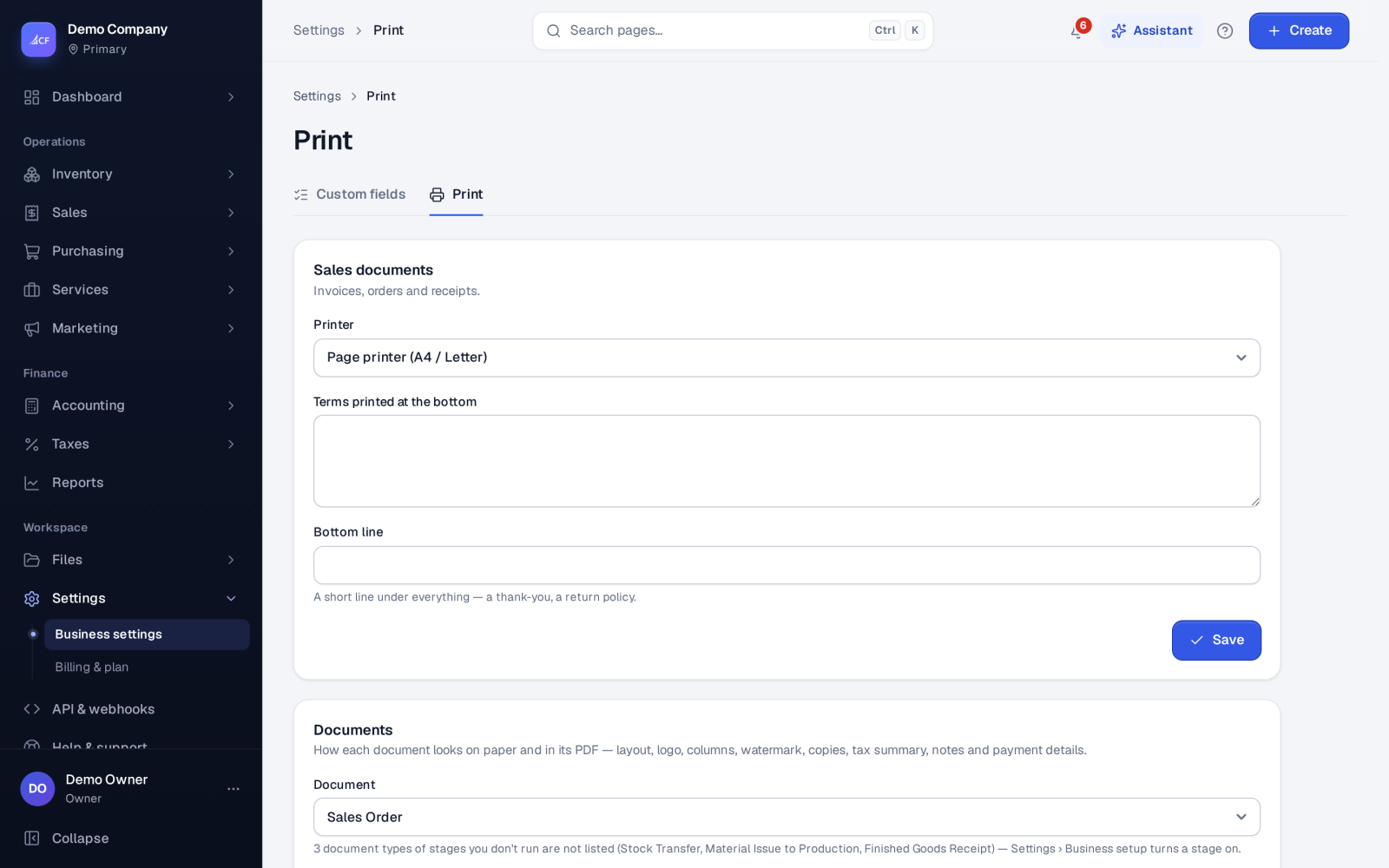
- Open Settings › Print.
- Choose the Printer: Receipt printer (POS) or Page printer (A4 / Letter).
- Pick the Document type to set up.
- Choose a Layout (Modern, Classic, Compact or Receipt (thermal)), the Paper (A4, A5, US Letter, US Legal, Receipt 80 mm or Receipt 58 mm), the Orientation, Text size, Margins and Accent colour.
- Set the logo position and Logo size, the Copies printed, and a Printed title if you don't want the standard one.
- Under Columns of the lines, in print order, switch columns on or off, move them up or down, and set each heading and width. Item picture adds a picture column with its own size.
- Choose the Header fields, what shows In the totals, and the footer: Terms printed at the bottom, Bottom line, Signature lines, Payment / bank details.
- Choose Save, or give a Name of the new layout and choose Save as a new layout.
What you can switch on#
- Header fields: order number, due date, payment terms, salesperson / buyer, shipping method, tracking number, your reference or the customer's order number, tax IDs for both sides, and custom fields marked "print".
- Lines: SKU under the item name, line discounts as an amount or a percentage, serial and lot numbers under each item, and charged costs as lines of the table or in the totals.
- Totals: sub-total, discount, charges, Tax summary by rate, paid and advances, balance due, and Amount in words.
- Footer and marks: page numbers, Status watermark, Mark reprints, Note on every one (for example delivery instructions), a stamp over the authorised signature, and Pay-online QR and link on open invoices when a payment provider is connected. The link lives 90 days.
- Copies: 2 or 3 copies, each labelled Original, Duplicate, Triplicate.
- Stock documents print quantities only unless you turn prices on.
Named layouts and language#
A Saved layout is a named variant of a document type, for example "Invoice — export" next to the standard one. Pick one to edit it, and choose it when printing from the print page's Options.
A document prints in its customer's or supplier's document language when one is set. You can also choose a language at print time. Otherwise documents print in English, whatever language the staff member uses on screen.
Product labels and reports#
The same page sets Product labels: QR code or barcode, the barcode type, and the Cost cipher, a code for each digit 0–9 that labels print instead of the cost. Each digit needs its own code. The Reports part sets what prints under each report, such as the filters used and the report's checks.
Questions#
Will changing the layout change documents I already printed?
No. Print settings change how documents print from now on. Each print and PDF is recorded in the document's print history.
Can I print on a thermal receipt printer?
Yes. Choose Receipt printer (POS) and the Receipt (thermal) layout on 80 mm or 58 mm paper.
How do I put a pay-online QR code on invoices?
Connect a payment provider in Settings › Online payments, then switch on Pay-online QR and link for invoices.
Can a localisation pack add a statutory format?
Yes. When a localisation pack is switched on, it can add its own print layout for documents such as a national invoice format.