
Supplier management
Keep each supplier's details, contacts, terms, prices and lead times in one place, and see what you owe, what is on order and what to reorder.
What it is
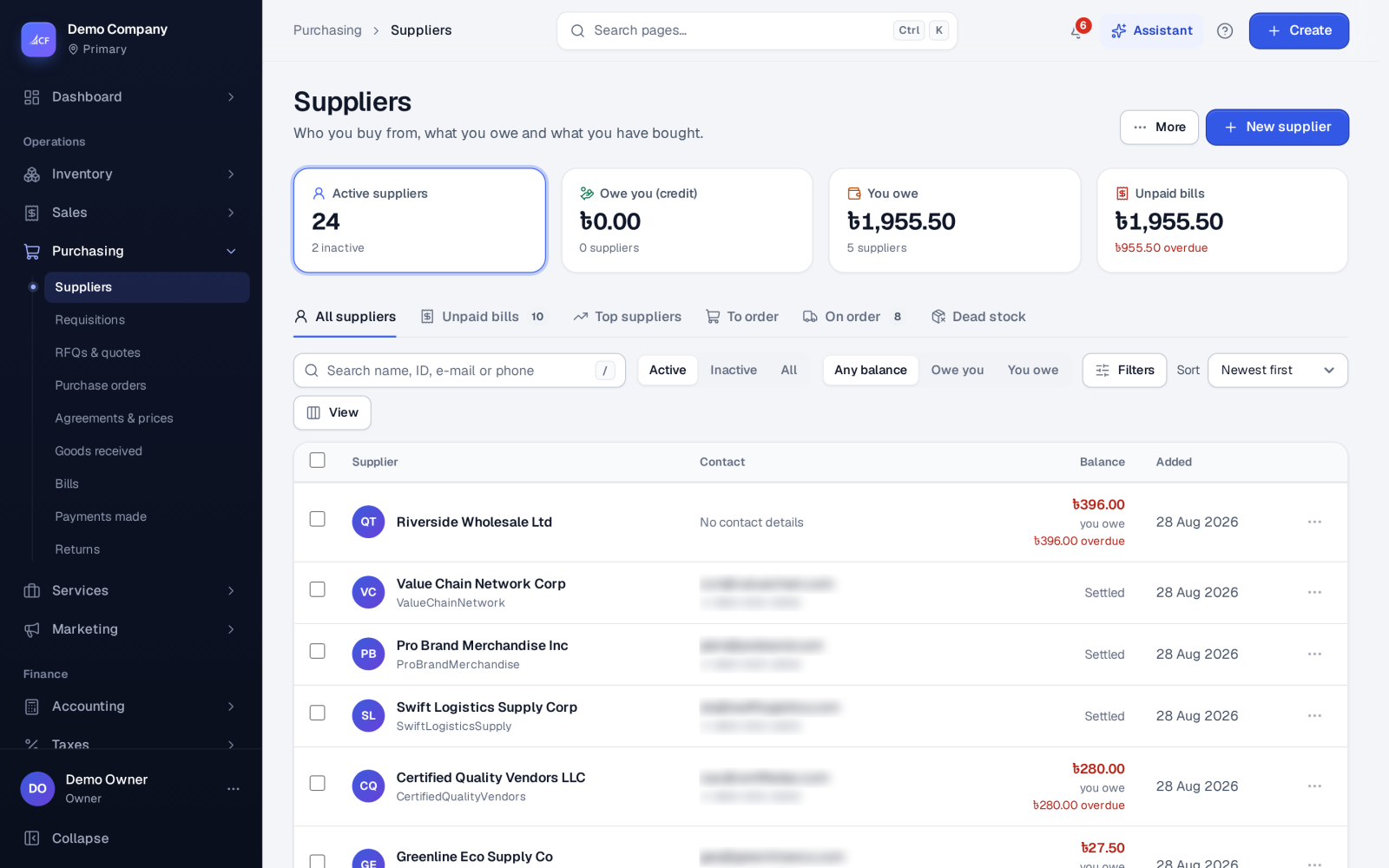
The supplier list holds everyone you buy from. Each supplier has a page with their details, the people you deal with, the items they supply, their performance, a statement and every document you have with them. The balance shows at a glance whether you owe them or they owe you.
The list itself also answers buying questions: what to order from whom, what is on its way, and which of a supplier's goods have stopped moving.
Who it is for
- Buyers who choose and order from suppliers.
- Accountants who reconcile supplier statements.
- Owners who want to know who they depend on and how each supplier performs.
Step by step#
- Open Purchasing › Suppliers and choose New supplier.
- Enter the Supplier ID, the company name, e-mail, phone, address and Tax ID.
- Untick Pickup is the same as the company address if goods are collected somewhere else, and enter that address.
- Use Add a person to add the people you deal with.
- Save the supplier.
- Select one or more suppliers and choose Update to set the Payment terms, Payment method, Shipping method, Default discount (%), Credit limit, group or status.
- On the supplier's page, open Items supplied and add each item with the purchase quantity, unit landed cost and lead times.
The supplier list#
| View | Shows |
|---|---|
| All suppliers | Everyone, with their balance |
| Unpaid bills | Suppliers you owe |
| Top suppliers | Who you buy from most |
| To order | What to order, grouped by supplier |
| On order | Goods on their way from suppliers |
| Dead stock | Stock that hasn't moved, by supplier |
Filter by status (active, inactive, all) or balance (Owe you, You owe), and sort by name, ID, newest or largest balance.
The More menu holds Import from a spreadsheet (Excel or CSV), Export current list (CSV), Find duplicates and Balances that differ from documents…, which lists suppliers whose stored balance does not match their documents so it can be recomputed.
The supplier's page#
- Overview: details, balance and unpaid bills.
- People: the contacts at the supplier.
- Items supplied: what they sell you, with landed cost and the usual and longest lead times.
- To order: what to reorder from this supplier, from a demand window you choose.
- Performance and Statement: how they deliver and what has passed between you for a period.
- Documents: every order, receipt, bill, payment and return.
From the page, New order starts a purchase order. The More menu has History & activities, Mark inactive, Export personal data and Erase personal data….
Merging and removing suppliers#
- Merge joins duplicate suppliers into one, with Fill empty details from the others.
- Mark inactive keeps a supplier you no longer use out of the way without losing history.
- Delete is offered only where the app allows it.
Currencies and prices#
- A supplier's balance is kept in the supplier's own currency when they trade in a foreign one.
- Supplier prices by quantity and date, and blanket agreements, live on Purchasing › Agreements & prices — see purchase orders.
Questions#
How do I bring in my existing suppliers?
Use More › Import from a spreadsheet on the suppliers list, with an Excel or CSV file.
Where do I set a supplier's lead time?
On the supplier's page under Items supplied, per item. Supplier price lists can also carry a lead time, and replenishment uses it.
Why does a supplier show "Owe you"?
They hold money for you, for example a supplier credit larger than what you owed. Use it on the next bill or record their refund.
Can I keep a supplier but stop ordering from them?
Yes. Mark them inactive; their documents and history stay.