
Chart of accounts and general ledger
Your accounts by class with live balances, automatic journals from every document, manual journals that reverse rather than edit, and the ledger.
What it is
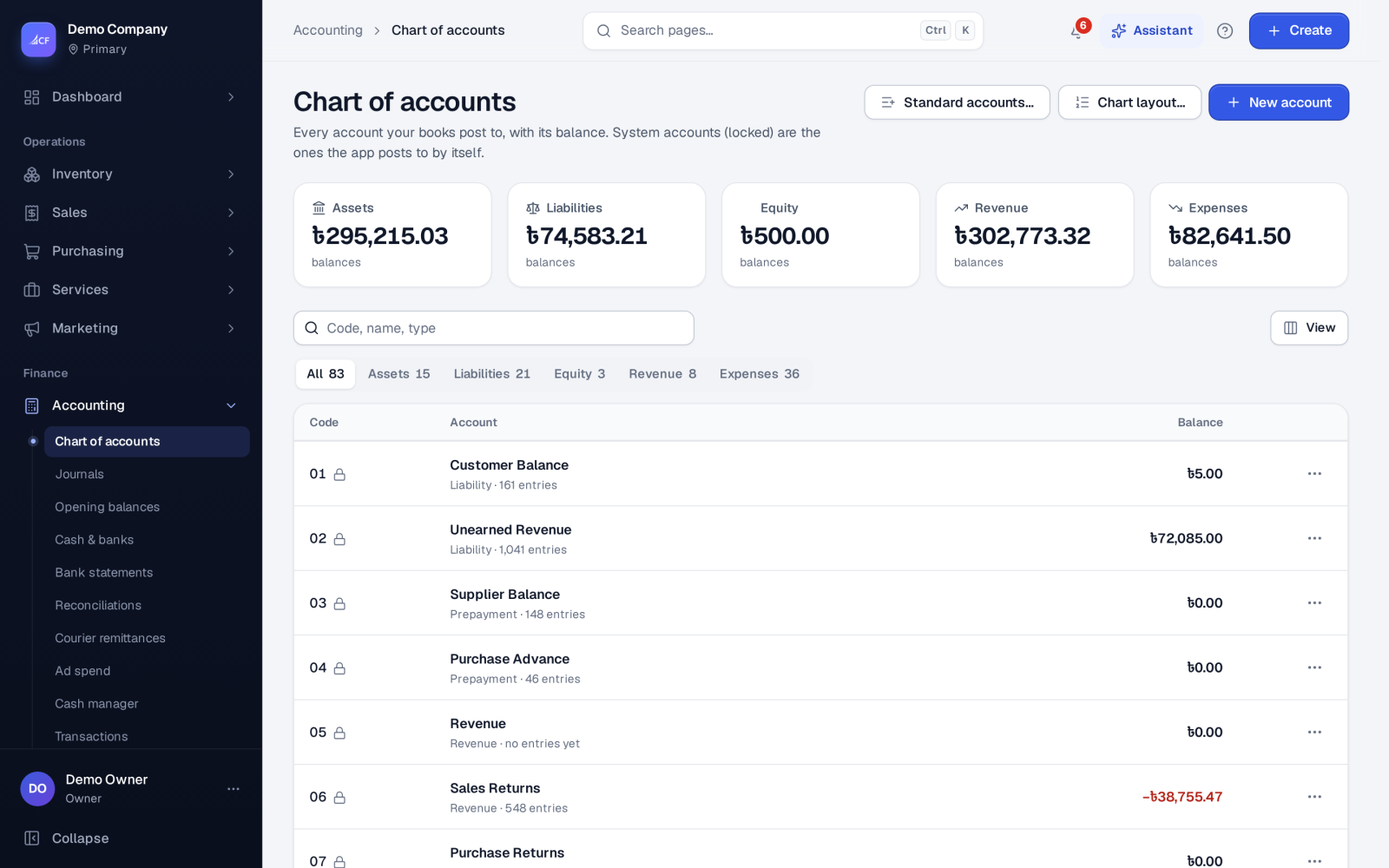
The chart of accounts lists every account your business posts to, grouped by class: assets, liabilities, equity, revenue and expenses. Each account shows its running balance, which moves with every posted entry.
You rarely post by hand. Every document posts its own journal as it happens: invoices, payments, bills, stock movements, depreciation and more. So the books are always current. Manual journals are there for accruals, corrections and anything no document covers.
Who it is for
- Accountants and bookkeepers who keep the ledger
- Owners who want to see balances without waiting for month end
- Businesses moving from another system who need their own account codes
- Auditors who follow entries back to their documents
Before you start#
- New businesses start with a standard chart. Standard accounts… adds any standard accounts your chart is missing.
- Set your Accounting framework in Settings › General (IFRS, IFRS for SMEs, US GAAP, UK / Ireland FRS 102, Ind AS, or National GAAP). It sets the captions and policies the statements follow.
- Chart rights are separate for viewing, adding, editing and deleting accounts. Manual journals have their own rights.
Step by step#
- Open Accounting › Chart of accounts. Use the class views (Assets, Liabilities, Equity, Revenue, Expenses) or search.
- Choose New account. Pick the type, which sets the class and normal balance, then enter a code and a name. Both must be unique in the chart.
- Add an opening balance with its as-of date and a description if needed, then save.
- Use a row's menu for Edit…, Transactions or Delete….
- To post by hand, open Accounting › Journals and choose New journal.
- Add at least two lines, each an account with a debit or a credit, until the entry balances, attach any evidence, and save.
Chart layouts#
Chart layout… renumbers your accounts to a ready layout and sets their statement captions:
- IFRS layout (4-digit codes, IAS 1 captions)
- US GAAP layout (4-digit codes)
- Classic (the original chart)
Accounts are matched by their posting role, else by name, and accounts the layout lacks are added. Your own accounts that the layout doesn't know keep their codes. A preview shows every change before you apply it. This is safe because journal lines point at the account itself, not its code. A business with several locations keeps a chart per location, and all of them move together.
Rules that protect the books#
- System accounts are locked. Their code, type and existence can't be changed, because postings depend on them.
- An account with journal lines can't be deleted.
- Editing an opening balance moves the running balance by the difference only. Posted movements are never lost.
- A journal must balance to the cent, and the period lock applies.
- Editing a manual journal reverses the original and posts the new one. Its memo and attachments move to the new entry.
- Reverse posts a contra entry and marks the original reversed. The history is kept. Use the Reversed and Reversals views to see them.
Reading the ledger#
- Accounting › Transactions lists every posted journal line (entry, account, description, debit and credit) to search, filter and analyse.
- The General ledger report shows each account entry by entry with its running balance.
- The Trial balance report shows every account's movements and balance on a date.
- Accounting › Opening balances starts the books from your conversion date: bank, what customers and suppliers owe, and stock value. A review checks that they agree before you go live.
How it posts to the books#
A manual journal posts exactly the lines you enter, numbered in its own series. Journal attachments can be up to 10 MB each. A reversal posts the mirror entry and marks the original reversed.
Questions#
Can I use my own account codes?
Yes. Give each account the code you want, as long as it is unique in the chart. Or apply a layout and keep your own accounts' codes.
Why can't I delete an account?
It has journal lines, or it is a system account that postings rely on. Leave it unused instead.
Will adding the standard accounts change my postings?
No. Standard accounts… adds only the standard accounts your chart is missing. It never removes accounts or postings.
Can the assistant read the ledger?
Yes. It can list accounts and journals and run the trial balance or general ledger. Any journal it proposes is a change you approve.