
Material and ingredient issues
Issue materials or ingredients to a work order from its location, choose lots and serials, add applied costs, or let the work order backflush them.
What it is
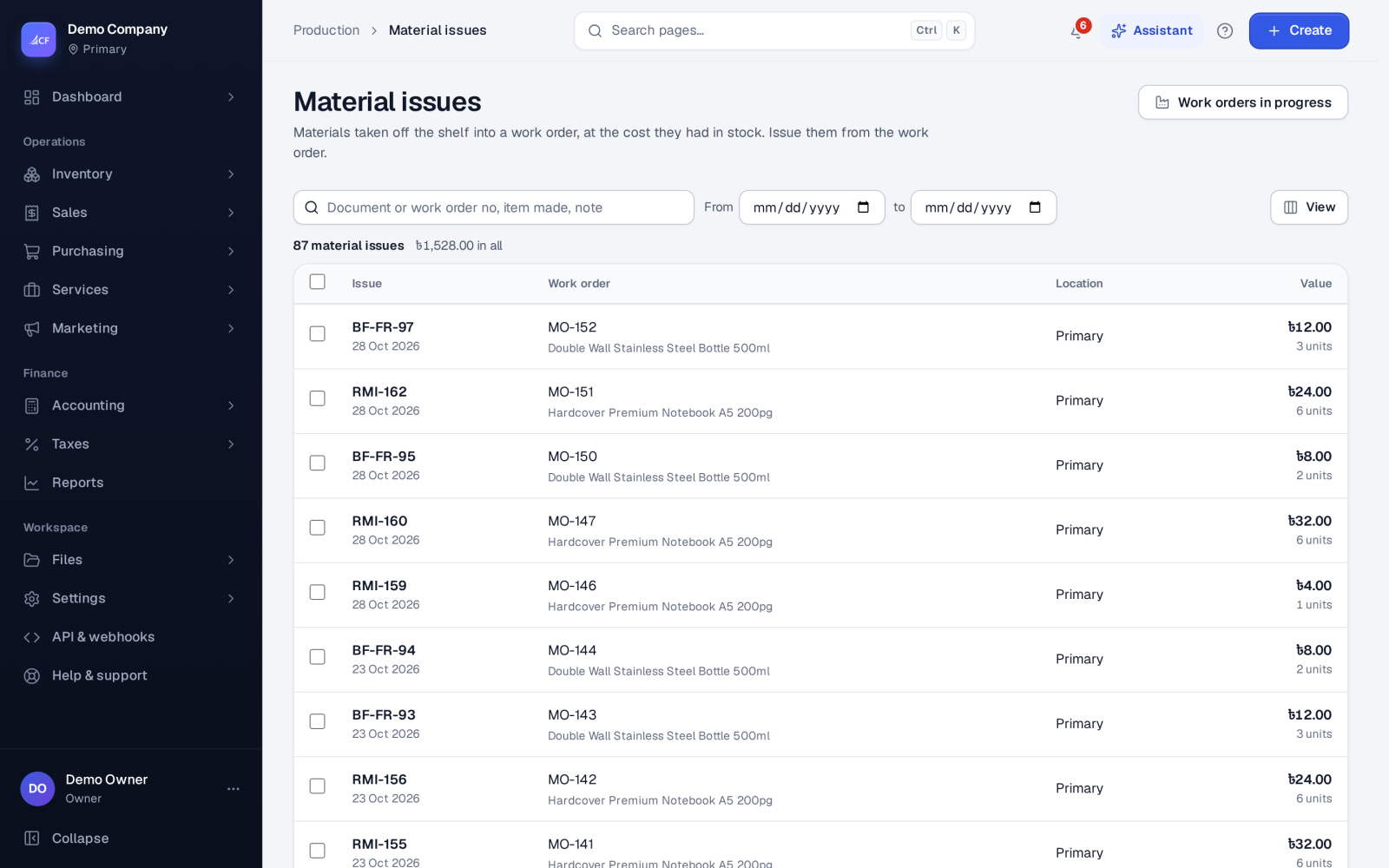
A material issue (numbered RMI-…) takes the materials a work order needs out of stock and puts their cost into work in progress. Food and beverage businesses see it as Ingredient issues.
Issues are always made against a work order, from the work order's own location, for the materials on that work order. Instead of issuing, a work order can backflush: its materials are taken out automatically when the finished goods are received.
Who it is for
- Storekeepers handing materials to production
- Production supervisors who need the right lots on the line
- Food makers who must trace which ingredient lots went into a batch
- Bookkeepers following work in progress
Before you start#
- The work order must exist and must not be closed.
- People need the add right on material issues.
- For lot- or serial-tracked materials, the lots and serials must be in stock at the work order's location.
Step by step#
- Open the work order, or Production › Material issues › Work orders in progress.
- Choose Issue materials…. The window shows each material and how much is left of what was planned.
- Enter the quantity issued for each material.
- For tracked materials, choose the lots (with their expiry shown) or the serial numbers.
- If you apply labour, power or overhead here, choose Add a cost and enter the name, quantity and rate.
- Save the issue.
Rules#
- Only the work order's own materials can be issued. To use something else, add it to the work order first.
- You may issue more than planned; the extra shows in the work order's variance.
- Lots that are short, expired or not released by quality control are refused.
- Stock follows your stock below zero policy — under the default, an issue that would take a material below zero is refused with the item, location, on hand and needed quantity.
- By default a business issues once per work order; the message says so if you try a second issue.
- An issue is final. It cannot be edited or deleted — correct it with another issue or a stock adjustment.
Backflush instead of issuing#
Tick Take the materials out when the goods are received (backflush) on the work order. Each finished-goods receipt then issues the materials automatically in proportion to the quantity received, as its own issue document. It follows the same lot, quality and stock rules.
Valuation#
Materials are issued at their average cost at the location, or from the oldest cost layers if your business values stock by FIFO.
How it posts to the books#
- Debit Work in Progress — the materials plus any cost lines.
- Credit Inventory — the materials.
- Credit Production Costs Applied — the cost lines.
A backflush issue posts the same way.
Limits and what is not there yet#
- There is no "return to stock" for unused materials; bring them back with a stock-in adjustment.
- Issues come from the work order's location only; transfer materials there first if they are elsewhere.
Questions#
The issue was refused for an expired lot. What now?
Choose another lot that is in date, or write off the expired lot from Inventory › Stock counts › Write off expired stock.
Do I need to issue materials if the work order backflushes?
No. The receipt takes them out. You still need the stock at the location when the goods are received.
How do I see which lots went into a batch?
Use Production › Lot genealogy and search the finished lot or the work order (see Batches, lots and quality control).