
BigCommerce
Connect a BigCommerce store in four guided steps: the exact API-account scopes, the API path and token, webhooks, and a test order that proves it works.
What it is
The BigCommerce connection runs your BigCommerce store from Cash Flow Inventory. Orders placed on the store arrive as sales orders within seconds, with the customer and the payment state. Products, categories and customers can be brought in once and stay linked to the store's own ids. Your stock is the one truth: every stock change here is sent to BigCommerce as available stock, and a check every 5 minutes sends anything else that moved.
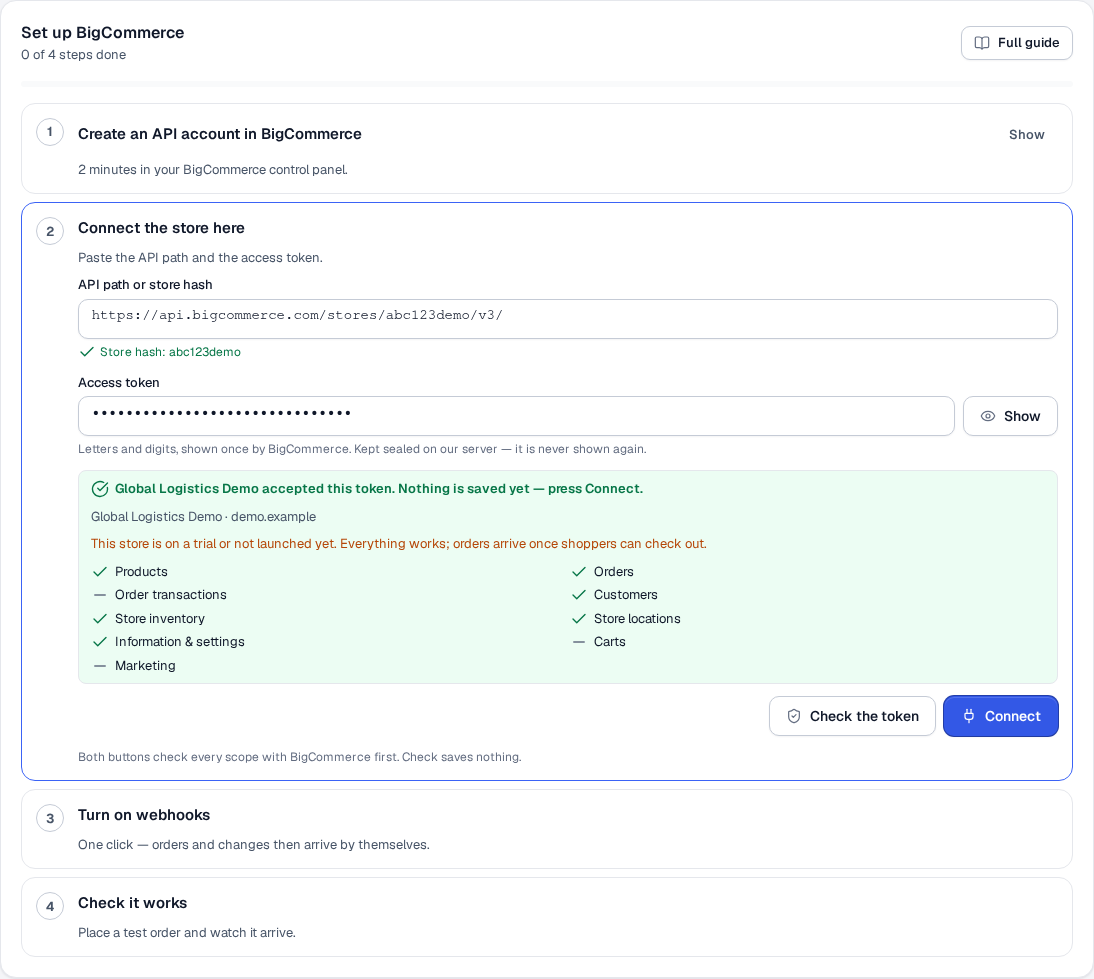
The Stores tab of Integrations › BigCommerce is a guided setup. Four steps follow the real state of your store — not connected, connected, webhooks on, first order received — and a card per store shows its health once it is connected.
Who it is for
- Shops that sell on BigCommerce and in person, or through more than one channel, from the same stock.
- Online sellers who want orders, picking, delivery and invoicing in one back office.
- Businesses with more than one BigCommerce store.
Before you start#
- A BigCommerce login that may create API accounts (the store owner, or a user with that permission).
- Where you sell set to Online or In person and online in Settings › General.
- The integrations right in Cash Flow Inventory.
Step by step#
- Create an API account in BigCommerce. In the BigCommerce control panel open Settings › Store-level API accounts › Create API account, choose V2/V3 API token and name it, for example *Cash Flow Inventory*. Set these scopes and leave everything else at None:
| Scope | Choose | Why | |---|---|---| | Products | Modify | Products, variants, categories, photos and the stock figure | | Orders | Modify | Brings orders in; sends status and shipments with tracking back | | Order transactions | Read-only | Shows whether an order is really paid | | Customers | Read-only | The buyer of each order becomes your customer | | Store inventory | Modify | Sends your available stock to the store | | Store locations | Read-only | Matches your locations with the store's | | Information & settings | Read-only | The store name and status | | Carts | Read-only | Cart webhooks | | Marketing | Modify — only if you send promotions to the store | Promotions and coupon codes |
Do not tick Create Payments, Stored Payment Instruments, Customers Login or Checkouts: this app never needs them, and a token with them can take payments or sign in as your customers. Save. BigCommerce shows the access token and the API path once — keep that window open.
- Connect the store here. On Integrations › BigCommerce › Stores, press I have the token. Paste the API path exactly as BigCommerce shows it (
https://api.bigcommerce.com/stores/abc123/v3/): the page takes the store hash out and shows ✓ Store hash as you type. The bare hash, or yourstore-….mybigcommerce.comaddress, works too. Paste the access token. Check the token asks BigCommerce about every scope and saves nothing; Connect does the same and saves. A checklist shows each scope as working, missing or not checked (Order transactions, Carts and Marketing can't be read without data).
- Turn on webhooks. Press Register webhooks. Sixteen webhooks are registered: orders (new, changed, status, archived), products and stock, customers, carts, and the store itself. Each delivery carries its own secret, checked before anything is accepted. The Webhooks tab lists every topic with BigCommerce's own state: Active or Not active.
- Check it works. Place a test order on your store and press Watch for my test order. The page watches for up to 15 minutes and tells you the moment it arrives; open it in Sales › Orders (numbered
BC-<order number>). Then change a product's stock here: within 5 minutes BigCommerce shows the same available quantity.
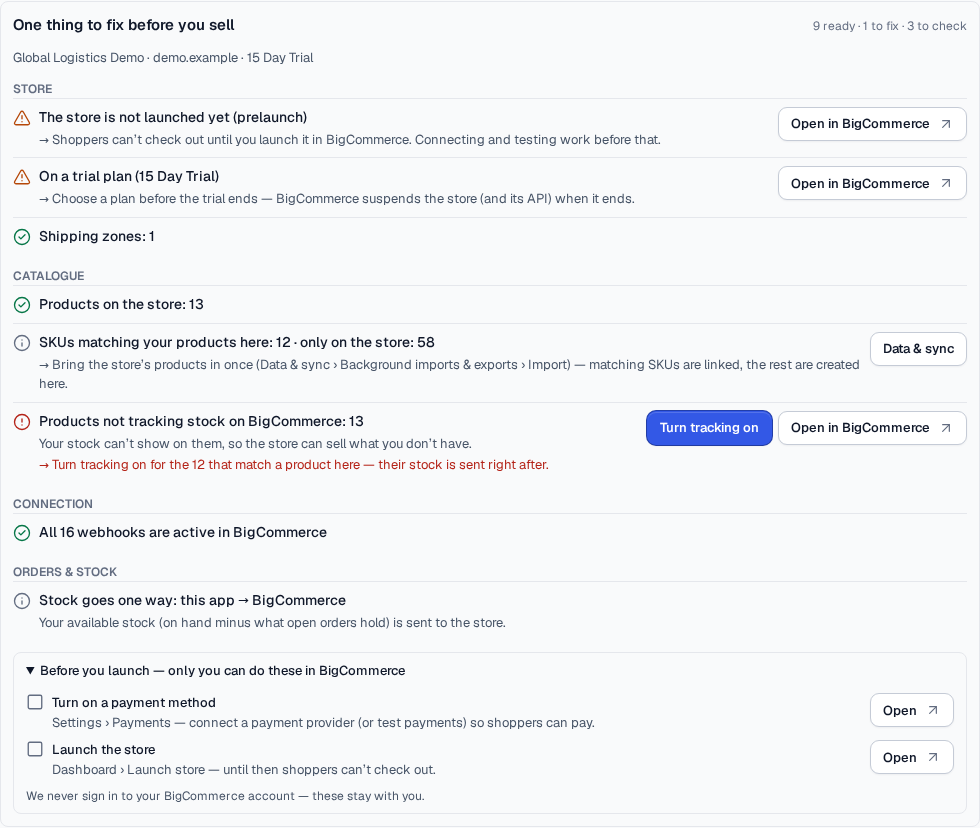
- Check my store. On step 4 (or a store's card) press Check my store: a read-only checklist of the store's set-up — launched or pre-launch, trial plan, currency, shipping and tax zones, products (stock tracking, SKU, price, weight, photo, category, variants without SKU), SKUs that match your products here, webhooks active in BigCommerce, deliveries received and orders arrived. Each line says ready or what to fix, with a link to the right BigCommerce page. Two fixes can be done from here, each after you confirm: Register again (webhooks) and Turn tracking on for store products that match yours by SKU (their stock is sent right after). Before you launch lists what only you can do in BigCommerce: a payment method, shipping, tax, your domain, legal pages, a plan before the trial ends, and Launch store.
- Bring in what is already on the store (once): Integrations › Sync › Background imports & exports — categories, then products, customers and older orders.
Never send the token by chat or e-mail. It is stored sealed (encrypted), never shown again, and neither our team nor the assistant will ask for it.
Store health#
Each connected store has a card on the Stores tab: Healthy, Needs a look, Waiting (nothing has arrived yet) or Paused, with the webhooks registered (of 16), the last webhook received, the orders that arrived from BigCommerce (the last one linked), products linked to the store and any that need a look, webhooks waiting, and open problems. For the products that are behind, see Store sync health.
How stock and orders work#
- The store shows your available quantity: on hand minus what open orders hold, never below 0.
- A waiting order holds its lines here (BigCommerce took the stock when it was placed). Paid, awaiting fulfilment, shipment or pickup, shipped or completed on the store → approved here; a shipped or completed one still goes through pick, delivery and invoice here.
- Cancelled, declined, refunded or archived on the store → cancelled here: stock released, a paid advance reversed. If you already picked, delivered or invoiced it, it is kept and listed for a person.
- What reaches BigCommerce: approved → Awaiting Fulfillment; picked → Awaiting Shipment; delivered → a shipment with the tracking number; invoiced → Completed; cancelled → Cancelled.
- A BigCommerce digital product arrives as Non-Inventory; a physical one as a stocked product.
- Your stock is the only truth. A stock change made in BigCommerce's admin is never copied here — the next stock push sets the store back to your available quantity. Turn stock tracking on for your products in BigCommerce (Check my store offers it for the products whose SKU matches one here), or the store keeps selling without a limit.
- Products arrive with all their variants (each with the store's SKU) and their photo, kept in your business's own files.
A store in another currency#
If your BigCommerce store sells in another currency than your business (for example the store in SGD, your books in BDT), nothing is copied at the store's figures:
- Turn on multi-currency in Settings › Currencies, add the store's currency and its rate (1 SGD = ? BDT).
- Orders are then converted at that rate: the order keeps the store's amounts as its foreign-currency figures, and everything in your books — revenue, the paid advance, the customer's balance — is in your currency. Later amounts from the store (paid, refunded) use the order's own rate.
- Product prices coming in are converted to your currency; prices you send to the store are converted to the store's currency.
- Without a rate, BigCommerce orders and products wait — the import says why and the store's events are retried — so nothing is booked at a wrong amount. Check my store shows it as a fix.
Troubleshooting#
- Orders aren't arriving. Check the store is not paused and every webhook is Active on the Webhooks tab. BigCommerce switches a webhook off after failed deliveries and e-mails the store owner: press Register again. An order that is already cancelled, declined or refunded when it arrives is not imported; an unpaid or incomplete one arrives as a waiting order.
- "BigCommerce refused this access token". The API account was deleted or the token was copied wrong. Create a new API account and connect again with the same store — the new token replaces the old one.
- "This token can't use Orders" (or another scope). BigCommerce can't add a scope to an existing API account. Create a new one with the scopes above and connect again.
- "BigCommerce doesn't know this store hash". Paste the API path again exactly as BigCommerce shows it.
- Background import finished with 0 products. Fixed on 2026-11-26 (BigCommerce refused the request and the import read that as "no products"). Run it again: products now arrive with all their variants and photos. Then run Products Remapper (Data & sync) to link them to the store.
- "The store sells in SGD and this business keeps its books in BDT". Add the store's currency and its rate in Settings › Currencies (see above), then run the import again — waiting orders come in on their next retry.
- Trial or pre-launch store. Connecting works the same; orders arrive once shoppers can check out. If BigCommerce suspends the store, syncing stops until it is active again.
Questions#
Can I connect more than one store?
Yes — Connect another store on step 2. A store belongs to one business; each keeps its own webhooks and health card.
What is the difference between Pause and Remove?
Pause stops syncing and keeps the token; Resume starts again. Remove deletes the token and the webhook records here; then delete the API account in BigCommerce too.
What syncs which way?
From BigCommerce: orders, cancellations and refunds, and new or changed products and customers (a customer added or changed on the store updates its contact here). To BigCommerce: your available stock, order status and shipments with tracking, and the products you export. Stock never comes back from BigCommerce — your stock is the truth.
Can the assistant connect my store?
No. The token is made in BigCommerce and pasted by you. The assistant can read each store's setup progress and health, explain an order's sync state and start an import.